If your eyes often feel dry, tired, or unfocused after staring at a screen, your display settings may be part of the problem. Many people assume eye discomfort only comes from too much screen time. In reality, poor brightness, color temperature, contrast, and nonstop viewing can all make digital eye strain worse.
In this guide, you’ll learn the best monitor settings to reduce eye strain, how to find the right screen settings to reduce eye strain, what the best monitor settings for eyes look like in daily use, and whether software like CareUEyes can help you manage these settings more easily throughout the day.
Why Screen Settings Matter for Eye Comfort
Eye strain is not usually caused by one thing alone. It often comes from a combination of:
- screen brightness that is too high for the room
- cool color temperature with more blue-heavy light
- strong glare from white backgrounds
- long periods of focusing without enough blinking or breaks
That is why adjusting your display settings properly can make everyday computer use much more comfortable.
Best Monitor Settings for Eyes
If you want the best monitor settings for eyes, start with these key adjustments.
1. Set Brightness to Match the Room
Brightness should feel balanced with your surroundings. If the screen looks like a light source in a dark room, it is probably too bright. If it feels dull and hard to read, it may be too dim.
A good rule is:
- use moderate brightness during the day
- lower brightness in the evening
- avoid extreme settings in either direction
The goal is to make the screen blend more naturally with ambient light instead of standing out too harshly.
2. Use a Warmer Color Temperature
Color temperature has a major effect on visual comfort. Cooler screens tend to feel harsher, especially at night. Warmer tones can make the screen easier on the eyes.
A practical approach is:
- daytime: slightly warm for more comfort while keeping colors natural
- evening: noticeably warmer to reduce blue-heavy light and support more relaxed viewing
- a setting around 5000K during the day and 3700K in the evening can be a practical starting point
This can help reduce screen harshness while keeping the display comfortable for daily use.
3. Keep Contrast Comfortable
Very high contrast can make text and bright areas feel intense, especially on white backgrounds. Try to keep the display clear but not overly harsh.
For long reading or office work, many users prefer:
- comfortable contrast instead of maximum contrast
- reduced glare from white pages
- a softer overall presentation for text-heavy tasks
4. Adjust Text Size and Viewing Distance
Even the best monitor settings for eyes will not help much if the text is too small or the screen is too close.
For better comfort:
- keep the monitor about 50 to 70 cm away
- make text large enough to read without squinting
- position the screen so you can look slightly downward, not upward
Small ergonomic changes often make a bigger difference than people expect.
Best Screen Settings for Eyes During the Day
During daytime use, ideal screen settings for eyes usually include:
- medium brightness
- slightly warm color temperature
- readable font scaling
- comfortable contrast
- regular short breaks
This combination helps reduce visual stress while keeping the screen natural enough for work, browsing, and general use.
Best Screen Settings for Eyes at Night
At night, your eyes are usually more sensitive to strong light. This is why evening screen settings should be more protective.
Recommended nighttime settings:
- lower brightness than daytime
- warmer colors
- reduced harshness on white backgrounds
- fewer hours of continuous viewing without breaks
These changes can make nighttime computer use feel much more comfortable and less tiring.
Is Night Mode Enough?
Many users turn on Windows Night Light or a basic blue light filter and assume that solves the problem. It helps, but it is often not enough.
Why?
Because eye strain is usually caused by several factors at once:
- blue-heavy light
- excessive brightness
- long uninterrupted screen time
Night mode mainly changes color temperature. For better eye comfort, you also need proper brightness control and healthier screen habits.
The Real Solution: Combine Brightness, Color Temperature, and Breaks
The most effective approach is not a single setting. It is a system.
To reduce digital eye strain, you should combine:
- proper brightness
- warmer color temperature when needed
- regular breaks
- display modes suited to different tasks
When these factors work together, screen use becomes more comfortable and sustainable throughout the day.
How CareUEyes Helps Optimize Monitor Settings Automatically
For many users, the hardest part is not knowing what settings to use, but remembering to adjust them consistently.
Manual adjustment works in theory, but it is not easy to maintain every day.
Most people do not keep changing their monitor settings based on time, lighting, or activity.
That is where CareUEyes comes in. CareUEyes is a Windows eye protection software designed to help reduce screen fatigue by making monitor adjustment easier and more consistent.
Instead of relying only on manual changes, CareUEyes helps you create a more comfortable viewing experience with automatic brightness and color temperature adjustment, break reminders, and different display modes for different activities.
Automatic Brightness and Color Temperature Adjustment
CareUEyes can automatically adjust screen appearance based on different times of day.
For example:
- during the day: slightly warmer settings can improve comfort while keeping the display natural
- in the evening: warmer and dimmer settings can reduce harshness and support more relaxed viewing
Because these changes can happen gradually, the screen feels more natural instead of changing too abruptly.
Built-In Break Reminders
Good screen settings to reduce eye strain are only part of the solution. Regular breaks matter too.
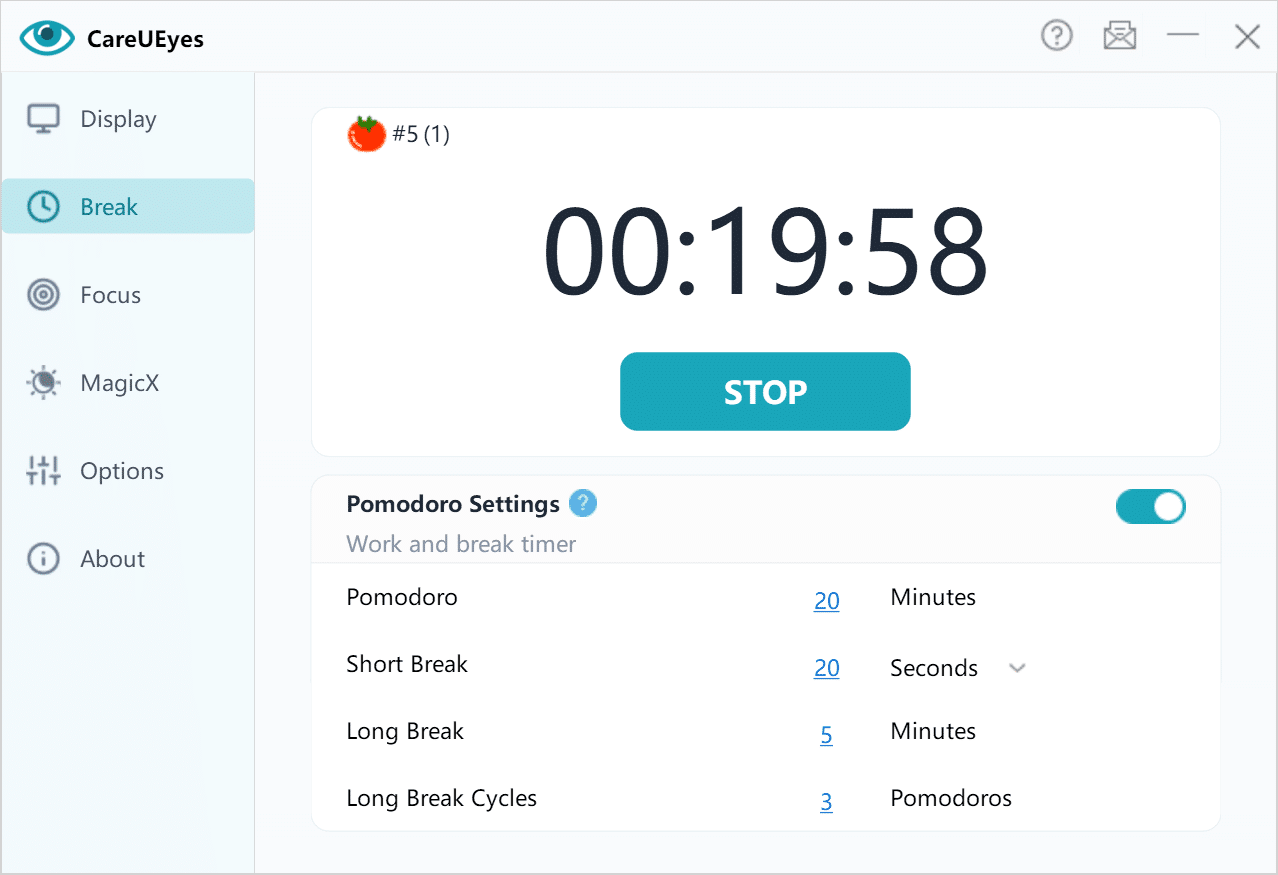
CareUEyes includes break features that go beyond simple pop-up reminders. It uses an intelligent break system with alternating short and long breaks, so eye rest feels more structured throughout the day.
Short breaks help relieve eye fatigue quickly, while longer breaks provide more complete recovery after several shorter pauses. During break time, the screen can also be locked to encourage real rest instead of letting you stay at the computer.
For users who want more control, breaks can be set as skippable or enforced, depending on how strict they want the reminder system to be.
This can be especially useful if you:
- work long hours at a computer
- often lose track of time
- want help building healthier screen habits
- need stronger support for taking real breaks

Different Monitor Settings for Different Tasks
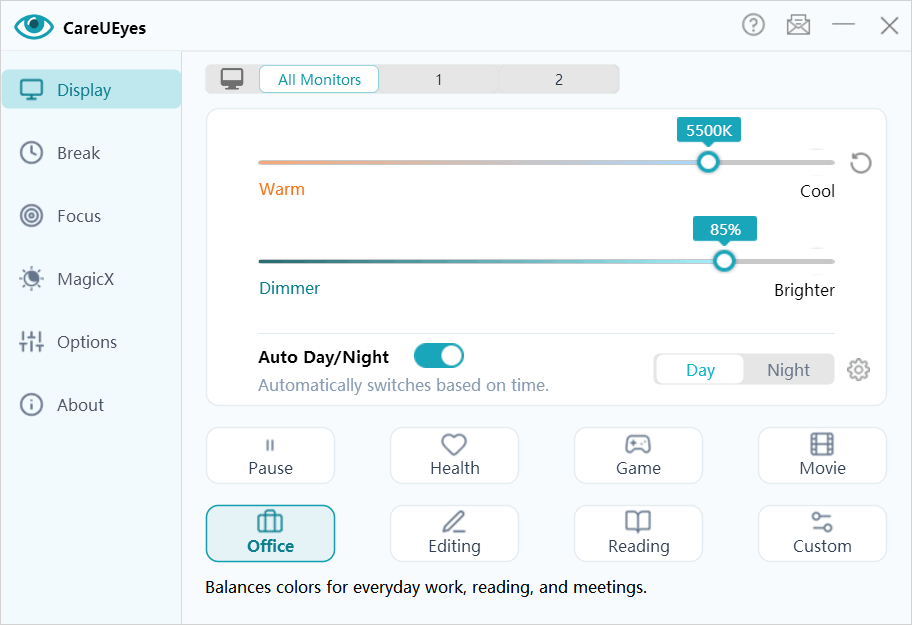
One reason CareUEyes is more useful than a simple night mode is that it supports different Monitor Settings for different situations.
That means you can choose settings based on what you are doing:
- Office mode for document work with more natural colors
- Reading mode for a softer, less stimulating display
- Game or Movie mode for a better balance of comfort and visual quality
- Health mode when you want stronger eye protection
- Custom mode if you want to create your own preferred setup
This flexibility makes it easier to get the best monitor settings for eyes without manually changing everything yourself.
Automatic Monitor Settings for Each App
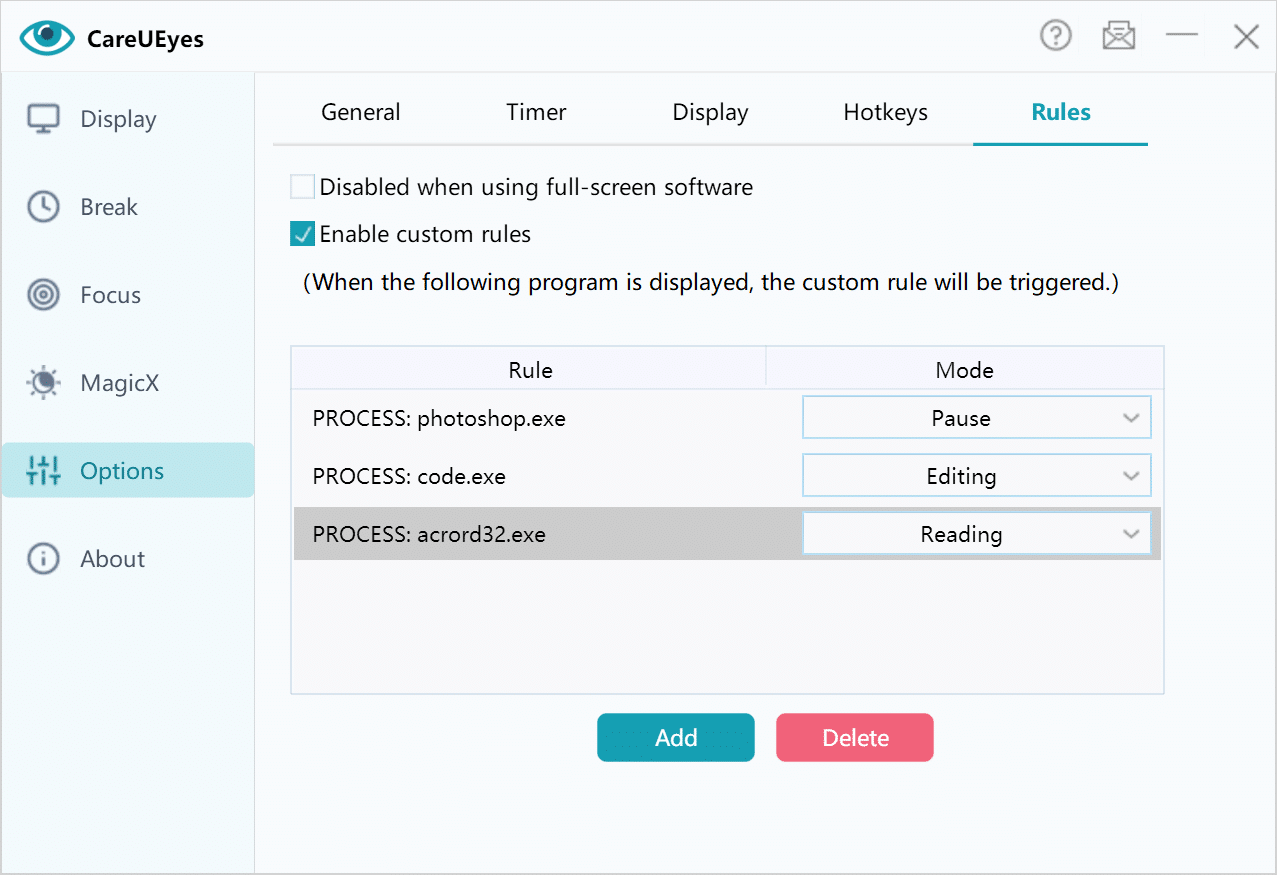
Another practical advantage is that CareUEyes can automatically switch settings depending on the application you are using.
So instead of changing brightness and color temperature every time, you can let the software handle it in the background.
That makes CareUEyes a convenient choice for users who want better screen settings to reduce eye strain with less manual effort.
Recommended Monitor Settings for Different Scenarios
Here is a simple summary.
For office work
- moderate brightness
- slightly warm tone
- readable text size
- regular breaks
For reading
- lower glare
- softer display style
- warmer tone
- longer reading sessions broken by short rests
For gaming or movies
- keep visuals clear
- avoid excessive brightness
- use a lighter eye protection mode rather than an aggressive yellow tint
For evening PC use
- lower brightness
- warmer screen tone
- more frequent breaks
Best Monitor Settings for Eyes: Final Tips
If you want the best monitor settings for eyes, focus on more than just blue light. The right strategy includes brightness, color temperature, contrast, readable text, proper viewing distance, and regular breaks.
That is why many users searching for screen settings to reduce eye strain or the best monitor settings for eyes eventually realize that manual settings are only the first step. A more complete solution is to automate those adjustments and build healthier viewing habits.
CareUEyes makes that easier by combining:
- automatic brightness adjustment
- color temperature control
- break reminders
- multiple eye-care display modes
- app-based automatic switching
If you spend hours in front of a screen every day, CareUEyes can help turn ordinary monitor settings into a more comfortable, eye-friendly experience.