 CareUEyes
 Category
Uncategorized
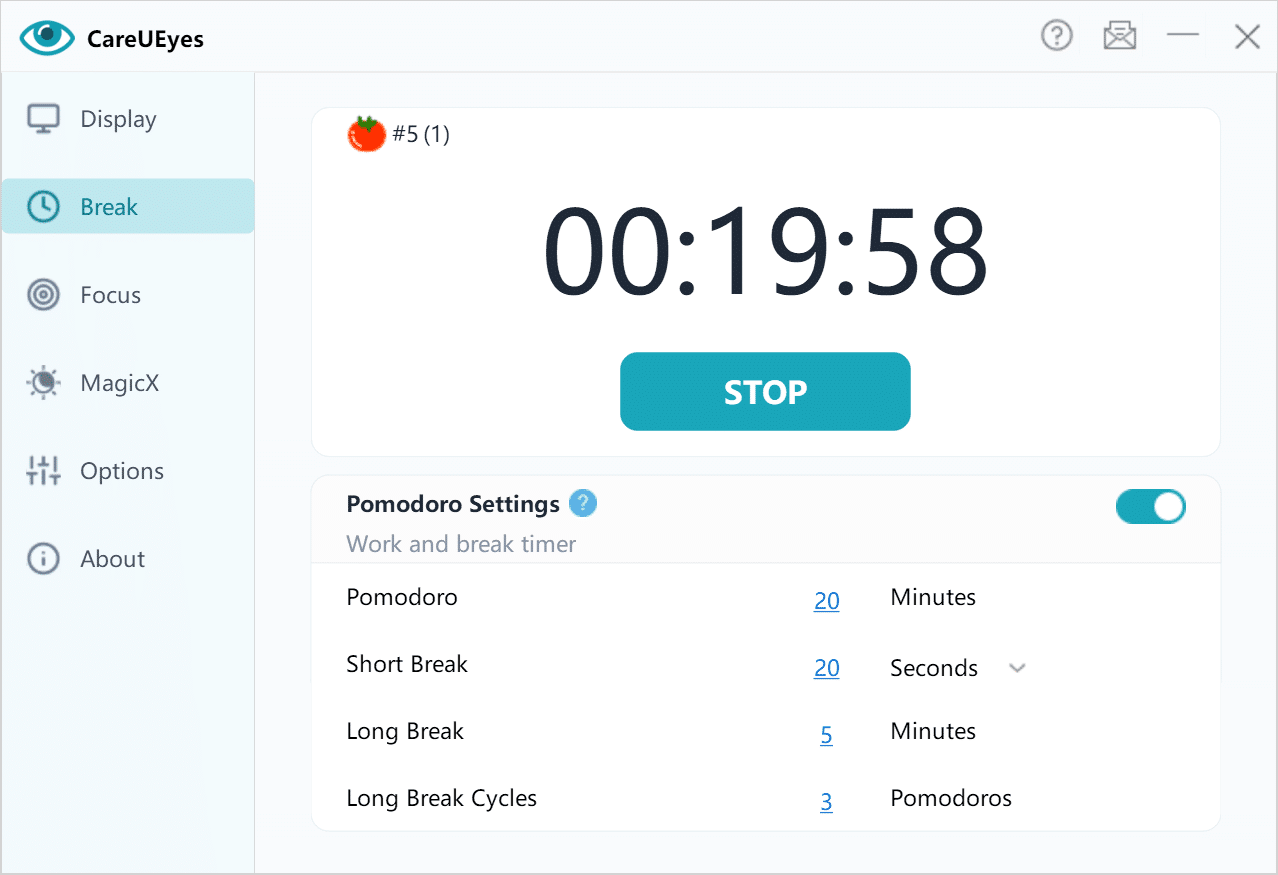 People who have to work with computers in their daily lives and that covers most of us have started to become aware of the…
 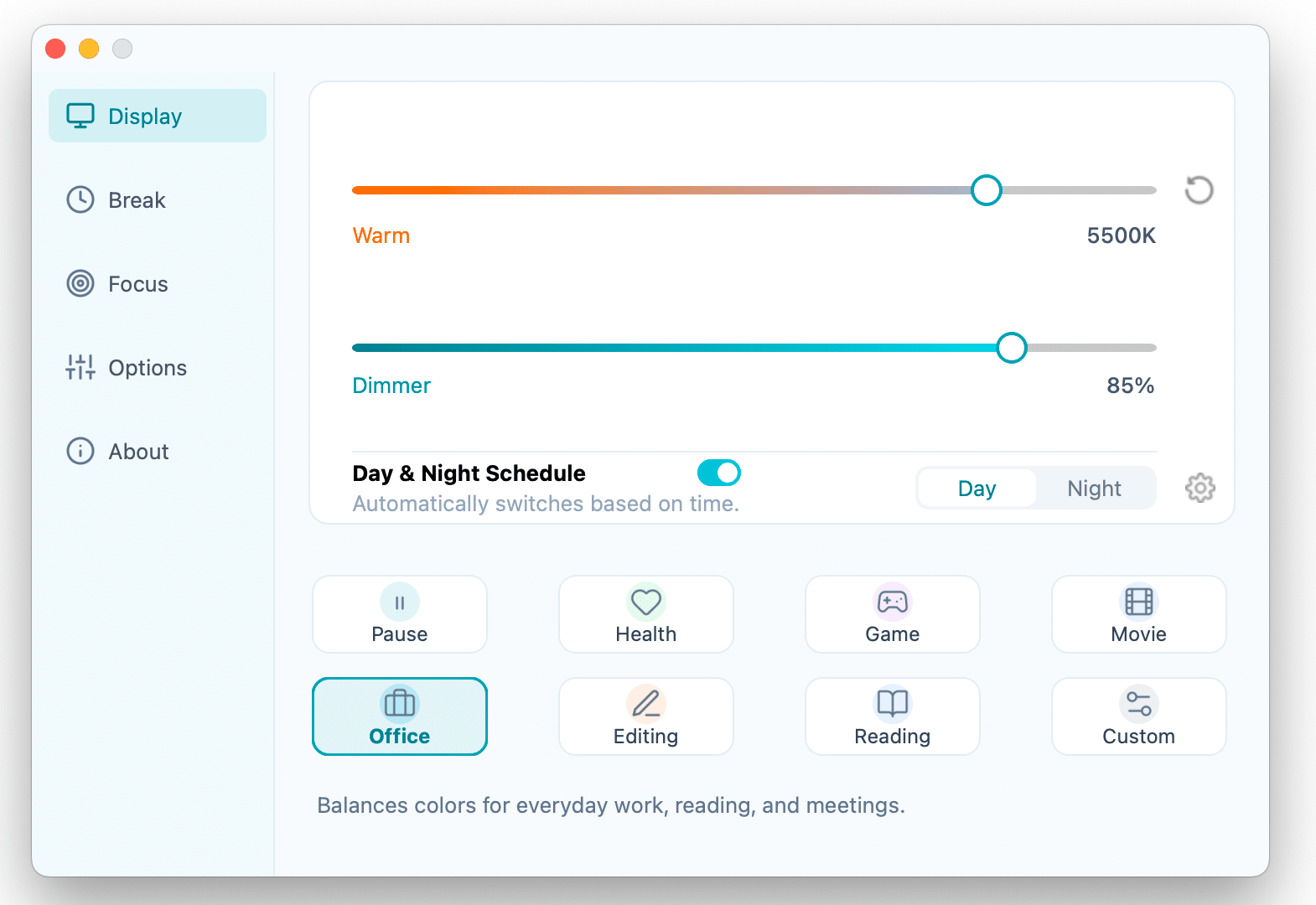 CareUEyes is now available for Mac. After years of helping Windows users reduce eye strain during long computer sessions, CareUEyes now brings its screen…
 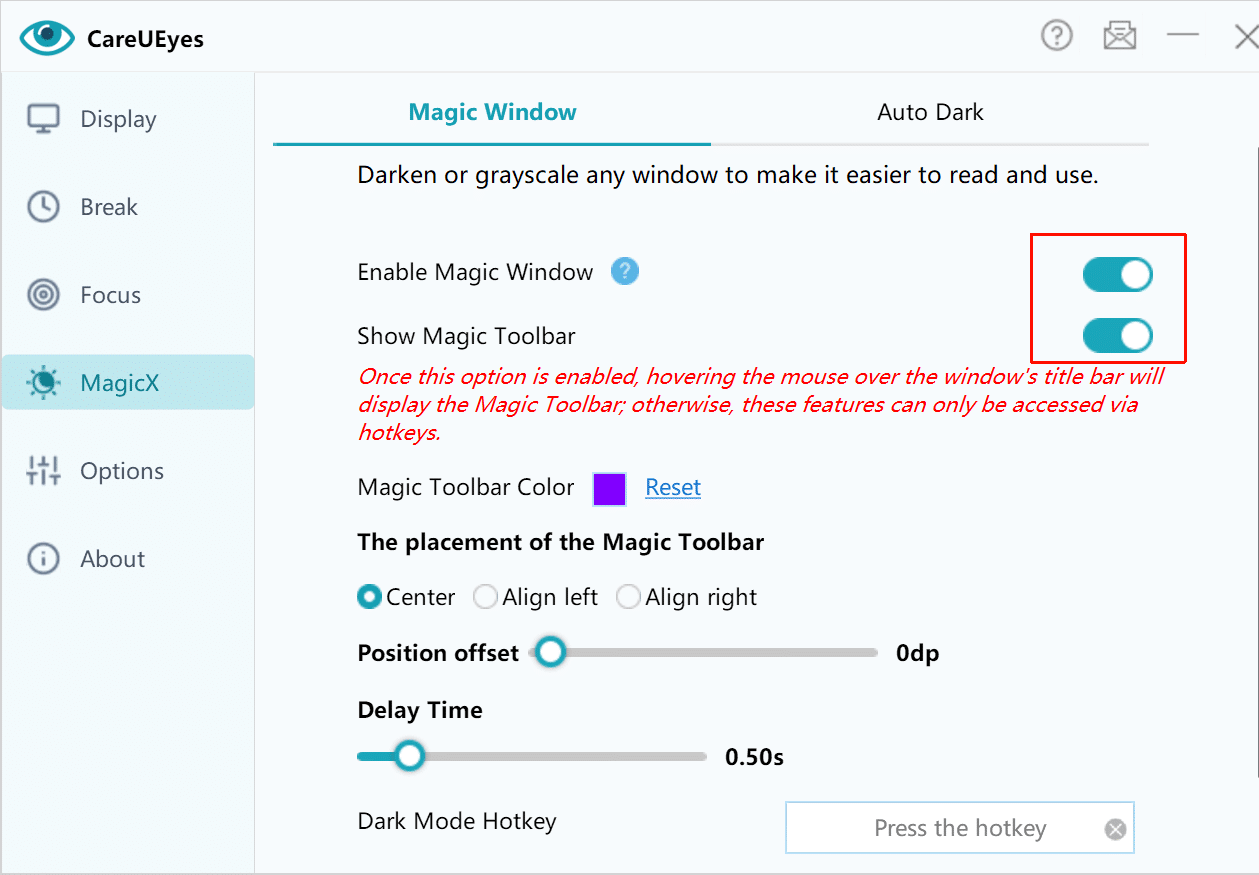 What is the MagicX feature of CareUEyes? MagicX is a new window magic feature in CareUEyes that allows you to darken or grayscale any…
 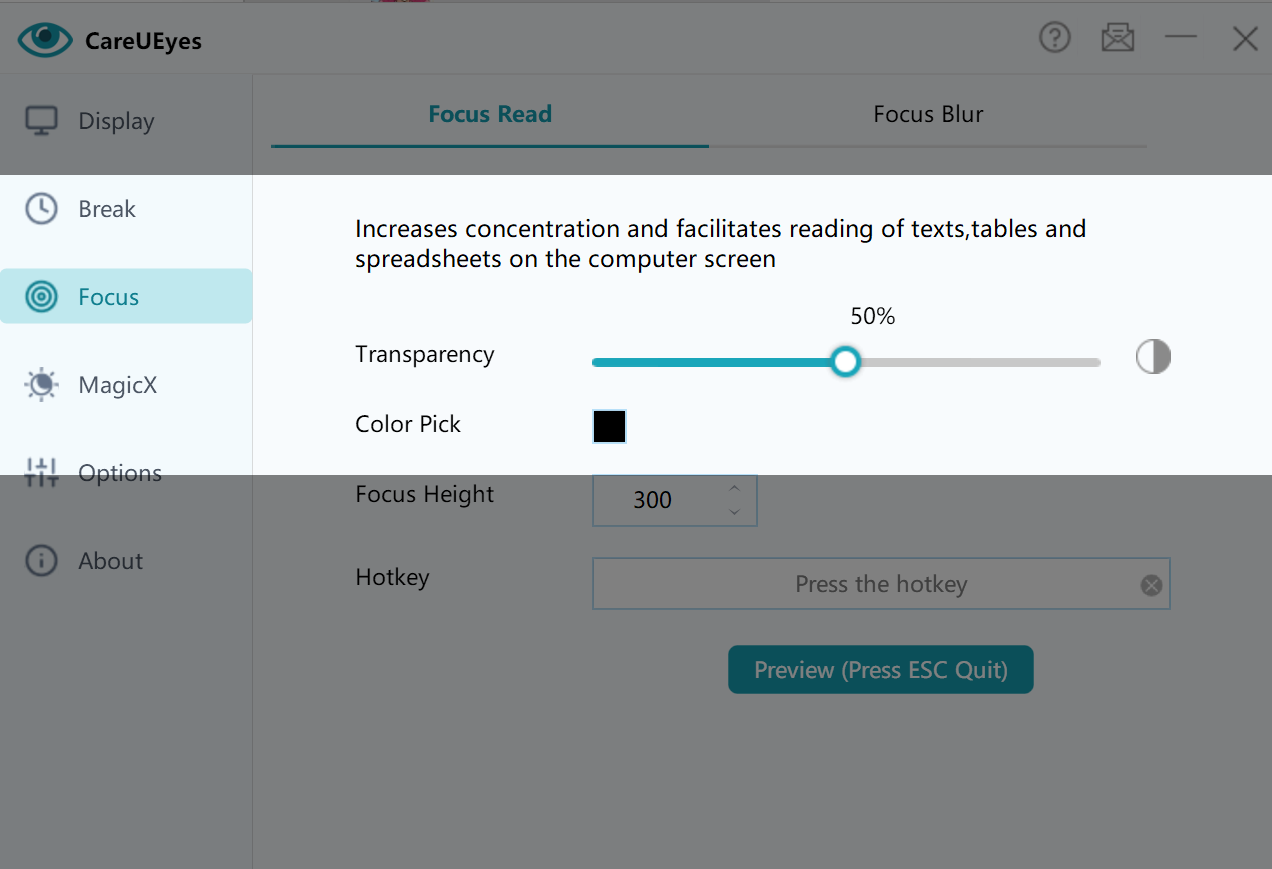 Now is the Internet age. Every day, there are instant messages, emails, and short messages that interfere with our work. When reading…
 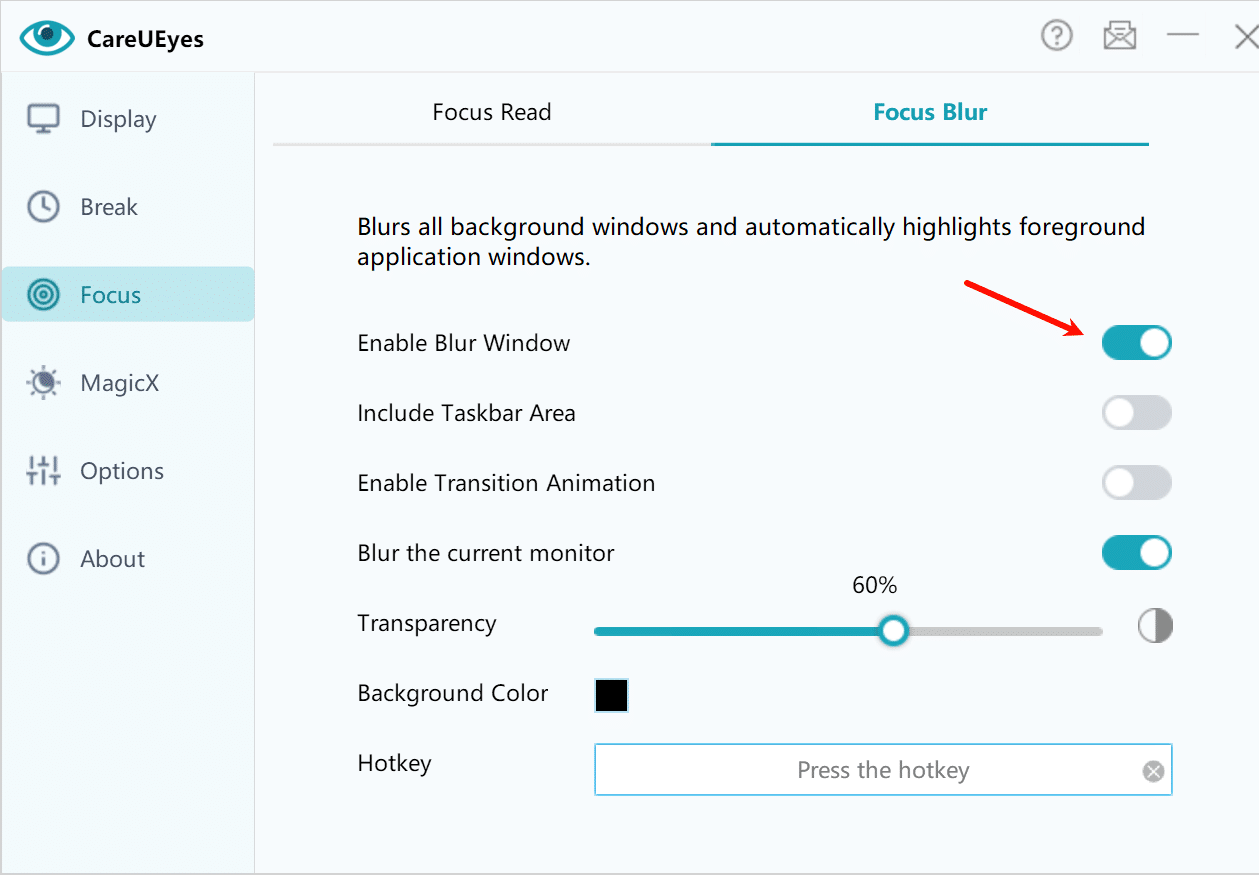 How to use the Focus Blur feature? The focus blur function of CareUEyes has the same features as hazeover, you can think of it…
  First, you need to purchase a license at https://care-eyes.com/buy.html. After successful purchase, you will see the license code on the payment completion page, at…
 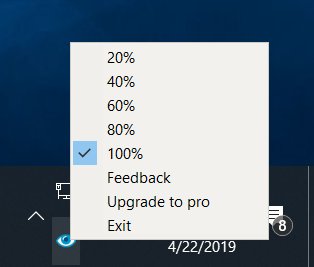 CareUEyes Lite On April 15, 2019, we released the freeware CareUEyes Lite. CareUEyes Lite has the features of brightness adjustment, which has four brightness…
  First, you need to purchase a license at https://care-eyes.com/buy.html. After successful purchase, you will see the license code on the payment completion page, at…
 Give your eyes a break with CareUEyes
Reduce eye strain with smart blue light filtering, ultra-low dimming, and timely rest reminders.
Download Now For Windows and macOS.