30 minute timer
30-Minute Timer: Set the alarm for 30 minutes from now with this convenient timer.
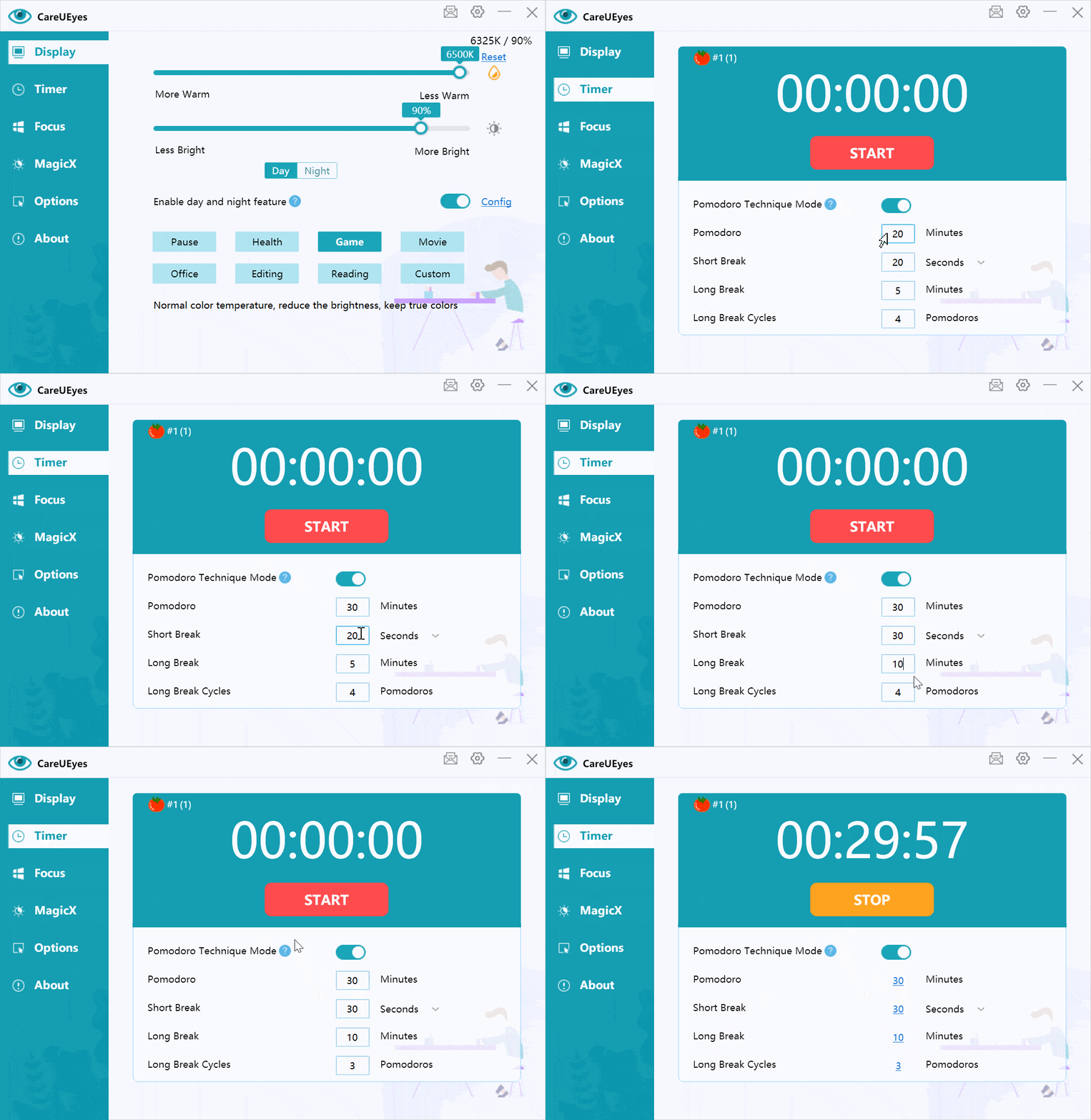

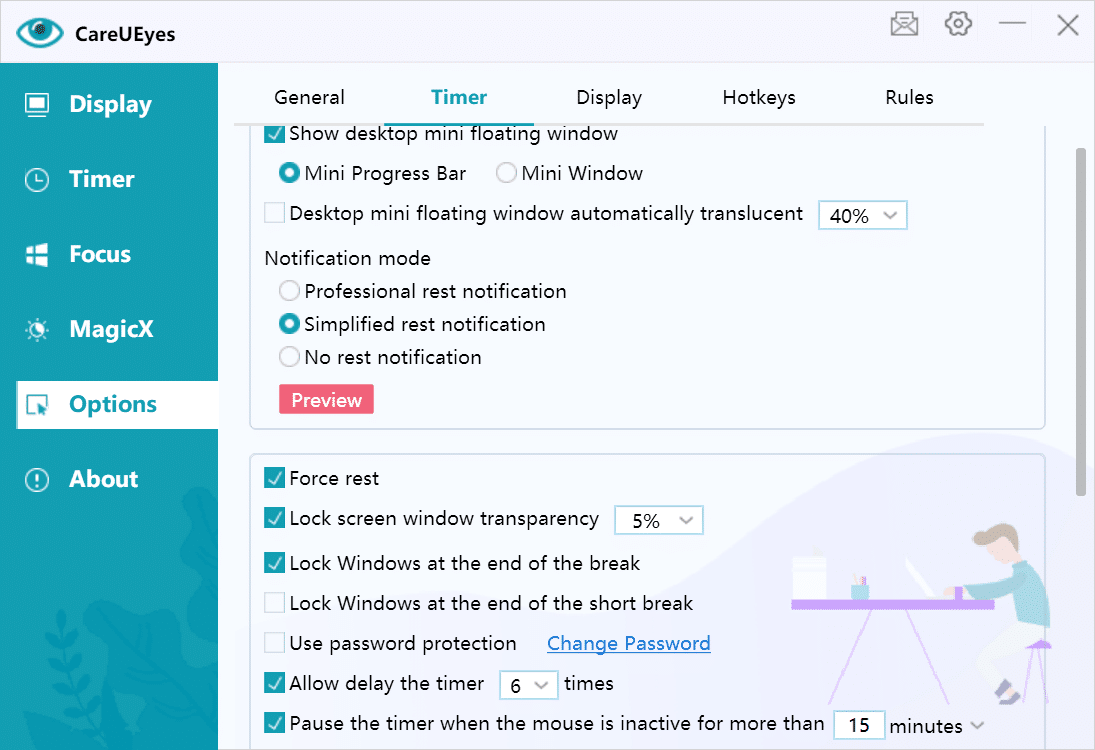
If you prefer not to alternate between short and long breaks, you can disable the Pomodoro Timer.

Break timers help reduce eye strain and fatigue by reminding you to take regular breaks during long periods of computer use. Continuous screen time without rest can lead to tired eyes, dryness, headaches, and reduced focus.
Using a break timer encourages healthier screen habits by prompting short and long breaks at the right intervals. Combined with features like blue light filters and screen brightness control, it can significantly improve comfort and productivity.
Explore the articles below to learn how to use break timers effectively and protect your eyes while working or studying on a computer.
30-Minute Timer: Set the alarm for 30 minutes from now with this convenient timer.
If you prefer not to alternate between short and long breaks, you can disable the Pomodoro Timer.
The Pomodoro Technique is created by Francesco Cirillo for a more productive way to work and study. The technique uses a timer to break down work into intervals, traditionally 25 minutes in length, separated by short breaks. Each interval is known as a Pomodoro, from the Italian word for ‘tomato’, after the tomato-shaped kitchen timer that Cirillo used as a university student. – Wikipedia
Step1:
Download CareUEyes and follow the demo to turn on the timer feature.
Enable Pomodoro Technique Timer
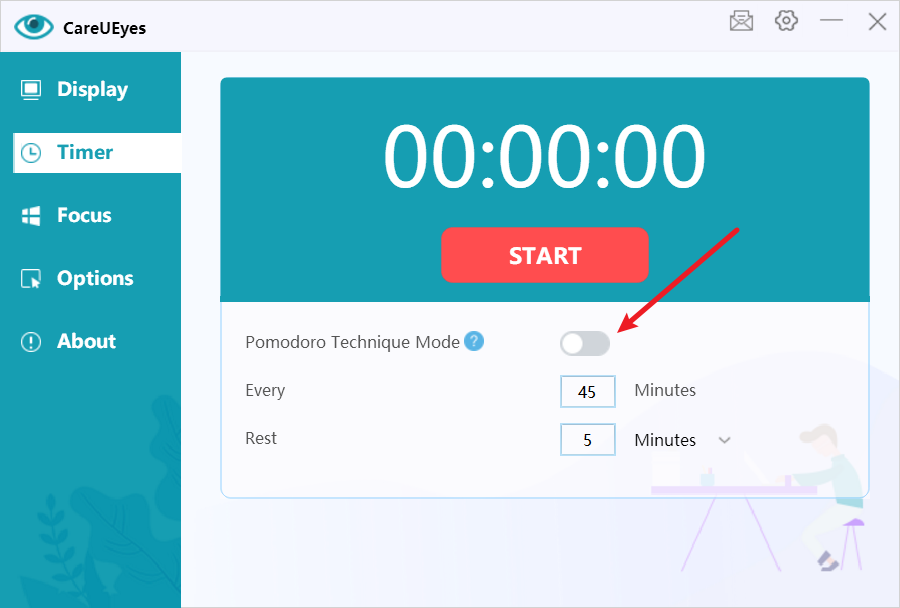
Step2:
Start Timer
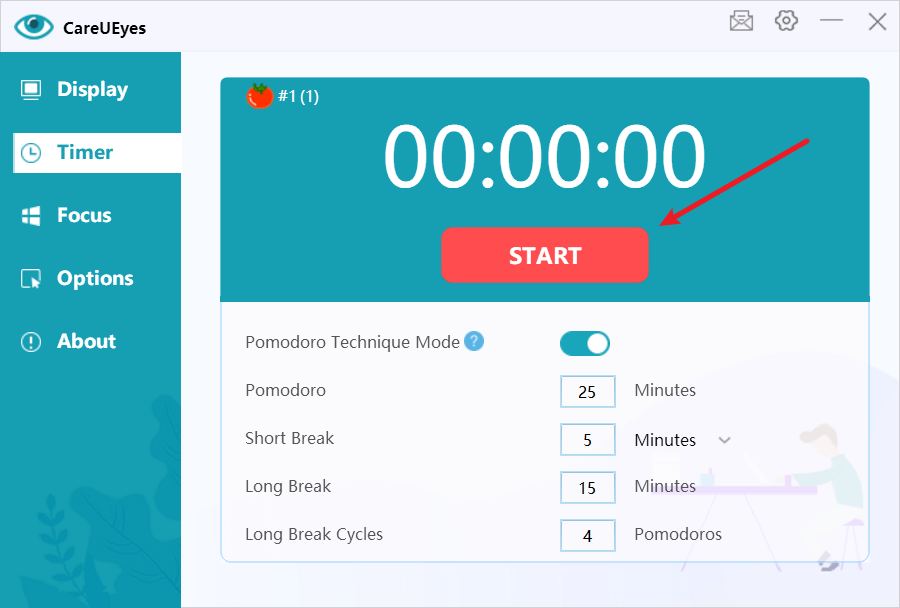
What does the number in the top left corner mean?
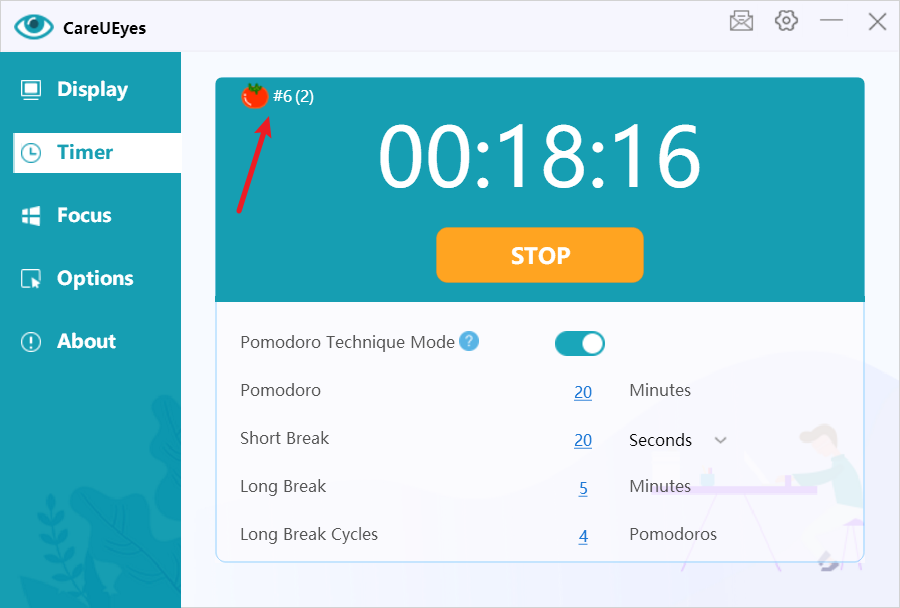
Example #6 (2) The number 6 indicates that a total of 6 Pomodoro clocks have been completed.
The number 2 in parentheses indicates that it is currently the second Pomodoro clock.
If you set the long break cycles for 4 Pomodoro clocks,
Then when the 4 Pomodoro clocks are completed, the numbers in parentheses will be recalculated starting from 1
Note: If you want to break the routine and take a short break in seconds, you can switch the time unit.
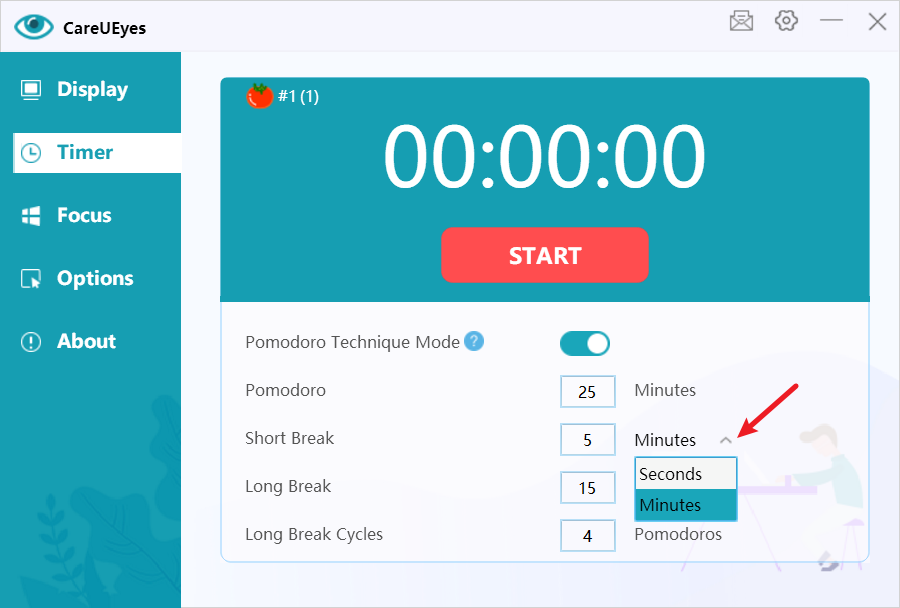
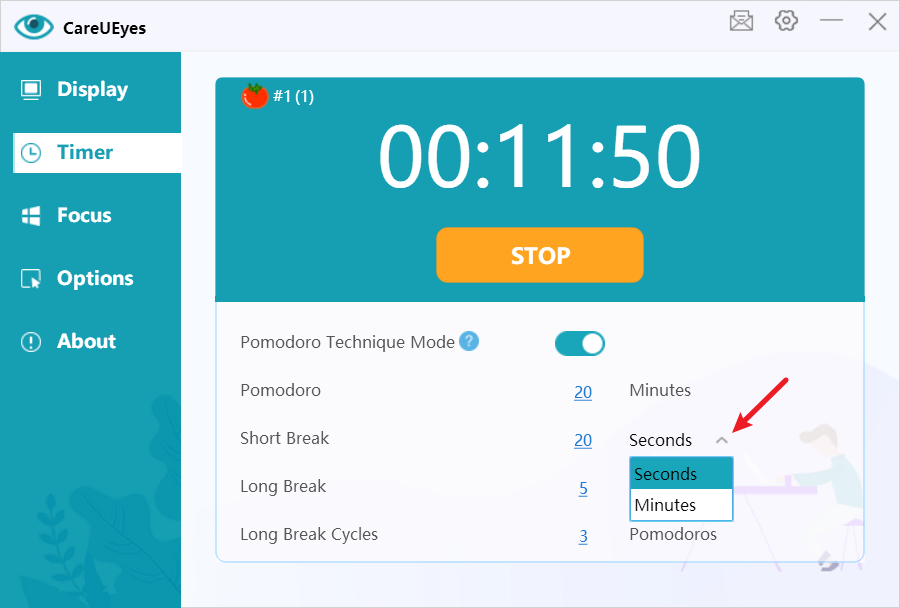
Tips: How to Use the Pomodoro Technique to Make the 20-20-20 Rule?
1. Turn on the Pomodoro Technique mode
2. Set the rest interval to 20 minutes
3. Set the short break time to 20 seconds (adjust the unit to seconds)
4. Set the long break time to 5 minutes
5. Set the long break cycles to 3 pomodoros (20*3=60 minutes)
Related Links: Prevent Eye Strain with the 20-20-20 Rule