 CareUEyes
 Does your screen feel more uncomfortable at low brightness?
Some monitors use PWM dimming at low brightness levels, which may cause flicker that sensitive users can experience as eye strain, headaches, or visual fatigue.
If your display uses PWM, a simple solution is to keep hardware brightness at 100% and use CareUEyes to dim the screen through software.
What Is PWM Flicker?
PWM stands for Pulse Width Modulation. It is a brightness control method used by some LED-backlit LCD screens, OLED screens, laptops, TVs, and mobile devices.
Instead of reducing brightness by keeping the light steadily dimmer, PWM rapidly turns the backlight or pixels on and off. When the screen is “on” for a shorter part of each cycle, the display appears darker.
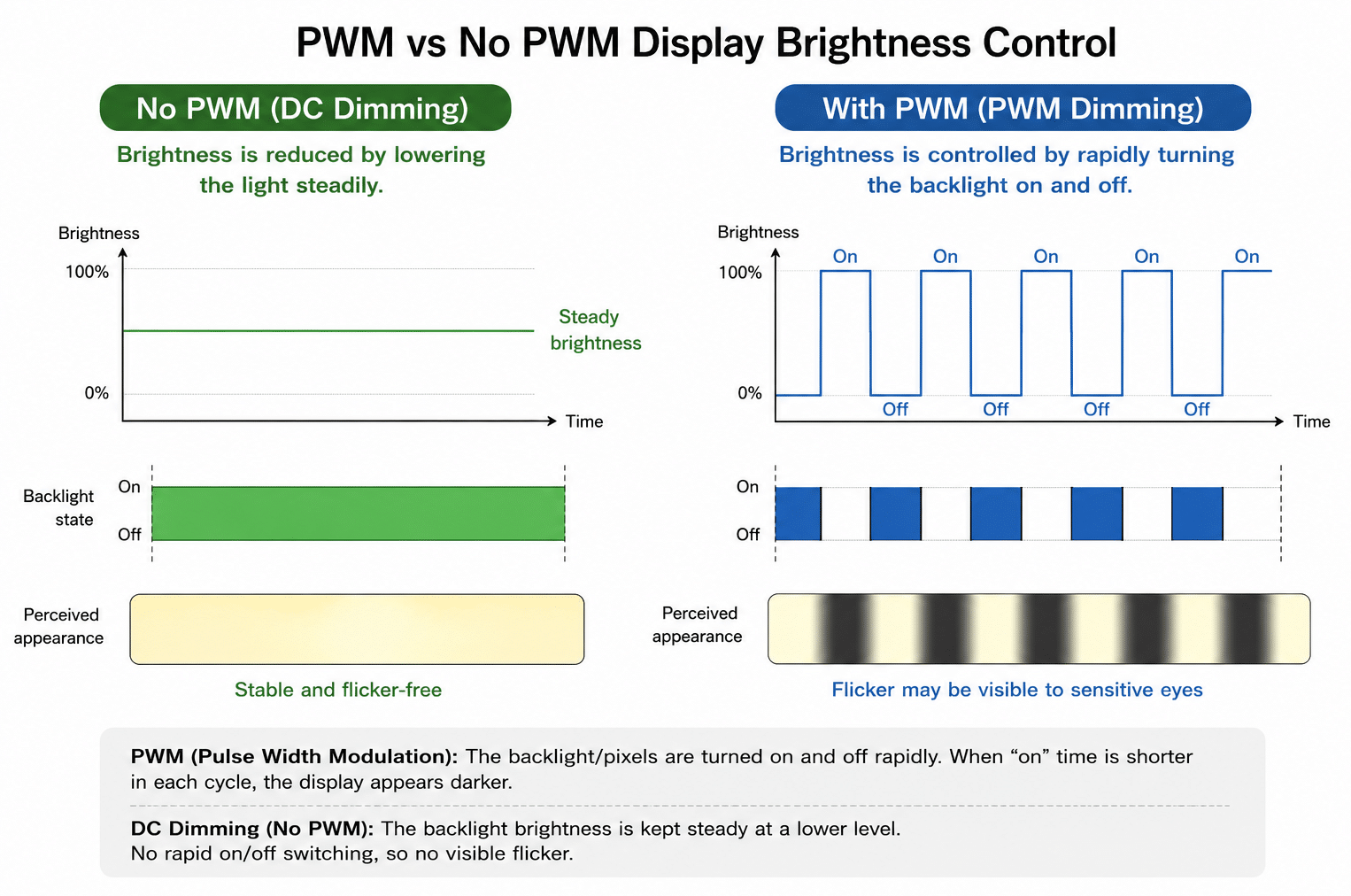
To most people, this flicker is too fast to see directly. However, some people report being more sensitive to these fluctuations than others, a phenomenon commonly called PWM sensitivity. If certain screens feel uncomfortable, especially at low brightness, understanding PWM may help you find a more comfortable setup.
Flicker is also a recognized topic in lighting and display comfort. IEEE 1789-2015 discusses modulation frequencies in LED lighting and dimming applications, including possible health risks and recommended practices for reducing flicker-related adverse effects. Although IEEE 1789 focuses mainly on LED lighting rather than computer monitors, it shows that light modulation is a serious engineering and comfort issue, not just a minor visual artifact.
Why PWM Flicker Can Cause Eye Strain
PWM flicker can be uncomfortable because your eyes are exposed to repeated changes in light intensity.
The discomfort depends on several factors:
- The flicker frequency
- The brightness level
- The flicker amplitude
- How sensitive the user is
- How long the screen is used
- Room lighting conditions
In general, lower flicker frequencies are more likely to cause discomfort. RTINGS explains that monitor flicker is tested by measuring flicker frequency at different backlight levels, and that flicker-free performance matters especially for users who are sensitive to screen flicker.
However, PWM sensitivity varies from person to person. Notebookcheck notes that sensitive users may experience tired eyes or headaches from PWM flicker, especially at lower frequencies. It also notes that while higher frequencies are generally less problematic, some users still report discomfort even at much higher frequencies.
This is why two people can use the same screen and have very different experiences. One user may not notice any problem, while another may feel eye strain, headache, or visual fatigue after extended use.
Why Low Monitor Brightness Can Make PWM Worse
Many displays do not use PWM at full brightness, or they use less aggressive dimming behavior at higher brightness levels.
The problem often appears when the monitor brightness is reduced through physical monitor buttons, laptop brightness keys, or system-level hardware brightness controls.
At low brightness, some screens may use a lower PWM frequency, meaning the backlight switches on and off fewer times per second. Lower frequency flicker is easier for sensitive users to notice.
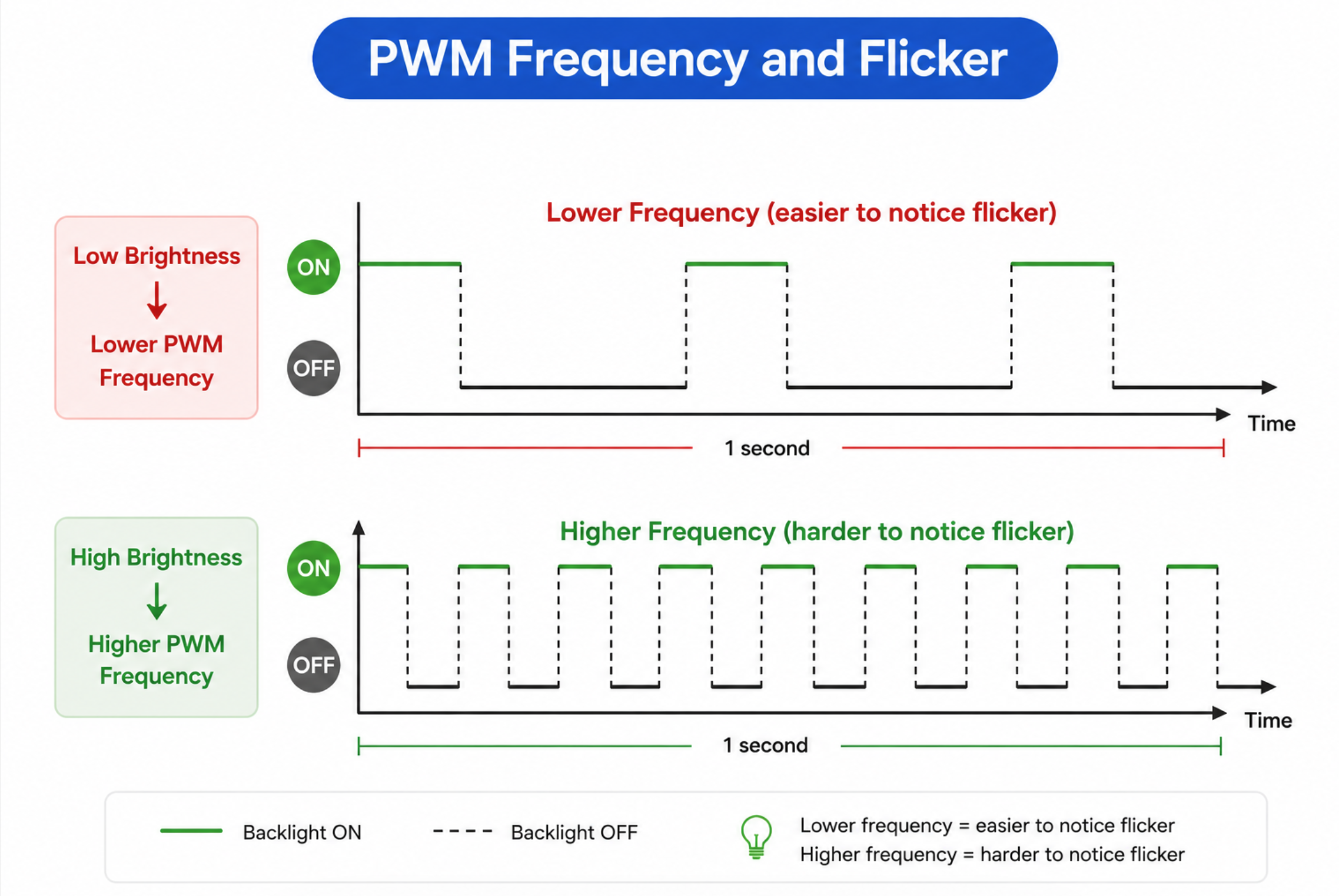
At the same time, the PWM duty cycle usually becomes smaller, so the backlight stays off for a longer part of each cycle. This longer off time can make the flicker feel stronger or more stressful.
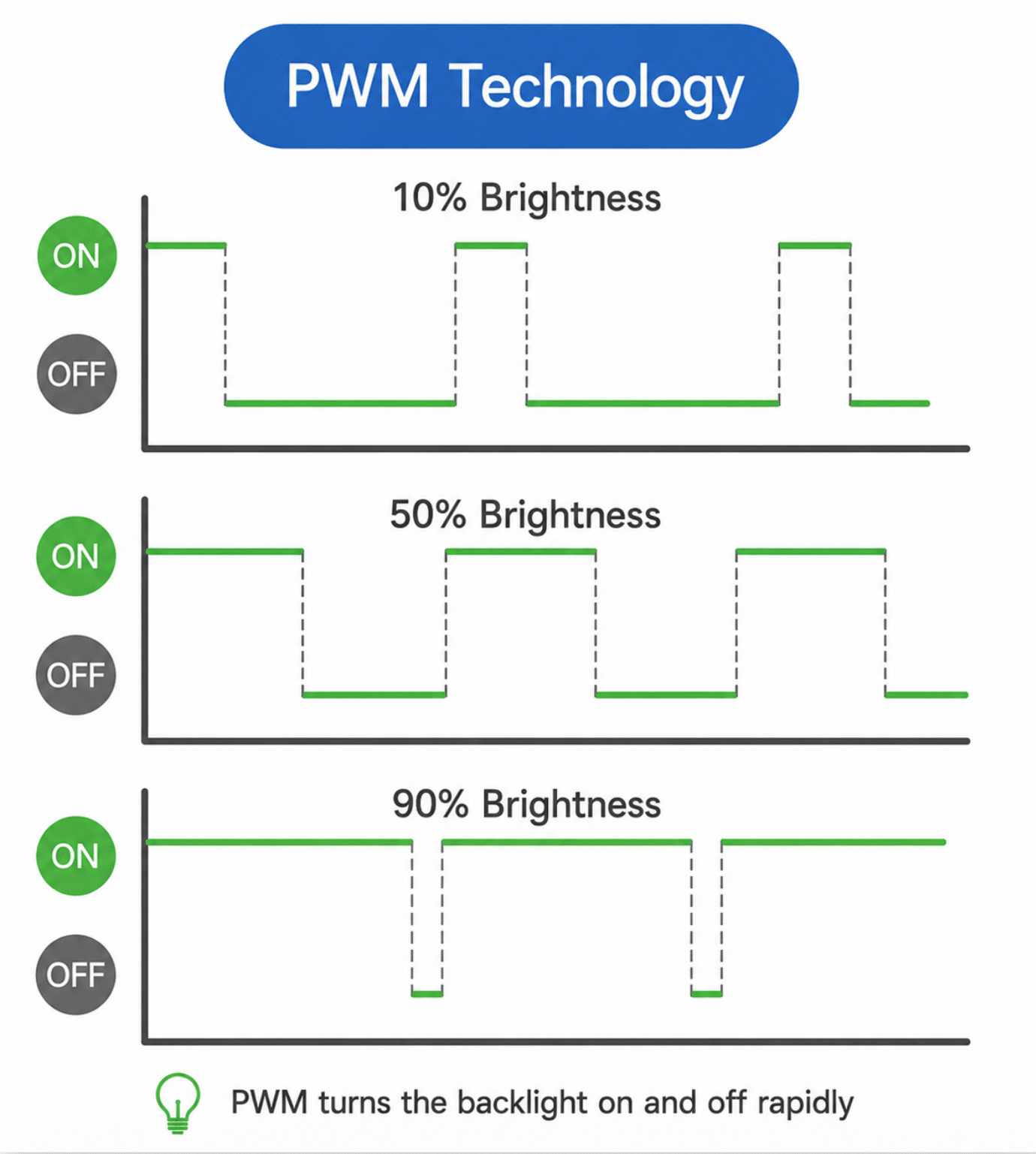
That is why many PWM-sensitive users try this approach:
Keep hardware brightness high, then reduce perceived brightness with software.
Professional display test sites also check flicker at different brightness levels. RTINGS, for example, measures monitor flicker with a specialized photodiode tool and tests flicker frequency at different backlight levels to see when or if flicker starts.
How to Test Your Screen for PWM Flickering
Not sure if your monitor or laptop uses PWM dimming? Here are three ways to check for PWM flickering.
1. Online PWM Flicker Test (Moving Line Test)
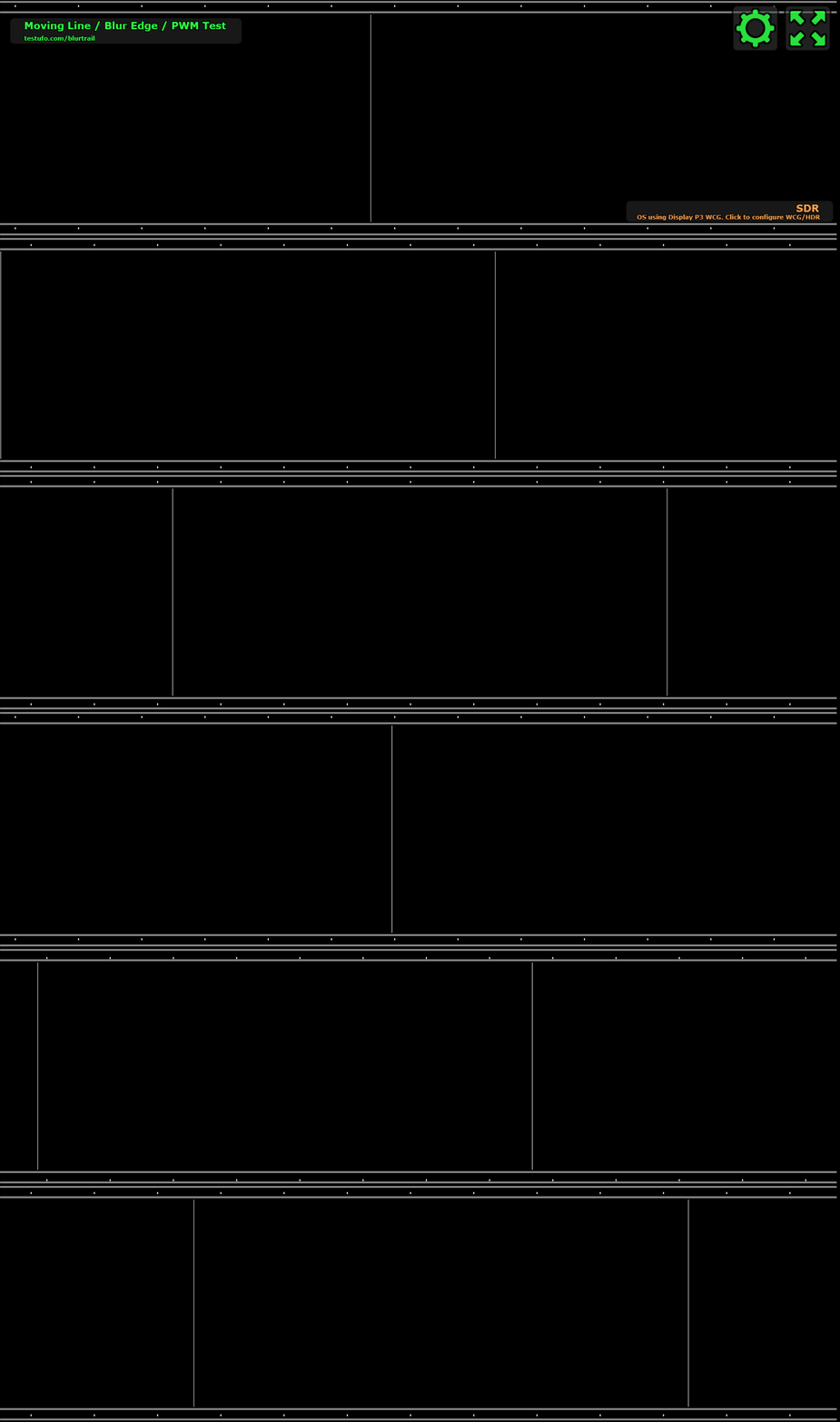
For a quick visual check, you can use an online moving line test such as TestUFO’s Moving Line / PWM Test.
This test displays a moving vertical line across the screen. If your display uses PWM dimming, especially at low hardware brightness levels, the moving line may appear as repeated lines, broken trails, or multiple separated images instead of one smooth motion trail.
How to Use the Moving Line Test
- Open the test in full-screen mode.
- Test your monitor at several hardware brightness levels, such as 100%, 50%, and below 30%. PWM flicker is often more noticeable at lower brightness levels.
- Watch the moving white line carefully.
- Optionally, record the test with a high-frame-rate camera, such as 240fps slow motion.

What You May See
On displays with little or no visible PWM, the moving line usually appears relatively smooth and continuous. You may see few or no separated duplicate lines, and motion artifacts may remain fairly consistent across different brightness levels.
On displays using PWM dimming, multiple repeated lines may appear. The motion trail may look broken or segmented, and the artifacts often become more obvious at lower brightness levels. Slow-motion recordings may also reveal flicker bands or repeated images.
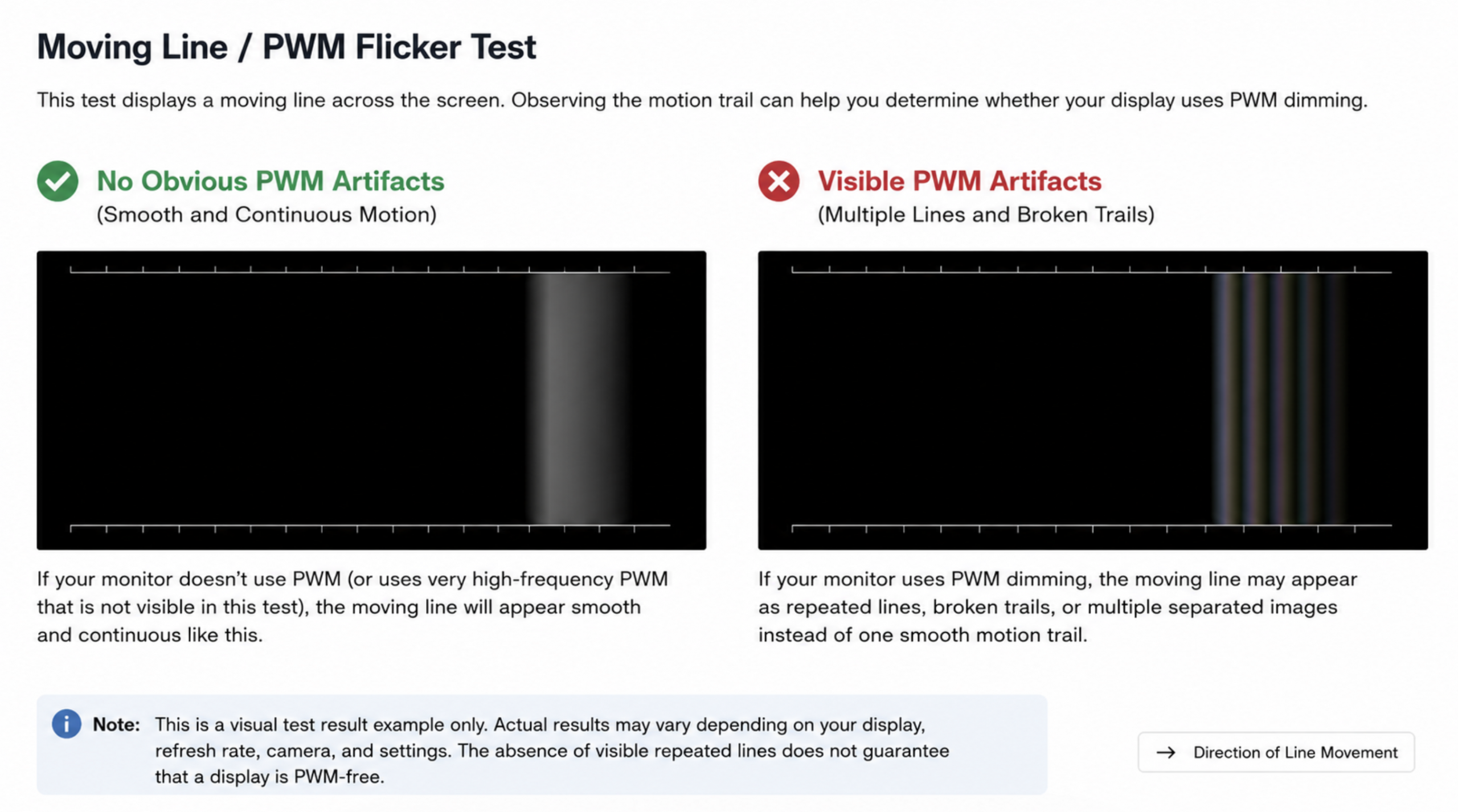
This method is more useful than simply looking at a static screen because motion can make flicker artifacts easier to notice. However, it is still a visual test. Browser performance, refresh rate, camera shutter behavior, display settings, and user perception can all affect the result.
In simple terms, an online moving line test can help you notice possible PWM flicker, but it cannot accurately measure flicker frequency or flicker depth.
Note: The absence of visible repeated lines does not guarantee that a display is PWM-free. Some displays use very high-frequency PWM that may not be easily visible in this test.
2. Professional Photodiode / Oscilloscope Testing
For more reliable results, professional testing requires measurement equipment.
A photodiode or light sensor can capture changes in screen luminance over time. When connected to an oscilloscope or dedicated flicker measurement device, it can show whether the display brightness is stable or pulsing.
This method can measure:
- Flicker frequency
- Flicker waveform
- Flicker amplitude
- Modulation depth
- Brightness behavior at different backlight levels
Professional display review sites use this kind of approach. RTINGS, for example, measures monitor flicker frequency with a specialized photodiode tool and tests different backlight levels to see when or if flicker starts.
This is the most reliable way to confirm whether a monitor uses PWM and how serious the flicker behavior is at different brightness levels.
3. Check Professional Display Review Databases
Before buying a new monitor, laptop, tablet, or phone, check review sites that measure PWM or display flicker.
Useful sources include:
- RTINGS for monitors and TVs
- Notebookcheck for laptops, tablets, and phones
- LaptopMedia for laptop PWM testing
RTINGS uses a specialized photodiode tool to measure monitor flicker frequency at different backlight levels. Notebookcheck maintains PWM data for notebooks, smartphones, and tablets, which can help users compare displays before buying.
How CareUEyes Helps Reduce PWM Flicker Exposure
CareUEyes adjusts screen brightness through software, using gamma-based brightness control.
This is different from lowering brightness with your monitor’s physical buttons.
When you reduce brightness using the monitor’s hardware controls, the monitor may activate PWM dimming internally. But when you keep the monitor’s hardware brightness at 100% and use CareUEyes to dim the screen, you are reducing the perceived brightness without asking the monitor to lower its backlight through hardware PWM.
In simple terms:
Hardware brightness control may change how your monitor drives the backlight. CareUEyes changes the displayed image signal instead.
This means CareUEyes does not add new hardware PWM flicker. It cannot physically change a PWM-based monitor into a flicker-free monitor, but it may help you avoid using the low hardware brightness settings where PWM flicker is often worse.
Want to keep your monitor at 100% brightness while reducing screen intensity?
Download CareUEyes and use software-based dimming that does not add hardware PWM flicker.
Recommended Setup for PWM-Sensitive Users
If you suspect your monitor uses PWM at low brightness, try this setup.
Step 1: Set Monitor Hardware Brightness to 100%
Use your monitor’s physical buttons or laptop brightness keys to set the display brightness to maximum.
This may help avoid the low hardware brightness range where PWM flicker is often introduced or becomes more noticeable on some displays.
Step 2: Use CareUEyes to Lower Screen Brightness
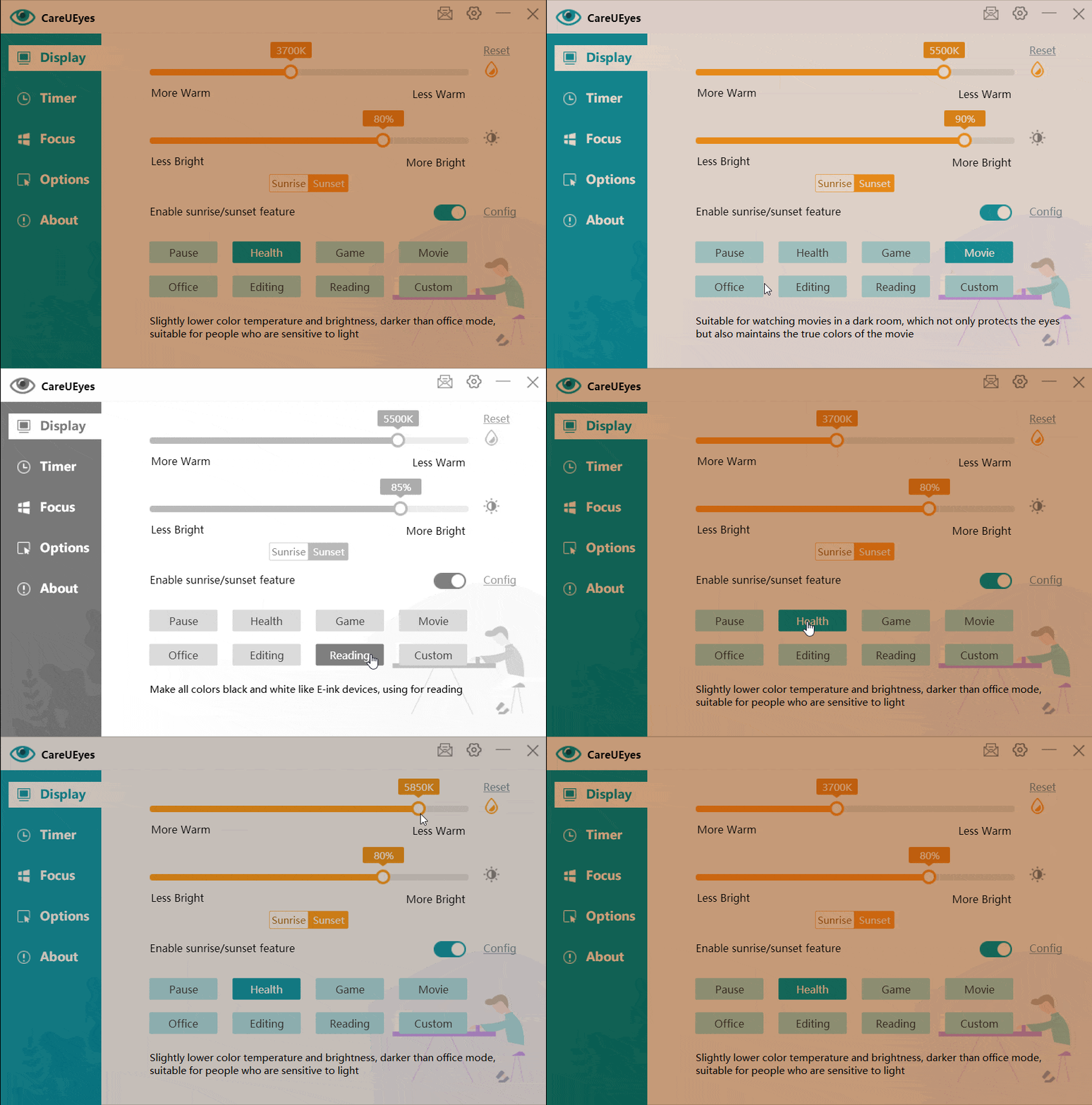
Open CareUEyes and reduce brightness to a comfortable level.
Because CareUEyes uses software-based brightness adjustment, it can make the screen look dimmer without lowering the monitor’s hardware backlight brightness.
Step 3: Match Screen Brightness to Room Lighting
Do not make the screen too dark in a bright room.
A very dark screen in a bright environment can also cause eye strain, because your eyes must constantly adapt between the screen and the surrounding light.
For best comfort, keep your screen brightness close to your room brightness.
Step 4: Reduce Blue Light at Night
PWM flicker is not the only cause of screen discomfort. Blue light, high contrast, glare, and long periods without breaks can also contribute to eye strain.
CareUEyes also lets you adjust color temperature, reduce blue light, and create a warmer screen tone for evening use.
Step 5: Take Regular Breaks
Even with good brightness settings, long screen sessions can still fatigue your eyes.
Use regular breaks, look away from the screen, and relax your eyes periodically.
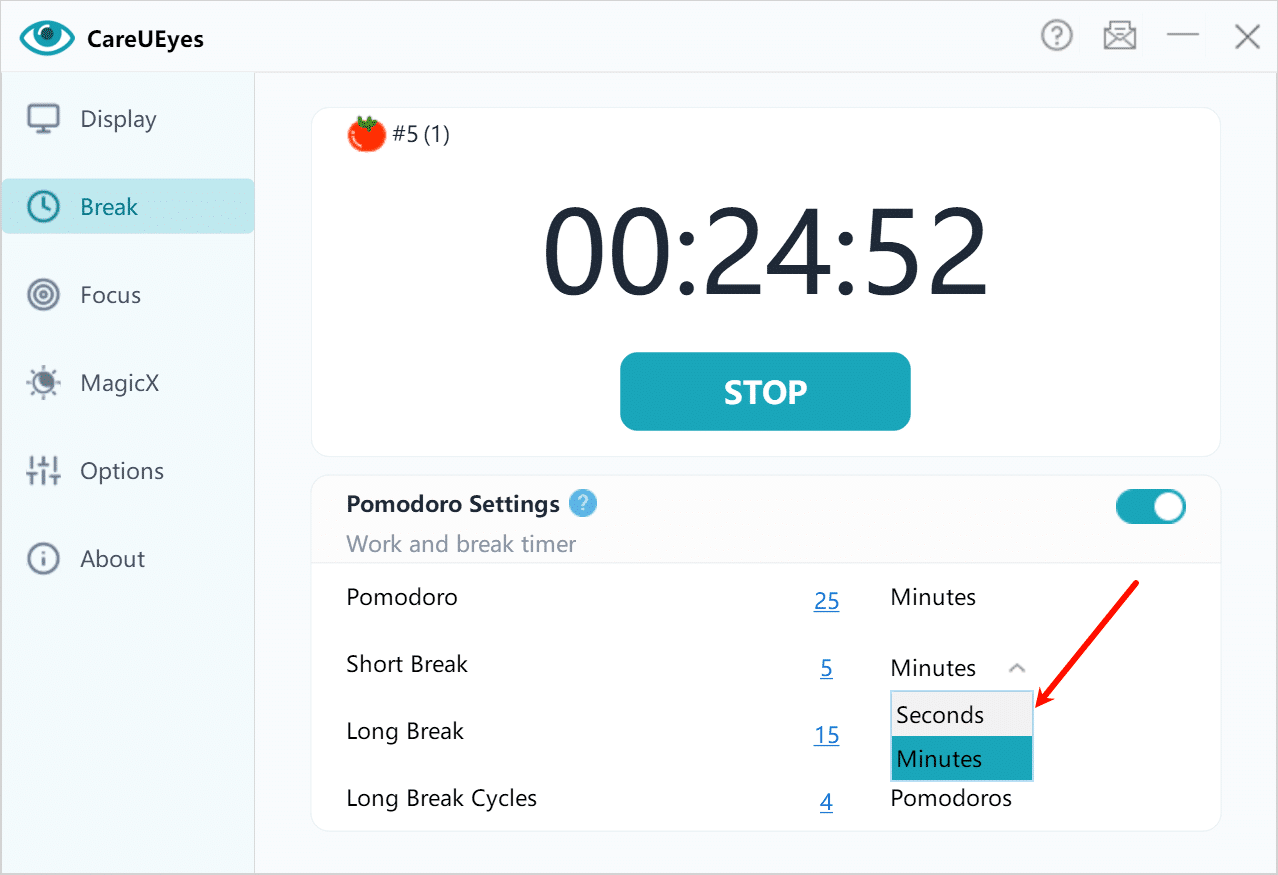
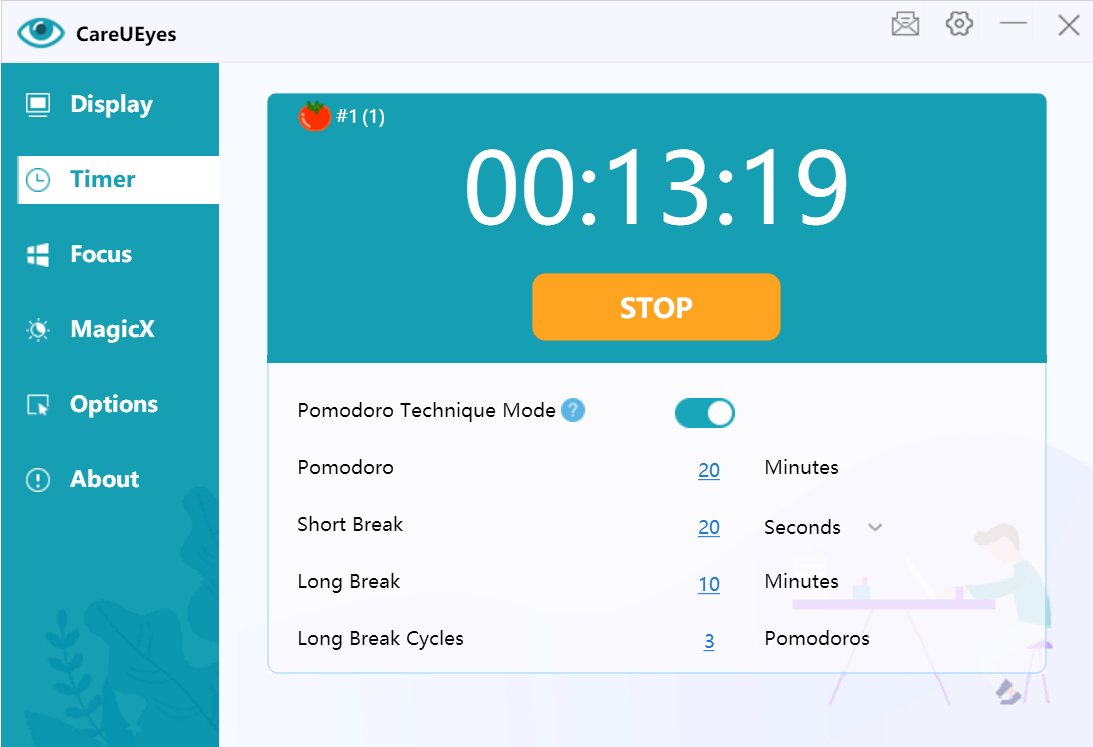
CareUEyes includes break reminders that can help you rest your eyes during long computer sessions.
CareUEyes vs Monitor Hardware Brightness
Here is the key difference:
| Method | How it works | PWM risk |
|---|---|---|
| Monitor physical brightness buttons | Changes the display’s hardware backlight or panel brightness | May trigger PWM on some displays |
| Laptop hardware brightness keys | Often changes hardware brightness level | May trigger PWM on some laptops |
| CareUEyes brightness control | Uses software/gamma adjustment to reduce perceived brightness | Does not add hardware PWM flicker |
This is why CareUEyes is useful for users who want a dimmer screen but do not want to rely on low hardware brightness levels.
Does CareUEyes Completely Remove PWM Flicker?
No. CareUEyes cannot change the physical dimming technology built into your monitor.
If your display uses PWM at the hardware level, that behavior is controlled by the display itself.
However, CareUEyes can help in an important way:
It allows you to keep your monitor’s hardware brightness high while reducing perceived screen brightness through software.
For many PWM-sensitive users, this may reduce exposure to the most uncomfortable low-brightness PWM behavior.
CareUEyes does not physically remove PWM that is already built into the monitor’s backlight or panel. But it can help you avoid the hardware brightness settings where PWM is more likely to appear or become noticeable.
Other Ways to Reduce PWM Flicker
CareUEyes can help reduce reliance on hardware dimming, but you can also try these additional methods.
Choose a Flicker-Free Monitor
When buying a new monitor, look for models tested as flicker-free across different brightness levels.
Do not rely only on marketing terms. Check independent reviews when possible.
You can also look for independent display certifications. TÜV Rheinland’s Eye Comfort Certification includes flicker-free display performance as part of its display comfort evaluation, together with factors such as reduced blue light, reflections, image quality, and ergonomic comfort.
Use DC Dimming When Available
Some devices include “DC dimming,” “flicker reduction,” or “eye comfort” options.
These features may reduce PWM flicker on certain displays, especially phones and OLED devices.
Avoid Extremely Low Hardware Brightness
If your screen flickers only at low brightness, keeping hardware brightness above the flicker threshold may help.
Some displays only begin flickering below a certain brightness percentage.
Improve Room Lighting
A screen that is too bright in a dark room or too dim in a bright room can both cause discomfort.
Use soft ambient lighting and avoid strong glare on the screen.
References and Further Reading
For users who want to learn more about PWM flicker and display testing, the following sources are useful:
- TestUFO – Moving Line / Blur Edge / PWM Test: A quick visual test that can help reveal obvious flicker artifacts in motion.
- RTINGS – Monitor Image Flicker Testing: Explains how monitor flicker is measured with a specialized photodiode tool at different backlight levels.
- Notebookcheck – PWM Ranking: Lists PWM behavior for laptops, smartphones, and tablets, and discusses PWM sensitivity.
- TÜV Rheinland – Eye Comfort Certification: Covers flicker-free display performance as part of professional eye comfort certification.
- IEEE 1789-2015: Provides recommended practices related to LED flicker and modulation frequencies.
Conclusion
PWM flicker is a hidden cause of screen discomfort for many users. It often becomes worse when a display’s hardware brightness is reduced, especially on screens that use PWM dimming at low brightness levels.
A practical solution is:
Set your monitor brightness to 100%, then use CareUEyes to dim the screen.
CareUEyes uses software-based gamma brightness control, so it does not add hardware PWM flicker. While it cannot change the monitor’s built-in dimming technology, it can help you avoid the low hardware brightness settings that often make PWM flicker more noticeable.
If your display becomes uncomfortable at lower brightness levels, keeping hardware brightness high and using software dimming may be one of the simplest ways to reduce perceived flicker-related discomfort.
Download CareUEyes: