If your computer screen is too bright at night, even when the brightness is set to the lowest level, you are not alone. Many users experience eye strain when using their computer in dark environments.
Bright screens can cause discomfort, headaches, and difficulty focusing, especially during late-night work or reading.
One effective solution is using a screen dimmer that can reduce brightness below the system limit and make the display more comfortable for nighttime use.
Why Your Screen Is Too Bright at Night
There are several common reasons why your screen may feel too bright at night.
1. Minimum brightness is still too high
Many monitors have a hardware brightness limit. Even at the lowest setting, the screen may still appear too bright in dark environments.
This is especially common with:
- external monitors
- high-brightness displays
- desktop monitors designed for daylight use
2. Room lighting is dark
At night your eyes become more sensitive to light. A screen that feels comfortable during the day may feel extremely bright in a dark room.
3. Blue light from the display
Computer screens emit blue light that can increase glare and contribute to eye strain during nighttime use.
How to Reduce Screen Brightness at Night
There are several ways to make your screen more comfortable when using your computer at night.
Method 1: Lower the monitor brightness
Most monitors allow brightness adjustment using built-in controls.
Steps:
- Press the menu button on your monitor
- Navigate to brightness settings
- Reduce brightness to the lowest level
However, many users find that the lowest brightness is still too bright.
Method 2: Enable Night Light in Windows
Windows includes a feature called Night Light, which reduces blue light and makes the screen warmer.
Steps:
- Open Windows Settings
- Go to System → Display
- Turn on Night Light
Night Light can reduce glare slightly, but it does not lower brightness beyond the monitor’s limit.
Method 3: Use Dark Mode
Dark mode reduces bright white backgrounds in applications.
You can enable dark mode in:
- Windows settings
- web browsers
- many productivity apps
While this helps reduce glare, it still does not reduce the actual screen brightness.
Method 4: Use Screen Dimmer Software
If your screen is still too bright at night, the best solution is to use a screen dimmer.
A screen dimmer can:
- reduce brightness below the system limit
- dim the screen further than monitor controls allow
- improve comfort when using the computer at night
For example, using a screen dimmer like CareUEyes allows you to reduce brightness below the system limit and adjust brightness more precisely.
CareUEyes also supports multi-monitor brightness control, hotkeys, and automatic brightness adjustment based on sunrise and sunset.
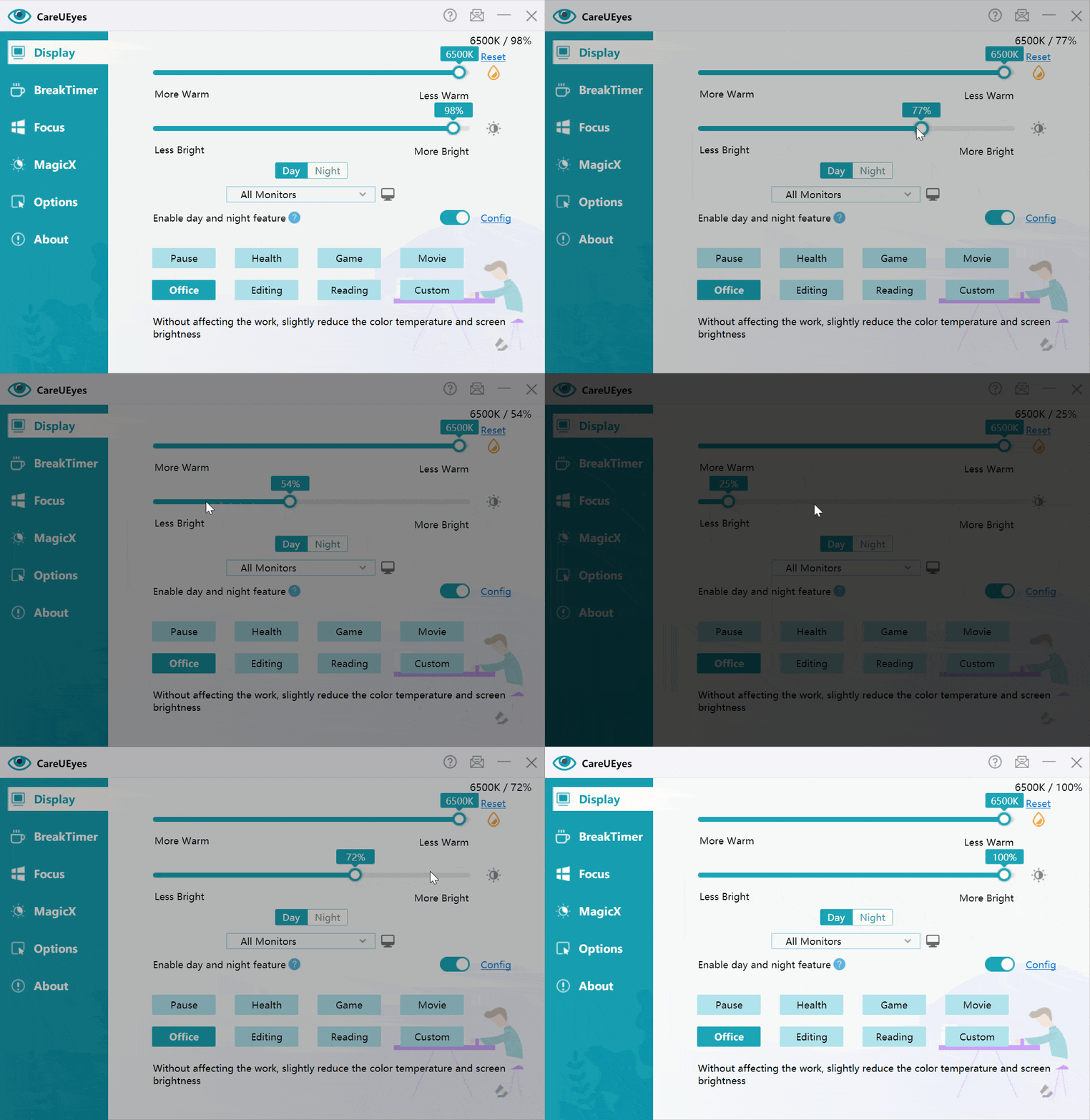
Extra Solution: Reduce Brightness Below 10%
Some users find that even very low brightness levels are still too bright, especially when working late at night in a completely dark room.
By default, CareUEyes allows brightness adjustment between 10% and 100% to ensure stable display output.
However, CareUEyes also includes an option called “Use wider brightness range (0–100)”.

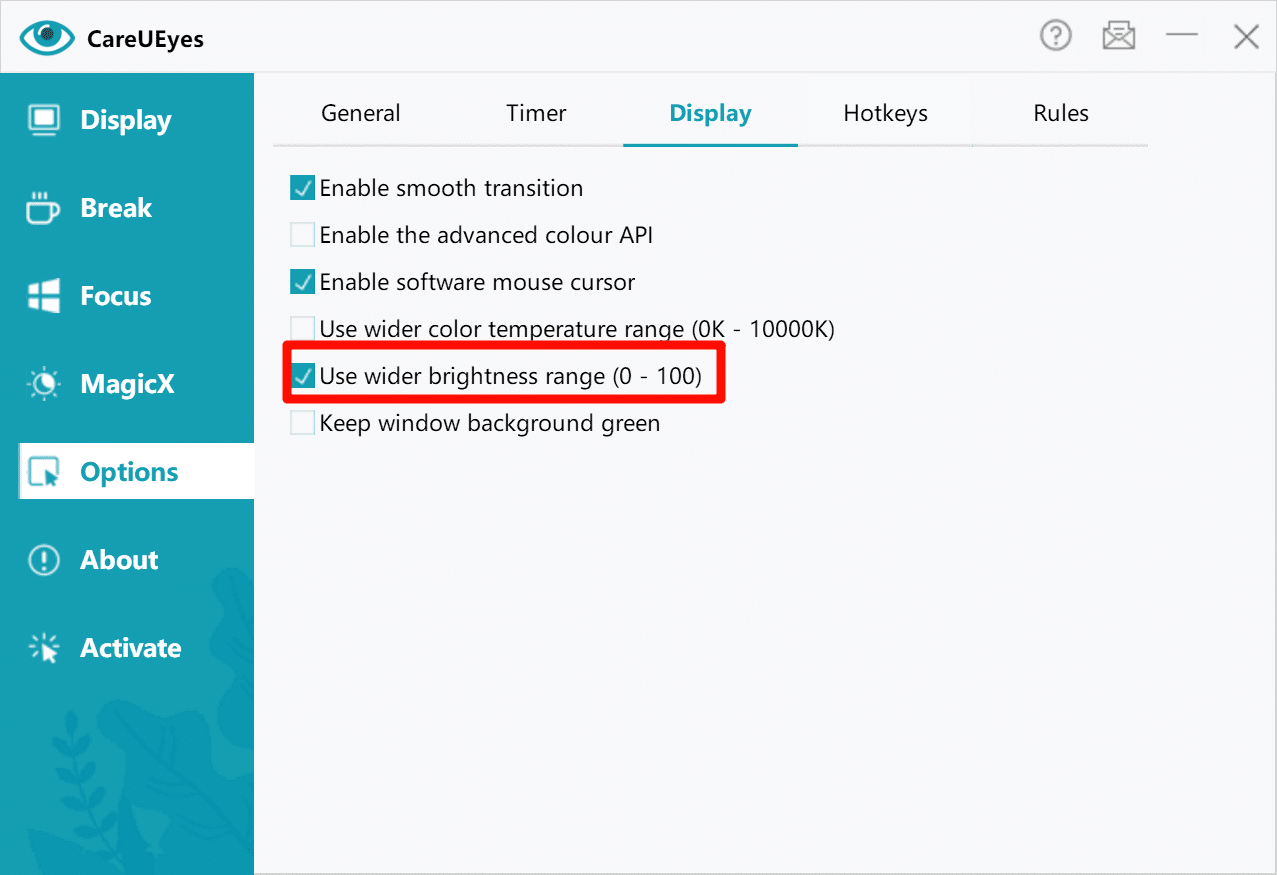
After enabling this option, you can reduce brightness all the way down to 0%, allowing the screen to become significantly darker than normal brightness controls allow.
This feature is particularly useful for:
- working late at night
- reading in dark environments
- reducing eye strain during long computer sessions
With this extended brightness range, CareUEyes works as a powerful screen dimmer for users who need brightness levels lower than the system minimum.
Benefits of Using a Screen Dimmer
Screen dimmer software provides several advantages compared with built-in system settings.
More precise brightness control
Some dimmer tools allow brightness adjustments in very small increments, making it easier to find a comfortable level.
Better comfort at night
Lower brightness can reduce eye strain and make it easier to work or read at night.
Works across multiple monitors
Many users today work with two or more monitors. Screen dimmers allow brightness control across all displays.
When a Screen Dimmer Is Most Useful
A screen dimmer is especially helpful in situations such as:
- working late at night
- reading on the computer in a dark room
- using external monitors that cannot dim enough
- multi-monitor setups with inconsistent brightness
In these situations, reducing brightness further can significantly improve visual comfort.
Frequently Asked Questions
Why is my screen still too bright at the lowest brightness?
Some monitors have hardware brightness limits that cannot be reduced further using system controls.
Can Windows reduce brightness below minimum?
No. Windows brightness settings cannot go below the hardware limit of the display.
Is it safe to use screen dimmer software?
Yes. Screen dimmer software adjusts display output through software and does not modify monitor hardware.
Conclusion
If your screen is too bright at night, adjusting system brightness or enabling Night Light may help slightly. However, these methods often cannot reduce brightness enough for comfortable nighttime use.
Using a screen dimmer like CareUEyes allows you to dim the screen further and create a more comfortable viewing experience when working or reading in low-light environments.