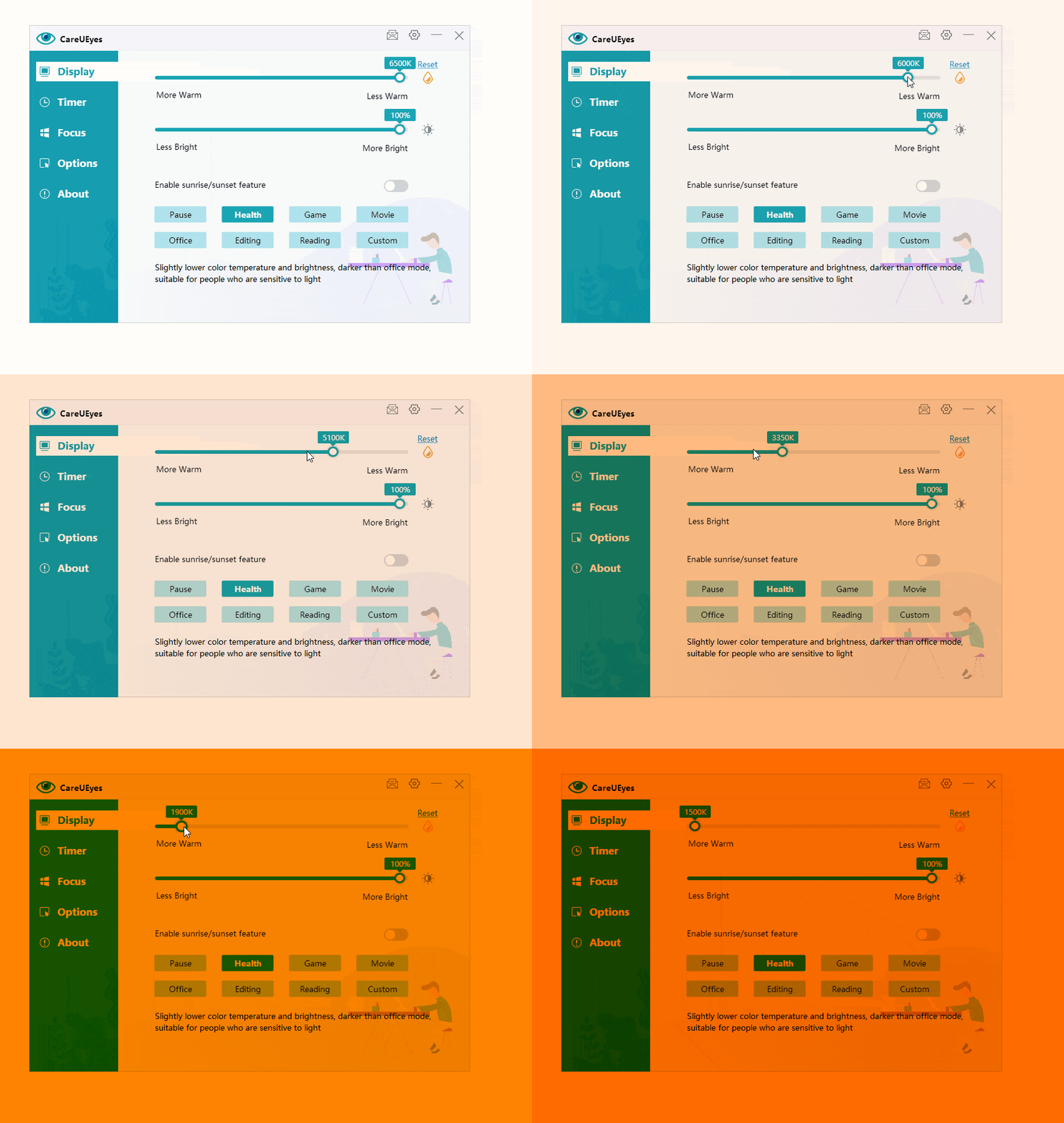
The general rule for adjusting screen brightness is to match it with the ambient light. In well-lit environments, it’s best to increase screen brightness for better visibility. Conversely, in dim settings, lowering the brightness is recommended to reduce eye strain.
Given the ever-changing lighting conditions, it’s crucial to regularly fine-tune the screen brightness.Failing to adjust the screen brightness accordingly can result in eye fatigue and potential vision problems.
Failing to control the brightness of Windows 7 can have negative effects on both eye health and sleep quality.
There are plenty of tutorials on the web for Windows 7 brightness control. But they can’t help you solve the problem, because the brightness adjustment feature of Windows 7 is not always displayed in the control panel, and sometimes even if we update the display driver, the brightness cannot be adjusted.
This is really annoying, but by using the third-party application CareUEyes, you can easily adjust the brightness on Windows 7.
Control screen brightness on Windows 7 the easy way
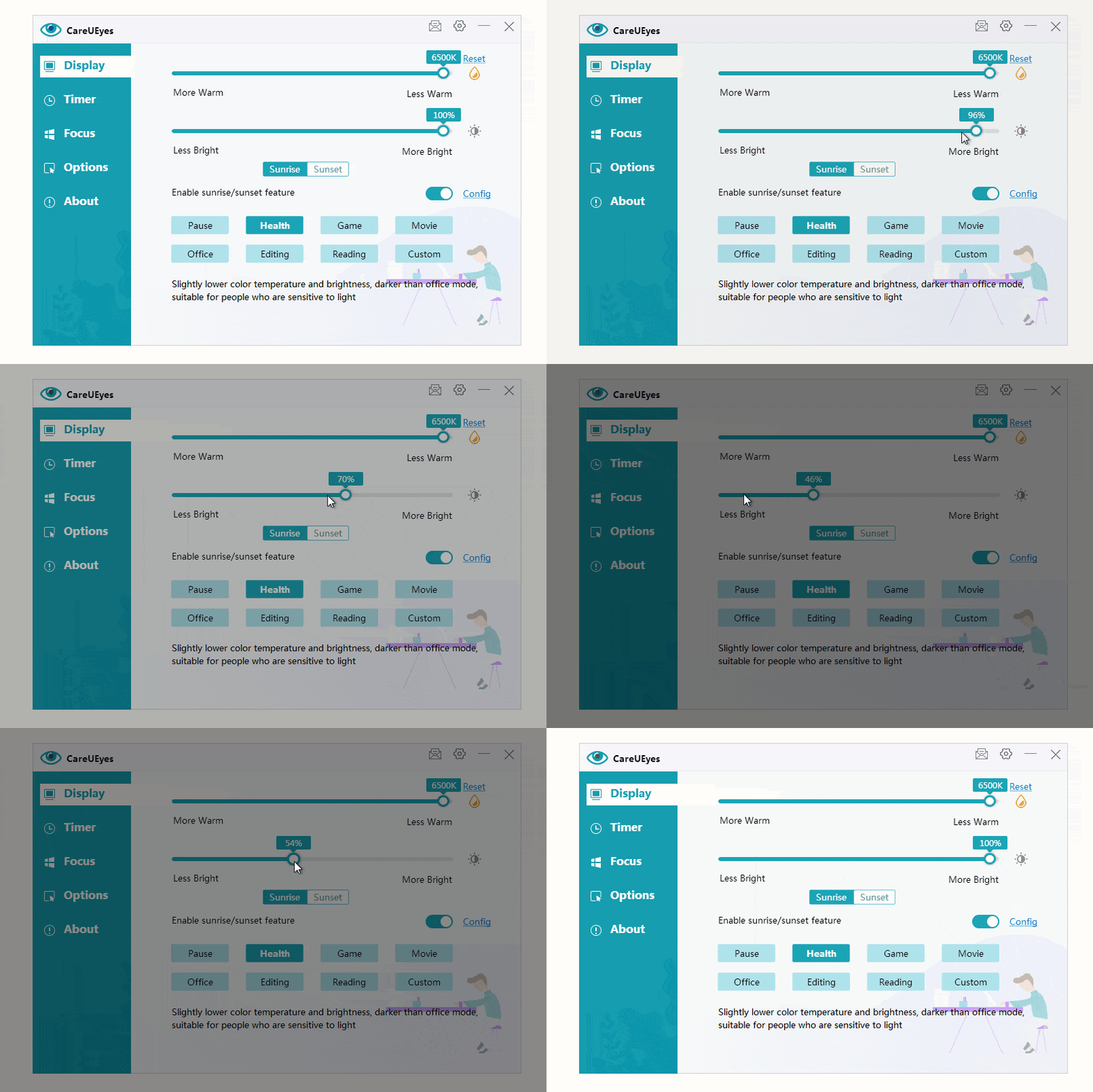
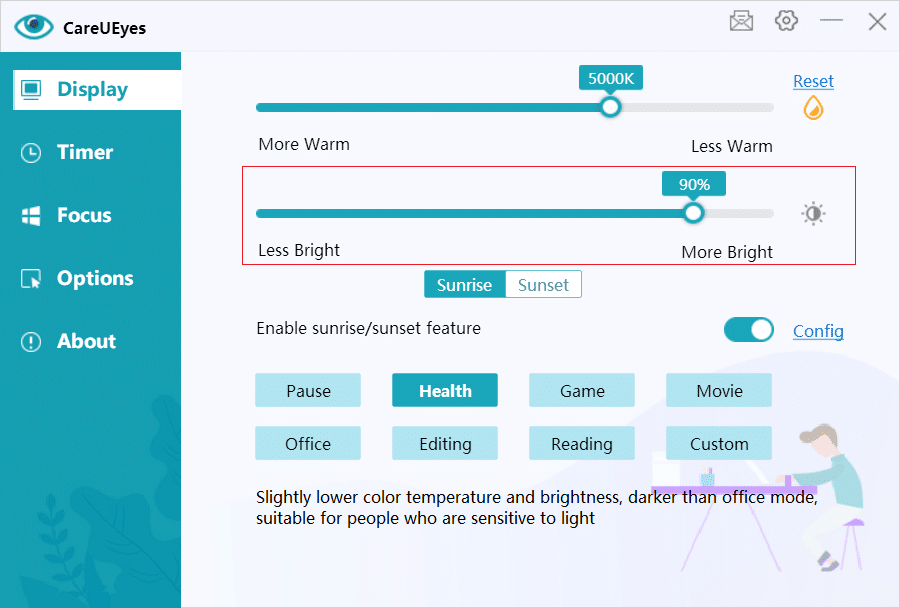
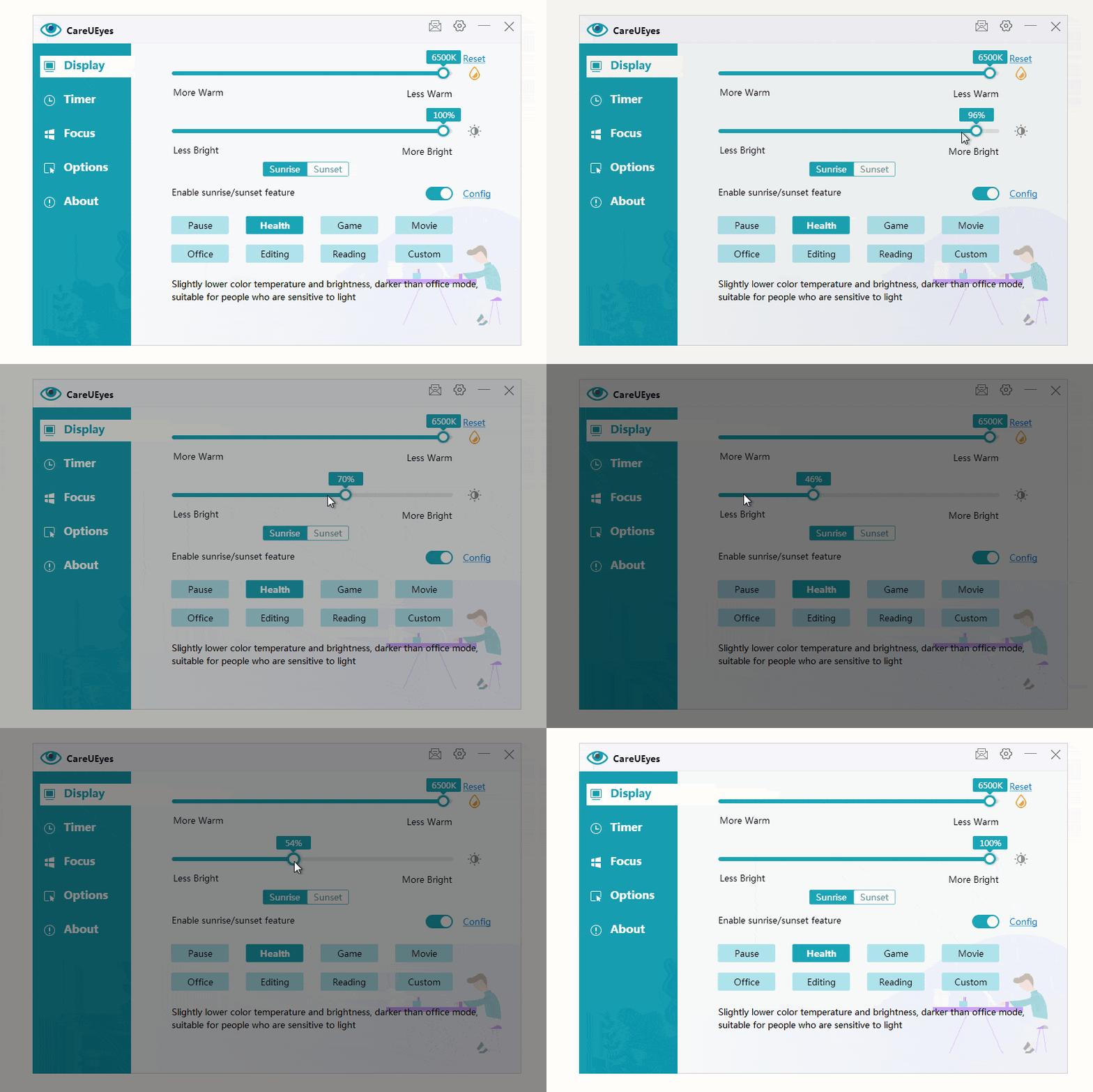
CareUEyes is an eye protection software that can easily help you adjust the brightness on Windows 7. You can use the brightness slider to adjust the brightness. Swipe to the left to decrease the brightness, and to the right to increase the brightness.
How to adjust screen brightness on Windows 7
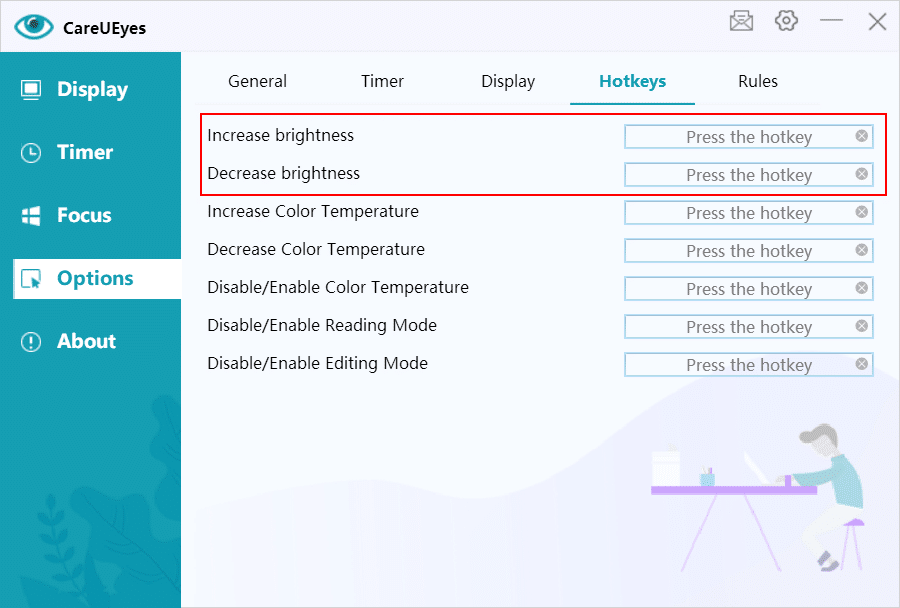
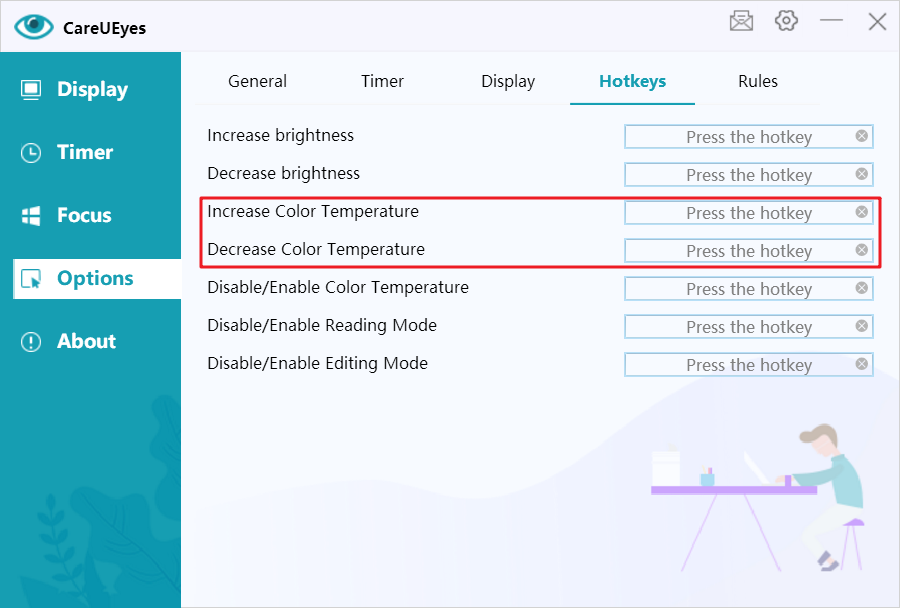
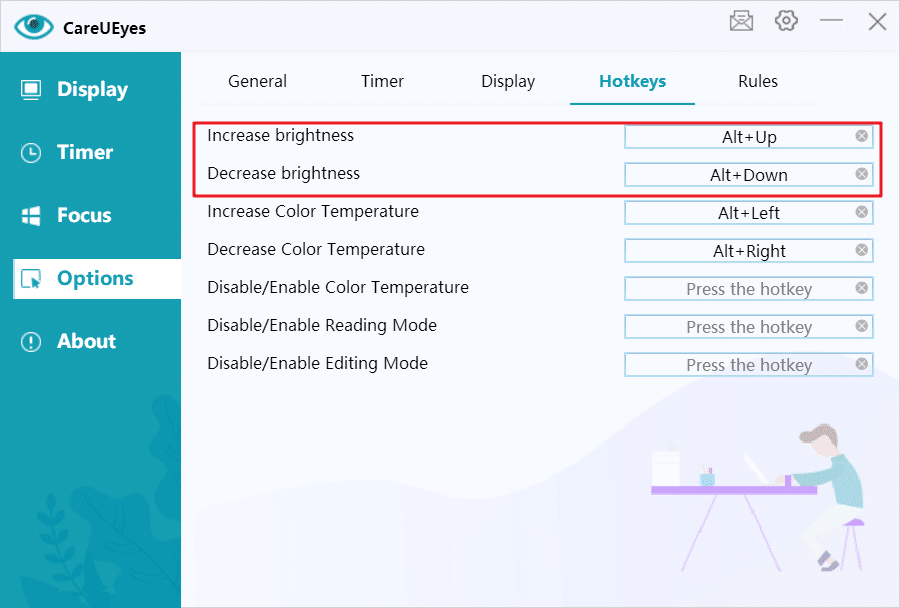
CareUEyes also supports hotkeys to adjust the brightness. You can customize hotkeys on CareUEyes’ Options page, and then you can use the keyboard to increase or decrease brightness.
Use CareUEyes to Adjust Your Screen Brightness on Windows 7
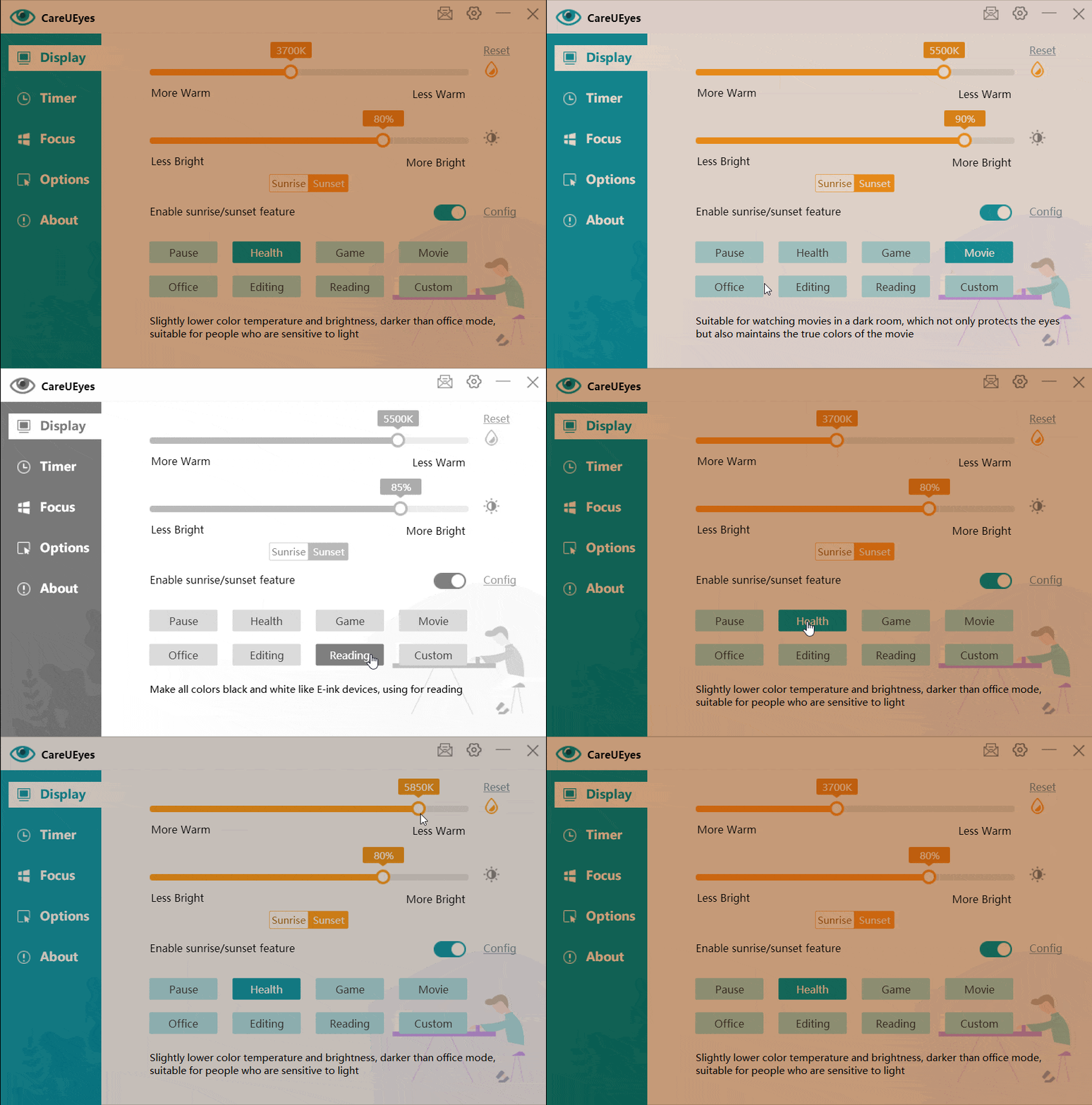
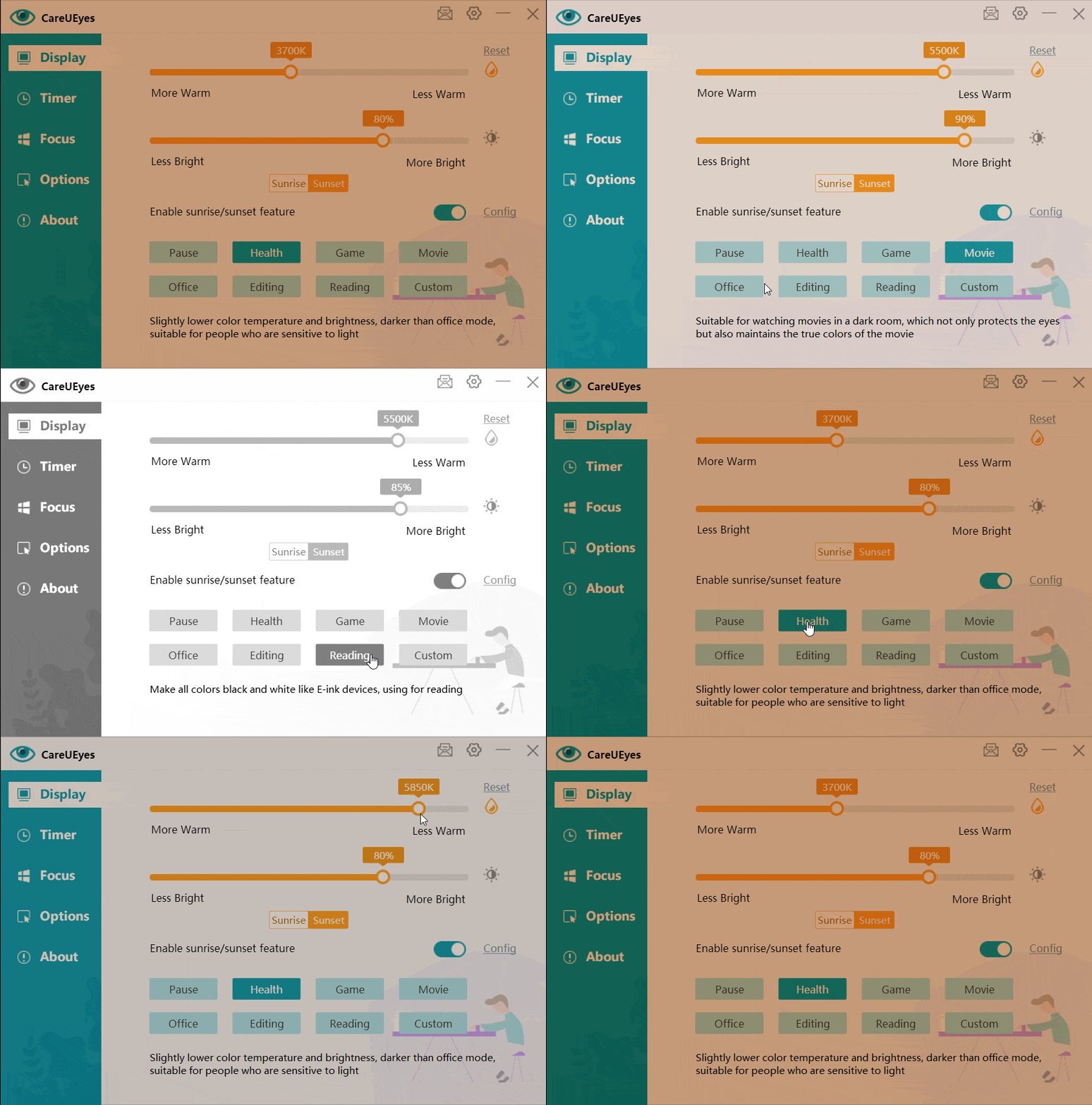
CareUEyes offers eight preset modes, each allowing you to set different brightness levels for daytime and nighttime. It automatically adjusts your screen brightness based on the preset sunrise and sunset times. You can simply choose a mode you like or customize the brightness using the slider.
In addition to its other features, CareUEyes offers an advanced blue light filter designed to minimize eye strain, reduce pain, and protect your vision over long periods of use.
Cooperate with taking regular breaks feature to better protect your eyes and prevent eye fatigue.
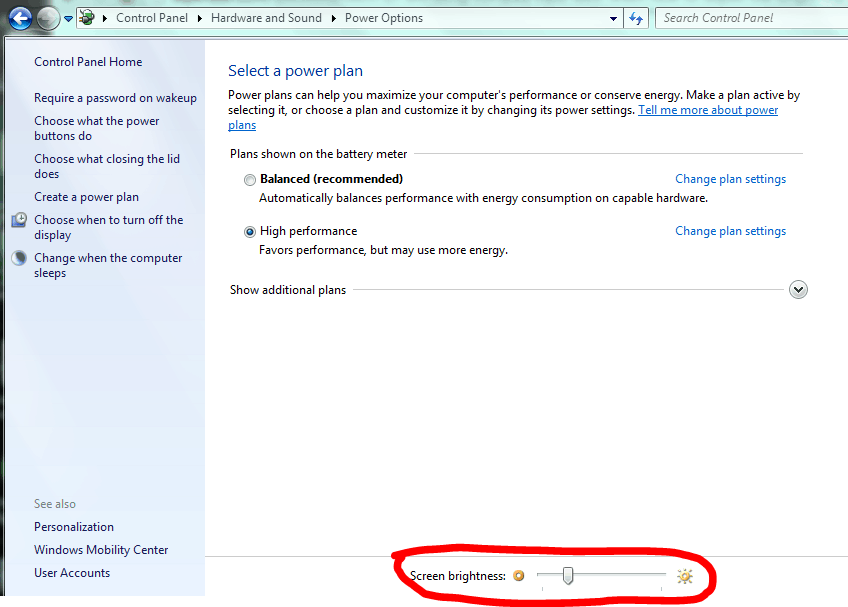
At the bottom of the power options window, you will see the “Screen brightness” slider, left and right drag Change brightness slider to adjust the brightness of the display.
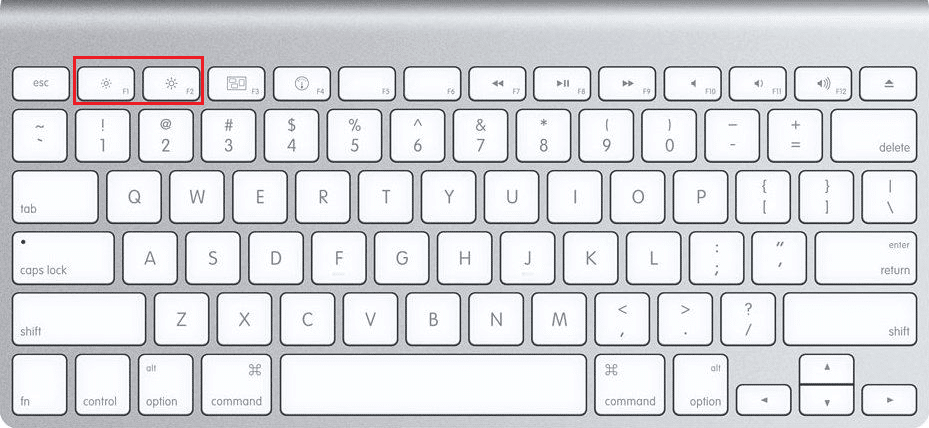
On most laptop keyboards, you will find shortcut keys that can quickly increase and decrease brightness. Usually, these keys are function keys (from F1 to F12) and are usually located at the top of the keyboard. If you want to adjust the screen brightness, look for the brightness symbol (usually a logo).
Since the F keys are function keys, you must hold down the Fn key on the keyboard (usually located near the lower-left corner of the keyboard) when you press them to work.
Are you searching for a blue light filter for your computer screen? You might be aware of some of the risks associated with blue light.
Blue light emitted by computer screens can significantly affect both eye health and sleep quality. Prolonged exposure to blue light can lead to digital eye strain, resulting in symptoms such as dryness, irritation, and difficulty focusing. Moreover, blue light interferes with the production of melatonin, the hormone responsible for regulating sleep. This disruption can make it harder to fall asleep and maintain a healthy sleep cycle, potentially leading to fatigue and decreased overall well-being.
What is a blue light filter for computer screen?
A blue light filter for computer screens is a technology designed to reduce the amount of blue light emitted by digital devices. Blue light is known to contribute to eye strain and can disrupt sleep patterns, making it important to manage exposure, especially during evening hours. Blue light filters can be software-based, allowing users to adjust the screen’s color temperature through settings, or hardware-based, involving physical screen protectors that block blue light. By using a blue light filter, users can create a more comfortable viewing experience, reduce eye fatigue, and promote better sleep by minimizing the blue light exposure before bedtime.
How does a blue light filter work?
Software-based blue light filters work by adjusting the color temperature of your computer screen to reduce the amount of blue light emitted. These filters typically use algorithms to shift the display’s colors towards warmer tones, such as amber or orange, especially during evening hours. This shift not only decreases blue light exposure but also enhances visual comfort, making it easier on the eyes. Many of these filters can be customized, allowing users to set specific times for activation and adjust the intensity according to their preferences, ultimately promoting better eye health and improved sleep quality.
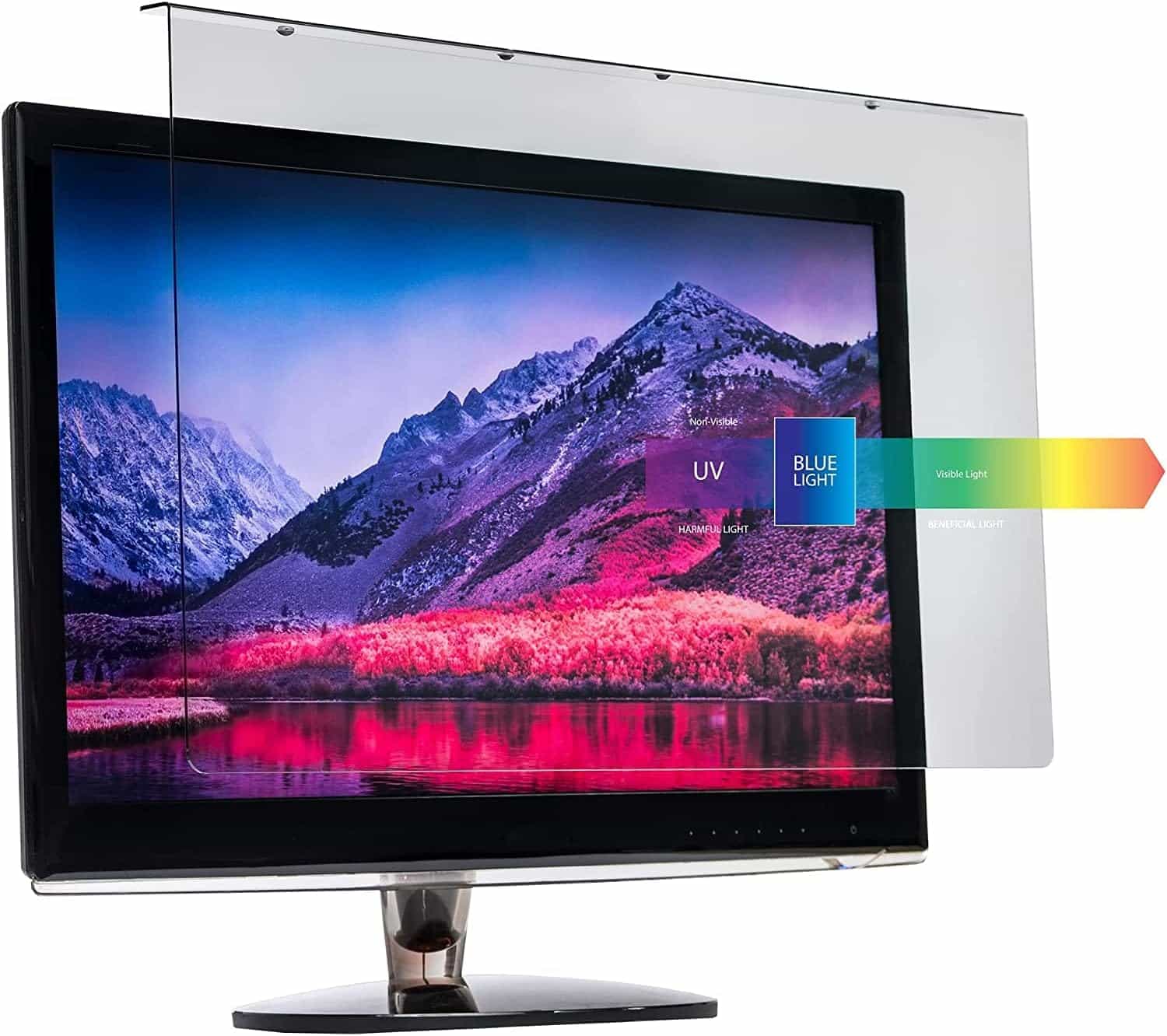
Hardware-based blue light filters work by physically blocking or absorbing blue light before it reaches your eyes. These filters are typically applied as screen protectors or overlays that are placed directly on the display. They use specialized materials designed to filter out blue light wavelengths while maintaining the clarity and brightness of the screen.
Recommend a great software-based blue light filter for screen:CareUEyes
CareUEyes is a well-established blue light filtering software, first released in 2017.Over the past seven years, it has been continuously updated and improved, gaining a large and loyal user base with excellent reviews. The software offers several useful features, including blue light filtering to reduce eye strain, brightness adjustment for a more comfortable viewing experience, and break reminders to promote healthy screen habits. Users can easily customize the settings to suit their needs by selecting different modes or manually adjusting the screen’s color temperature and brightness. CareUEyes is user-friendly and designed to help protect your eyes and improve your overall comfort while using digital devices.
The eye protection benefits of CareUEyes are widely praised by users for their noticeable impact.
In the sevnen years since CareUEyes was launched, we have received many emails from people who are sensitive to light in our back-end feedback.
They reported that after using CareUEyes, the eyes become relaxed and comfortable immediately, and they are no longer bothered by light sensitivity when using the computer and can work for a longer time.
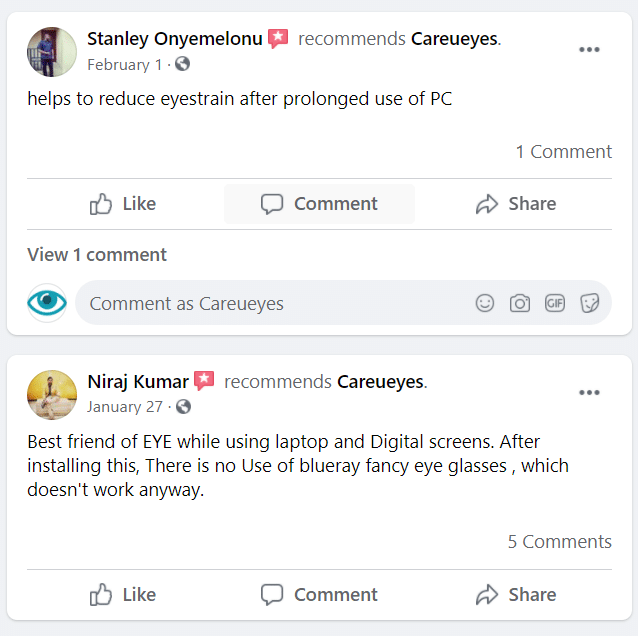
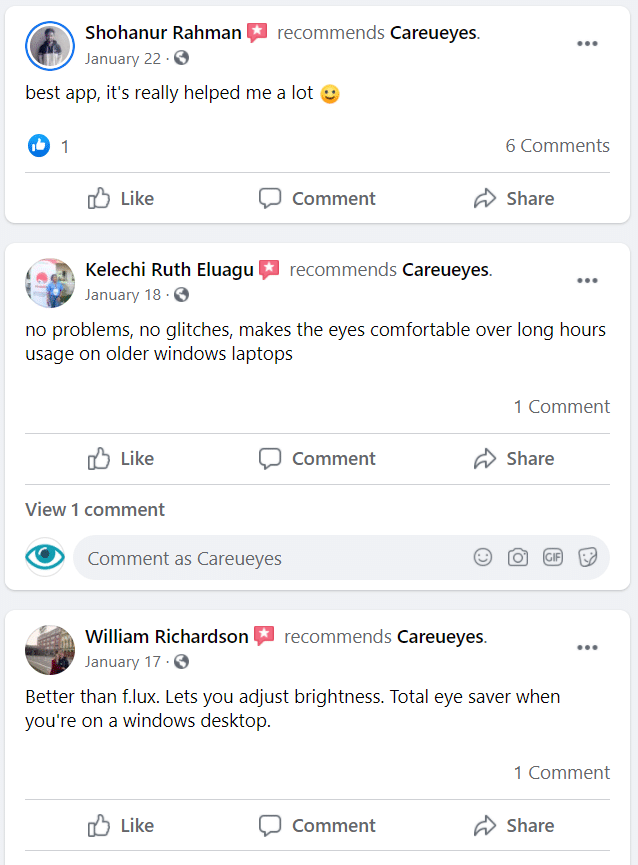
We have just opened Facebook, and we have received many good comments from users.You can check out user reviews of CareUEyes here:https://www.facebook.com/CareUEyes/reviews.
Adjustable blue light blocking rate
CareUEyes filters blue light by adjusting the color temperature, because the higher the color temperature of the computer screen, the more blue light is emitted, and vice versa.
Therefore, with CareUEyes you can adjust the blue light blocking rate arbitrarily (but the physical filter device cannot adjust it).
Why do I emphasize this point? Because it is very useful.
In the daytime, the color temperature should match the external light, and 5000K-5500k is recommended. This can eliminate the damage to the eyes caused by the accumulation of blue light energy, and at the same time, there is an appropriate amount of blue light to keep people awake during the day and be more energetic to deal with this day’s things.
At night, the color temperature should be set to match the light in your room, and a low temperature of 3700K-5000K is recommended. At this time, we don’t need blue light to suppress melatonin secretion, and the body does not need to be in a state of excitement. The beneficial blue light during the day has been transformed into harmful blue light at this time.
On the contrary, we need to secrete melatonin to a certain concentration, which will help us fall asleep and ensure good sleep quality.
Through the comparison of blue light intake at different time periods during the day and night, the changes in the concentration of melatonin can be better adjusted, and the quality of night sleep can be further improved.
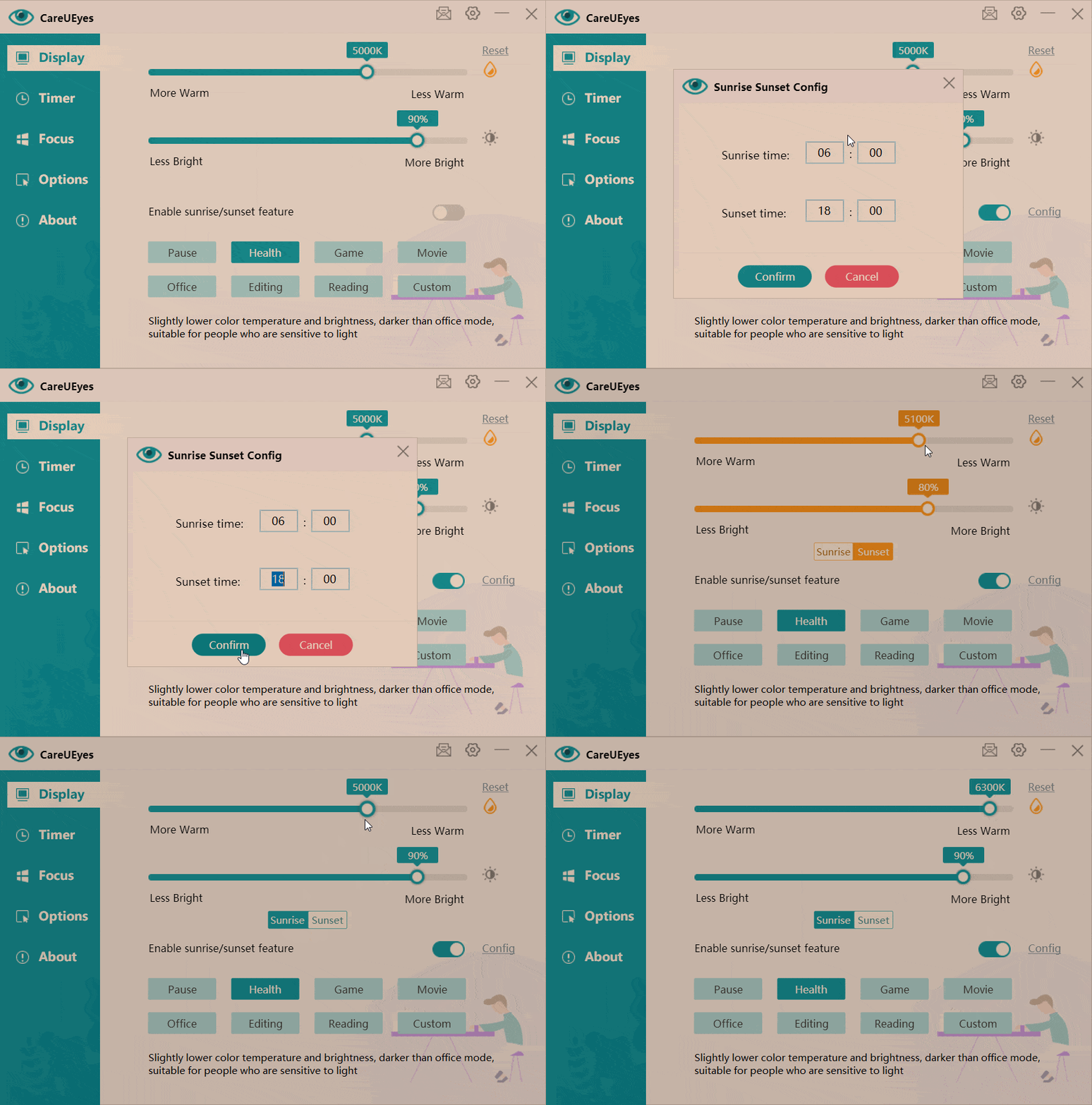
As long as you turn on the sunrise and sunset functions, CareUEyes can automatically switch between the two modes for you according to the time of sunrise and sunset.
Eight preset modes allow you to easily and quickly filter blue light.
CareUEyes provides eight preset modes, you can switch between pause, health, game, movie, office, editing, movie, reading, and customization at will.
Each of these options provides a slightly different experience for the user and changes the brightness of the display to suit a specific task or activity.
If you are not satisfied with the preset mode, you can also modify the preset mode.
Adjustable screen brightness provides further protection for your eyes.
CareUEyes has the function of adjusting the brightness of the screen to protect the eyes more comprehensively.
For many monitors, adjusting the screen brightness is very troublesome. Using CareUEyes can easily adjust the screen brightness. Not only can you adjust the brightness by dragging the progress bar on the main interface, but you can also use the hotkey to adjust it more conveniently.
Timed reminders for breaks are essential for eye protection
Regular rest is an effective way to prevent eye fatigue. The famous 20-20-20 rule: Every 20 minutes, look at an object 20 feet away for 20 seconds.
If you are busy with work, you may not have time to stop and rest frequently, because this may reduce your work efficiency.
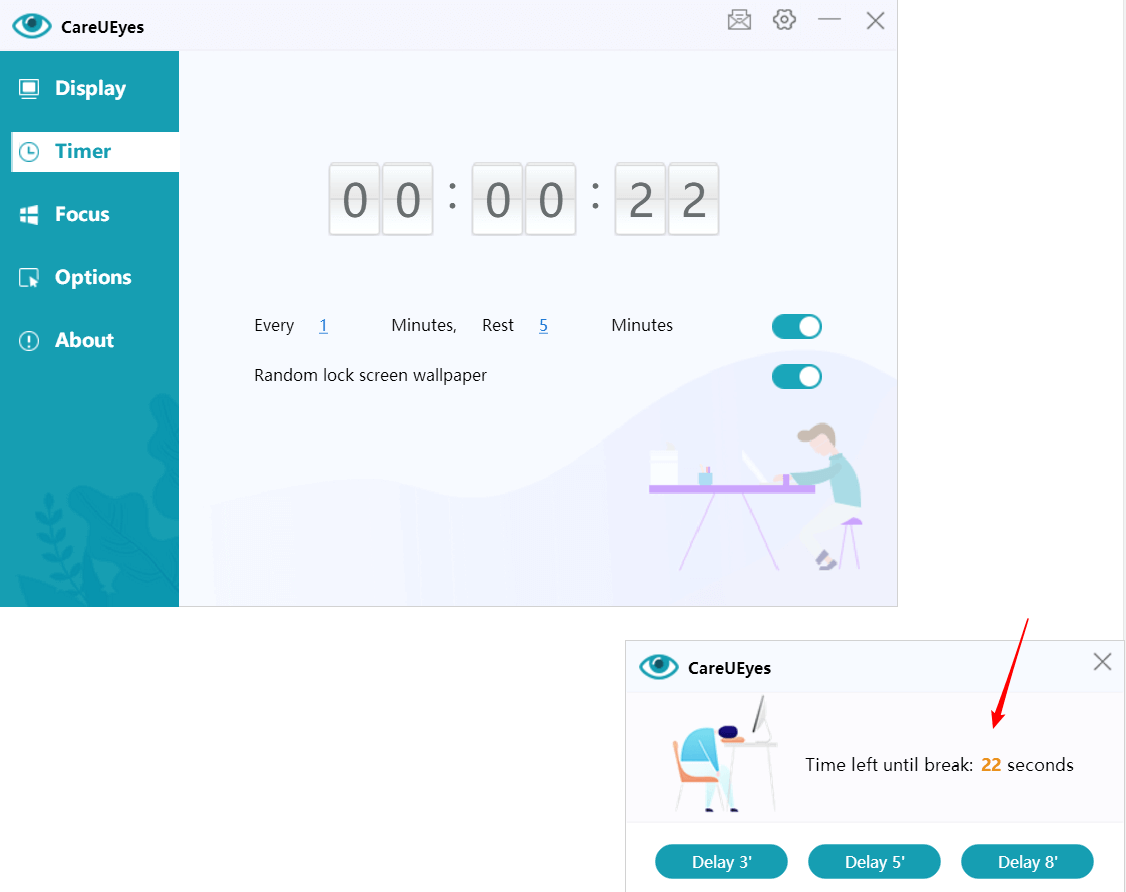
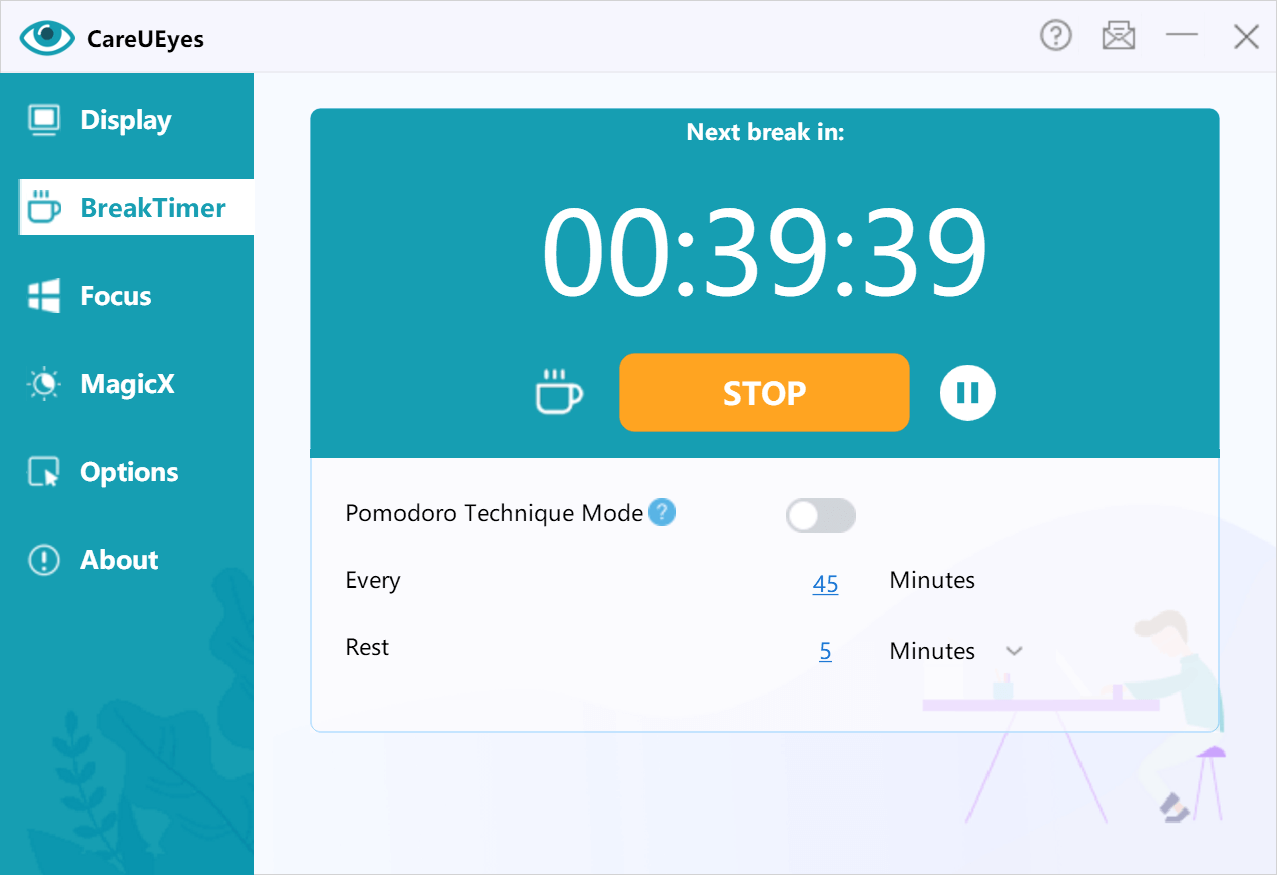
CareUEyes reminds you to rest for 5 minutes every hour by default, but the interval and duration of rest can be customized.
This is not a simple timer, it can intelligently detect your use of the computer. For example, if you leave the computer midway, the timer will automatically pause. After a certain period of time, the timer will restart when you return to the computer.
Many people, because of their busy work or minors with low self-discipline, know that they cannot leave the computer to take a break when it is time for a break.
For the above-mentioned people, you can use CareUEyes’ forced rest mode and turn on the password protection function, so that you will not miss the rest.
CareUEyes is a product you will love after using it.
Are you looking for a blue light filtering solution for Windows 7?
If you’re seeking guidance on how to reduce blue light on Windows 7, you’ve come to the right place.
As widely known, Windows 7 officially ceased receiving extended support and updates from Microsoft on January 14, 2020. This means that Microsoft no longer provides free security updates and technical support for Windows 7, and features like Night Shift, available on Windows 10, are not accessible. Therefore, we need to use third-party software to achieve blue light filtering on Windows 7.
This article will explore how to make a better choice when it comes to selecting blue light filtering software for Windows 7.
Choosing the Right Blue Light Filter Software
Selecting the appropriate blue light filter software from the numerous options available can be overwhelming, but by taking into account some important factors, you can discover the ideal software that suits your requirements. Below are some factors to think about when deciding on a blue light filter software.
Customization options: Choose software that allows you to adjust the level of blue light filtering to suit your preferences. This gives you more control over the amount of eye protection you receive.
Compatibility: Make sure the software is compatible with your operating system and device. Some software may only work with Windows or Mac, while others may not be compatible with your specific model of computer.
Price: Some blue light filter software options are free, while others are paid. Consider your budget and your needs when choosing between free and paid options.
CareUEyes: A Comprehensive Blue Light Filtering Solution
CareUEyes is a Windows 7 blue light filter, which helps prevent eye fatigue, relieve eye pain and vision problems. It filters blue light by adjusting the color temperature, so you can freely control the filter intensity of blue light. The lower the color temperature, the less blue light.
CareUEyes is similar to the Night light on Windows 10 / Windows 11. You can use it as windows 7 Night light, but it is definitely better than the Night light.
It has eight preset modes, suitable for eight different usage scenarios. Appropriate color temperature is preset for each, but you can also adjust the color temperature according to your needs.
Three ways to filter blue light
1. Drag or click the color temperature slider on the interface.
Drag to the left to decrease the color temperature(reduce the blue light), and to the right to increase the color temperature (increase the blue light).
2. Using hotkeys
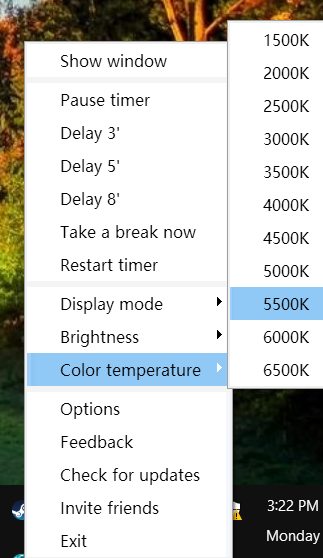
3. Select the color temperature in the tray right-click menu
Lightweight and Easy-to-Use Blue Light Filter
CareUEyes can easily help you achieve intelligent blue light filter adjustment. Some software uses overlay translucent windows to filter blue light, but CareUEyes directly controls the display’s RGB value, which ensures compatibility with other software. You can also set the CareUEyes blue light filter adjustment feature to be disabled when a special program is running (for example, while running photoshop, to restore real color).
Unlike other blue light filter software on windows 7, CareUEyes has higher performance. It only needs 5M of memory at runtime, and it does not consume too much CPU time. And the package of CareUEyes is only 2M. I believe this is your best choice.
Different Blue Light Needs for Day and Night
Although blue light is harmful to the eyes, proper blue light irradiation is beneficial to people during the day. Blue light can keep people awake and have the energy to finish work or study. Therefore, if you are not a person with extremely sensitive eyes, you only need to filter a small part of the blue light during the day and restore the light of the computer screen to light similar to sunlight.
But at night, blue light becomes very harmful, you need to filter more blue light to prevent sleep from being disturbed by blue light. Excessive exposure to blue light at night will cause sleep problems. Because blue light inhibits the production of melatonin in the body. Melatonin is a hormone produced by the pineal gland. It helps your body know when to sleep and wake up. (External Factors that Influence Sleep)
According to people’s different needs for blue light day and night, CareUEyes provides sunrise and sunset feature. Compared with the sunrise and sunset, the color temperature and brightness after sunset are lower.
You only need to turn on the sunrise and sunset functions, CareUEyes will automatically help you adjust the color temperature and brightness at sunrise and sunset.
In addition to filtering blue light, more ways to protect your eyes
1. Follow the “20-20-20” principle
Every time you watch the screen for 20 minutes, raise your eyes and look at a place 20 feet away for at least 20 seconds.
However, many people often forget to take a break due to their busy schedules. CareUEyes can remind you to take a break regularly. It is not a simple timer, it is far more intelligent than you think.
CareUEyes can intelligently analyze the time you actually use the computer, and when you actually work on the computer for the predetermined time, it will remind you to take a break.
timertake a break
2. Set the appropriate brightness for the screen
Don’t make your screen too bright, because the brighter the screen, the more blue light will be emitted, and too bright screen light is also a direct stimulus to the eyes and easily leads to eye fatigue.
Use CareUEyes to easily adjust the screen brightness. You can adjust the brightness in the program interface or use the hotkeys to adjust.
With Microsoft no longer providing updates for Windows 7, it becomes crucial to opt for third-party eye protection software to filter out harmful blue light. In this regard, CareUEyes emerges as the optimal choice, serving not only as a blue light filtering tool but also as a comprehensive eye care solution. With CareUEyes, your eyes receive all-encompassing care, ensuring their well-being in various aspects.
Are you looking for a Break Timer App to safeguard your eyes and enhance your productivity? You’ve come to the right place!
Prolonged computer use in today’s digital age poses various health risks, including eye strain from blue light and glare, discomfort from repetitive motions affecting the wrists, neck, or back, and visual fatigue leading to dry or irritated eyes. This makes a comprehensive eye care solution like CareUEyes indispensable.
CareUEyes is more than just a Break Reminder—it’s a full-featured solution with blue light filtering, brightness adjustment, focus tools, and the innovative MagicX feature. Among its many capabilities, the Break Timer stands out as a key tool to protect your well-being. Let’s dive into how this Rest Timer works and why it’s a game-changer.
How Does the Break Timer Work?
The Break Timer in CareUEyes offers two flexible modes to fit your workflow:
Regular Mode Customize your work and rest intervals in minutes or seconds. For example, work for 50 minutes followed by a 10-minute break. It’s simple and adaptable to any schedule.
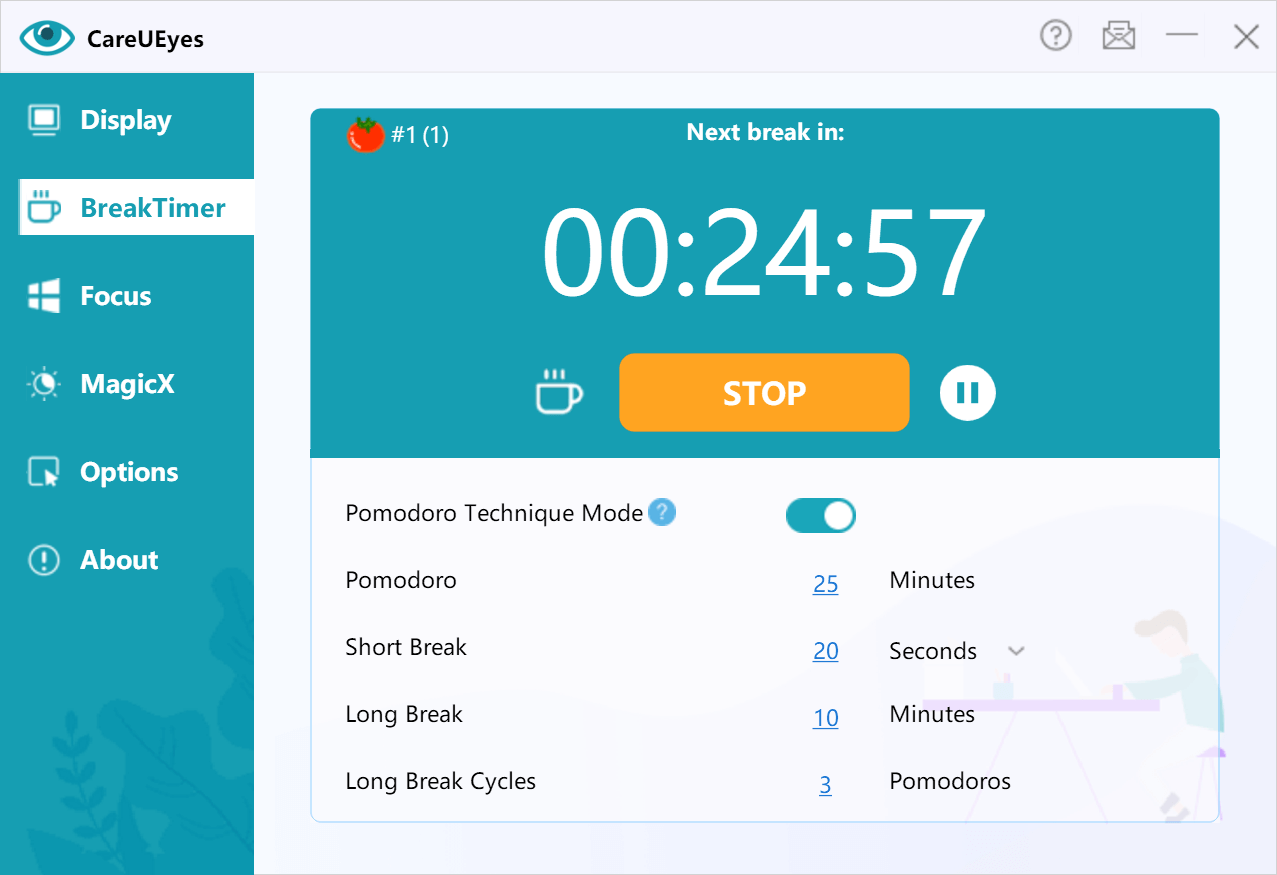
Pomodoro Mode Tailor your Pomodoro sessions with short breaks after each work period and longer breaks after a set number of sessions. For instance, after a 25-minute Pomodoro, take a 20-second rest, and after three Pomodoros, enjoy a 10-minute break.
During breaks, you can enable forced rest—perfect if you struggle with self-discipline. This locks your screen, ensuring you complete your break without skipping back to work. Need to wrap up a task? You can delay the break up to three times before it activates.
Smart Features for a Seamless Experience
The Rest Reminder in CareUEyes is designed with intelligence and convenience in mind:
Full-Screen Detection Running a full-screen program like a video conference or movie? The Break Timer won’t interrupt you, letting you stay focused without unnecessary distractions.
Pause on Inactivity Step away from your computer, and the timer pauses automatically. It resumes when you return. If you’re gone too long, it resets based on your custom settings, keeping your schedule on track.
Personalize Your Breaks
Make your breaks enjoyable with these customizable options:
Background Music and Wallpaper Add soothing music or your favorite wallpaper to transform short breaks into a relaxing experience during your busy workday.
Camouflage Mode Worried about frequent breaks catching your boss’s attention? Lower the break screen transparency to 0% or 30%. This disguises your rest state—allowing you to monitor your work screen discreetly while still enforcing the break.
Beyond the Break Timer: Comprehensive Eye Protection
While the Break Reminder App is a standout feature, CareUEyes offers much more to protect your eyes and boost focus:
Blue Light Filter Reduces harmful blue light to protect your eyes and improve sleep quality.
Screen Brightness Adjustment Automatically dims your screen based on ambient light, minimizing glare and eye strain.
Focus Window Blurs background windows to help you concentrate on the task at hand.
Why Choose CareUEyes?
Unlike other Rest Timer apps, CareUEyes isn’t just about reminders—it’s a holistic eye care and productivity tool. It combines a suite of features to safeguard your health and optimize your work environment. Whether you’re a professional, student, or anyone spending hours at a screen, CareUEyes is your all-in-one solution.
Take Charge of Your Eye Health Today!
Don’t let long computer sessions harm your well-being. Download CareUEyes now and discover how this powerful Break Timer App can protect your eyes, enhance productivity, and make every break count. Try it today—your eyes deserve it! Download
Screen brightness plays a crucial role in eye comfort and overall screen usability. Whether you’re working late at night or using your computer in bright daylight, adjusting the brightness properly can reduce eye strain and improve visibility. In this guide, we’ll show you how to adjust your screen brightness using built-in system settings. If your system doesn’t provide the flexibility you need, we recommend using CareUEyes, a powerful screen brightener that offers more advanced features.
How to Make Computer Screen Brighter Using System Settings
If you’re using a Windows laptop, you can easily adjust the screen brightness using the built-in settings:
Using the Action Center:
Press Win + A to open the Action Center.
Use the brightness slider to increase brightness.
Using Windows Settings:
Go to Settings > System > Display.
Locate the brightness slider and adjust it as needed.
Using Function Keys: Many laptops have dedicated function keys (F1-F12) to adjust brightness. Look for keys with a sun icon and press them while holding the Fn key.
What If You Can’t Increase Brightness Using System Settings?
Sometimes, built-in brightness controls may not work, especially on desktops or external monitors. In such cases, you need a dedicated screen brightener like CareUEyes, which offers more control and flexibility.
You can make computer screen brighter simply by dragging or clicking the brightness slider in the CareUEyes interface—move it right to increase it.
Screen Brightener
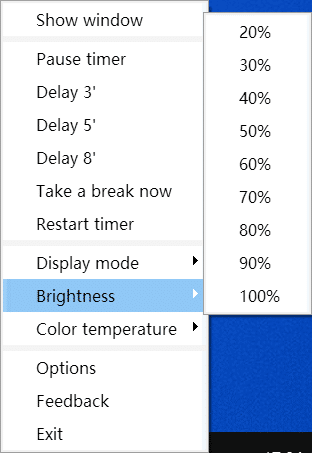
Alternatively, you can adjust the brightness from the CareUEyes tray right-click menu.
Why CareUEyes is the Best Screen Brightener
Unlike system brightness controls, CareUEyes provides several advantages that make it a superior screen brightening solution:
1.Make computer screen brighter with Hotkeys
CareUEyes allows you to adjust brightness instantly using keyboard shortcuts. This is much faster than navigating through system settings, making it an efficient screen dimmer and screen brightener for quick adjustments.
change brightness using keyboard
2. Auto Adjust Brightness Based on Time of Day
CareUEyes can automatically adjust your screen brightness according to sunrise and sunset. This feature ensures that your screen is bright enough during the day but dims at night to reduce eye strain. Most system settings lack this level of automation, making CareUEyes the smarter choice for adaptive screen brightness control.
3. Independent Brightness Control for Multiple Monitors
One of the biggest limitations of built-in brightness controls is that they often do not support external monitors. CareUEyes allows you to adjust the brightness of each monitor independently, making it an ideal screen brightening software for multi-screen setups.
4. Eight Preset Modes for Easy Brightness Adjustment
Finding the perfect brightness level can be time-consuming, but CareUEyes makes it effortless with eight preset modes: Pause, Health, Game, Movie, Office, Edit, Read, and Custom. Each mode is optimized for different activities, allowing you to quickly switch between settings that best suit your needs. Whether you’re working in an office, reading documents, or watching a movie, CareUEyes ensures you have the ideal screen brightness level for maximum comfort.
8 preset modes
5. More Than Just a Screen Brightener—CareUEyes Filters Blue Light
CareUEyes is not just a screen brightness software—it also includes a blue light filter to reduce eye strain and improve sleep quality. By adjusting both brightness and color temperature, it helps minimize blue light exposure, making it a comprehensive eye protection software. Whether you need a screen dimmer for late-night work or a blue light filter for long hours in front of the screen, CareUEyes provides an all-in-one solution for a healthier and more comfortable viewing experience.
Conclusion
If you’re looking for an easy way to control your screen brightness, the built-in system settings may be sufficient for basic adjustments. However, for more advanced features like hotkey control, automatic brightness adjustments based on time, and multi-monitor support, CareUEyes is the best screen brightener available. Try CareUEyes today and experience a smarter, more comfortable way to adjust your screen brightness!
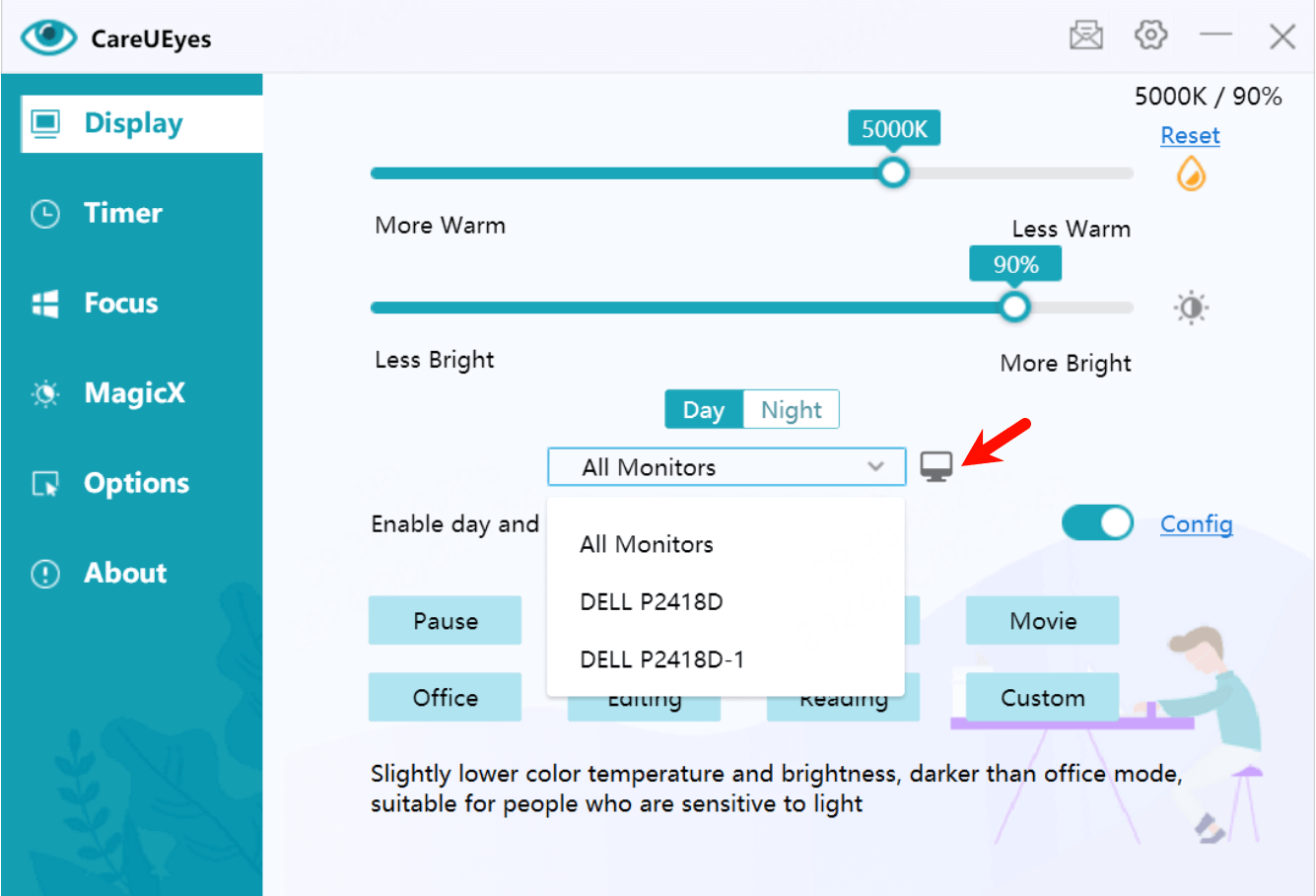
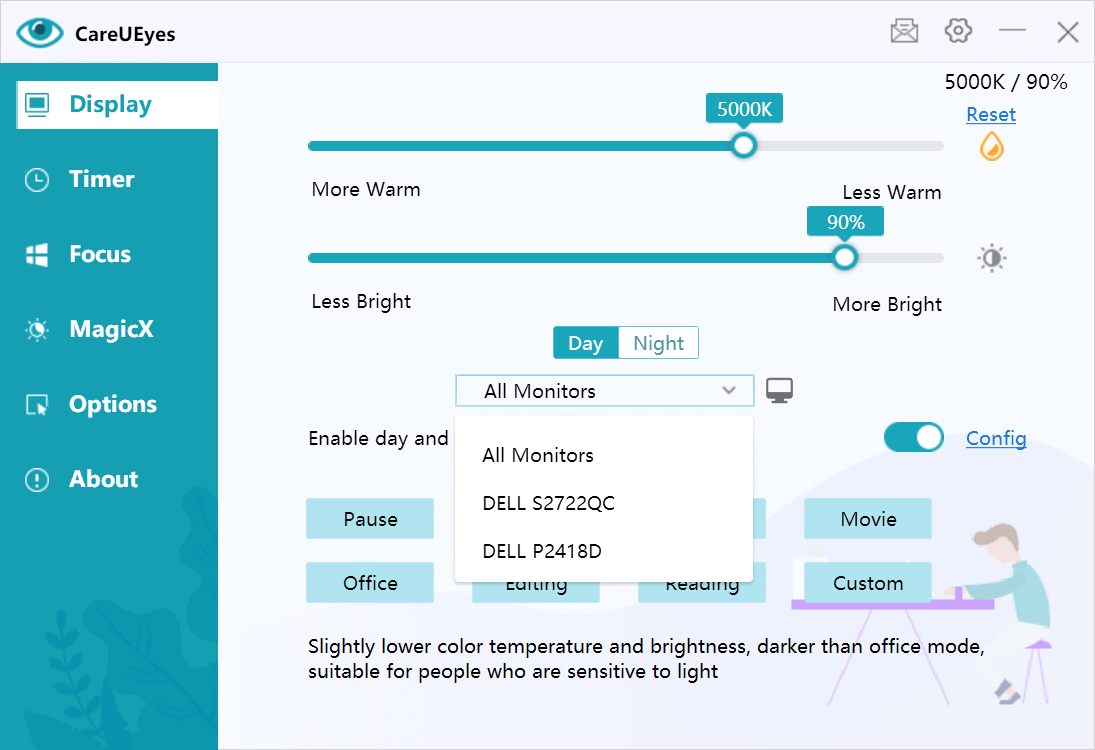
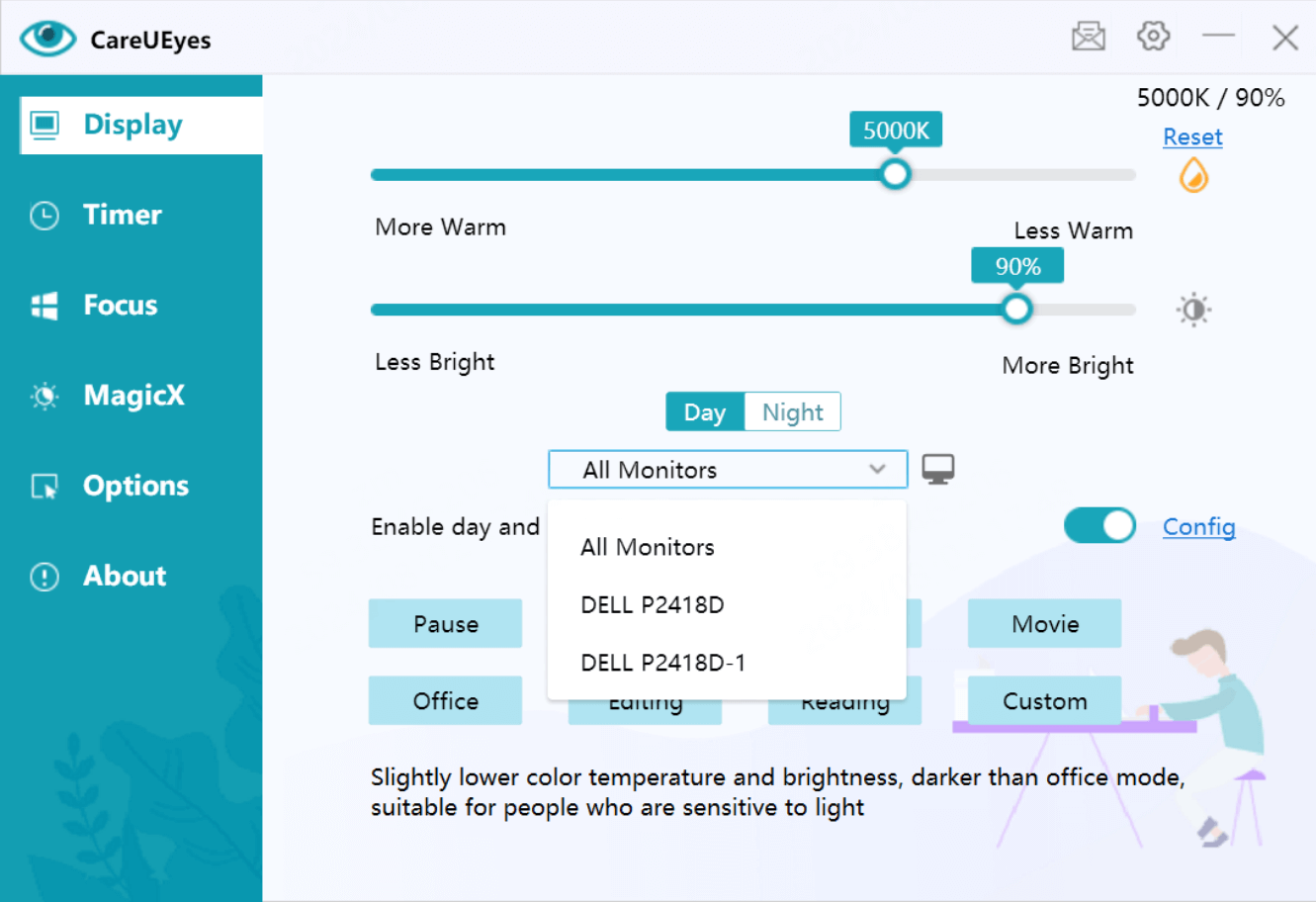
In version 2.4.0.0 of CareUEyes, when your PC is connected to multiple monitors, the “Display” UI will list the names of the connected monitors, such as: DELL P2418D, DELL S2722QC.
If you have two identical monitors connected, they will have a numerical identifier added to the original monitor name. For example, if two DELL P2418D monitors are connected, the list will display DELL P2418D and DELL P2418D-1.
Generally, if you want all monitors to maintain the same brightness and color temperature, you can select “All Monitors“.
If you need to adjust a specific monitor individually, you can select the desired monitor and then adjust the color temperature and brightness separately. You can also choose different work modes for each monitor.
If you’re unsure which name corresponds to which monitor, you can click the🖥️ button.
This will display the monitor names in the lower-left corner of the screen, helping you identify them.
Additionally, when you enable fullscreen disable or custom rules, only the monitor corresponding to the application that triggers the rule will be affected, providing you with a better user experience.
In today’s digital age, we are exposed to screens for extended periods, which can lead to eye strain and discomfort due to blue light emission. Choosing the best blue light screen protector is essential for protecting your eyes. Here are some key factors to consider when selecting a blue light screen protector.
Factors to Consider When Choosing a Blue Light Screen Protector
Price Blue light screen protectors come in a wide range of prices. High-quality protectors can be expensive, often ranging from $30 to $100. While price does not always correlate with quality, investing in a good protector can ensure better performance and durability.
Material The material of the screen protector is crucial. Common materials include acrylic, polycarbonate, and tempered glass. Acrylic protectors are lightweight and affordable but can scratch easily. Polycarbonate protectors are more durable and resistant to impact. Tempered glass protectors offer excellent clarity and scratch resistance but are more fragile and expensive.
Size Choosing the right size is crucial. Measure your screen dimensions before purchasing to ensure the filter covers the entire screen without obstructing the display. Most brands offer filters in various sizes to fit different screens.
Installation Method There are two main installation methods: hanging directly on the monitor or adhesive type. Hanging protectors are easy to install and remove, making them convenient for different monitors. Adhesive protectors offer a more secure fit but can be challenging to install correctly and may leave residue when removed.
Blue Light Blocking Rate The effectiveness of the screen protector in blocking blue light is a critical factor. A good screen protector should block at least 50% of blue light, with high-performance options blocking up to 90%.
Light Transmittance Light transmittance affects the screen’s clarity. High transmittance ensures that the screen remains clear and bright. Low-quality protectors can cause the screen to appear dim or blurry.
Anti-Glare Anti-glare properties are essential for reducing reflections and making the screen easier to view under different lighting conditions. This feature is particularly beneficial if you work in a bright environment or have multiple light sources that cause screen glare.
CareUEyes is a Superior Alternative
CareUEyesis a comprehensive eye protection software designed to reduce eye strain caused by prolonged screen exposure. It adjusts the screen’s color temperature and brightness, blocks blue light, and offers features such as rest reminders and automatic adjustments based on sunrise and sunset.
While blue light screen protectors offer several benefits, CareUEyes provides a more comprehensive and cost-effective solution with numerous advantages:
Affordable and Long-lasting CareUEyes is priced at just $19.9 for a lifetime license, significantly cheaper than high-quality blue light screen protectors. Unlike physical protectors that can scratch or break and may need replacing when changing monitors, CareUEyes offers a one-time investment.
No Impact on Screen Clarity CareUEyes does not affect screen clarity or produce glare. It works by adjusting the screen’s color temperature and brightness, ensuring that the display remains clear and sharp without any physical overlay.
Adjustable Blue Light Blocking Rate CareUEyes allows you to adjust the blue light blocking rate by changing the screen’s color temperature. This customization lets you find the perfect balance between eye comfort and screen visibility.
Automatic Adjustment Based on Sunrise and Sunset One of CareUEyes’ standout features is its ability to automatically adjust the screen’s color temperature based on the time of day. This dynamic adjustment helps reduce eye strain by mimicking natural light patterns.
Comprehensive Eye Protection In addition to blue light filtering, CareUEyes offers features like screen brightness adjustment and rest reminders. These features promote healthier screen usage habits and provide all-around eye protection.
Conclusion
When it comes to protecting your eyes from blue light, choosing the right solution is crucial. While blue light screen protectors offer some benefits, CareUEyes stands out as a superior alternative due to its affordability, effectiveness, and additional features. With CareUEyes, you can enjoy enhanced eye protection without compromising screen clarity or dealing with the potential drawbacks of physical screen protectors. Investing in CareUEyes is a smart choice for anyone looking to safeguard their eyes in our screen-dominated world.
CareUEyes offers a free one-month trial so you can experience its benefits firsthand. Additionally, when you purchase the software, you get a 7-day money-back guarantee. Try CareUEyes now and see how it can help reduce eye strain and improve your screen time comfort.
In today’s digital age, we spend an increasing amount of time in front of computer screen. This prolonged exposure can lead to various health issues, primarily due to the blue light emitted by computer screen. Blue light has been linked to eye strain, headaches, and sleep disturbances. To combat these problems, using a blue light filter is essential. Among the many options available, CareUEyes stands out as a superior choice for protecting your eyes and enhancing your digital experience.
The Importance of Blue Light Filter for Computer Screen
Blue light is part of the visible light spectrum with a short wavelength and high energy. Prolonged exposure to blue light can penetrate the eye and potentially damage the retina, leading to digital eye strain and discomfort. Symptoms include dry eyes, blurred vision, headaches, and disrupted sleep patterns. Blue light filter can significantly reduce these risks by limiting the amount of blue light that reaches your eyes.
Why Choose CareUEyes?
CareUEyes is a comprehensive software solution designed to reduce blue light and alleviate eye strain. Here are the key reasons why CareUEyes is the best choice for a blue light filter:
1. Effective Blue Light Reduction
CareUEyes effectively reduces blue light emission by adjusting the color temperature of your screen. By filtering out the harsh blue light, it helps protect your eyes from strain and fatigue, allowing you to work or browse comfortably for extended periods.
2. Customizable Settings
One of the standout features of CareUEyes is its highly customizable settings. Users can adjust the level of blue light reduction according to their personal preferences. The software offers multiple preset modes, such as normal, smart, office, night, game, and movie, to suit different activities. Additionally, you can create custom modes tailored to your specific needs.
3. Screen Dimmer Functionality
In addition to blue light filtering, CareUEyes includes a screen dimmer function. This feature allows you to adjust the brightness of your screen to optimal levels, particularly in low-light environments. Reducing screen brightness further minimizes eye strain and enhances viewing comfort.
4. Break Reminders
To promote healthy screen habits, CareUEyes provides break reminders. These reminders encourage you to take regular breaks, reducing the risk of digital eye strain and promoting better overall eye health. You can customize the frequency and duration of these breaks to fit your work schedule.
timer
5. Automatic Adjustments
CareUEyes can automatically adjust your screen settings based on the time of day. This feature, known as the “sunrise/sunset” mode, ensures that your screen’s color temperature changes in accordance with natural light patterns. This not only reduces blue light exposure in the evening but also helps maintain your circadian rhythm, improving sleep quality.
6. User-Friendly Interface
CareUEyes boasts a simple and intuitive interface, making it easy for users of all levels to navigate and customize their settings. The straightforward design ensures that you can quickly access and adjust the features you need without any hassle.
7. Cost-Effective Solution
While there are many blue light filter options available, CareUEyes offers a cost-effective solution. It provides a range of features typically found in more expensive software, making it accessible to a wide audience without compromising on quality.
Conclusion
In conclusion, CareUEyes is the ideal blue light filter for anyone seeking to protect their eyes and improve their digital experience. Its effective blue light reduction, customizable settings, screen dimmer functionality, break reminders, automatic adjustments, user-friendly interface, and cost-effective pricing make it the best choice on the market. Don’t let blue light strain your eyes and affect your well-being. Choose CareUEyes and enjoy a more comfortable and healthier screen time.
Living without pupils, a condition known as aniridia or aphakia, poses unique challenges to vision and overall eye comfort. Individuals with this condition often experience increased light sensitivity and strain, making everyday activities more difficult. If you or a loved one is managing life with an eye without a pupil, CareUEyes is an essential tool that can significantly enhance your visual comfort and quality of life.
Understanding the Challenges of Eyes Without Pupils
Pupils play a crucial role in regulating the amount of light that enters the eye. Without them, individuals are exposed to excessive light, leading to discomfort, glare, and eye fatigue. This sensitivity can make it hard to focus on screens for extended periods, a common requirement in today’s digital age. As a result, people with eyes without pupils often struggle with tasks like reading, working on computers, or even watching TV.
Why Choose CareUEyes?
CareUEyes is a comprehensive eye care software designed to alleviate eye strain and improve visual comfort. Here’s how it can benefit those with eyes without pupils:
Blue Light Filter: Excessive blue light from screens can exacerbate eye strain and discomfort, especially for individuals without pupils. CareUEyes offers a blue light filter that reduces the amount of blue light emitted by your screen, making it gentler on your eyes.
Screen Brightness Adjustment: Proper screen brightness is essential for comfortable viewing. CareUEyes allows you to adjust the brightness of your screen to optimal levels, reducing glare and minimizing eye strain.
Break Reminders: Regular breaks are crucial to prevent eye fatigue. CareUEyes features customizable break reminders, encouraging you to take short breaks and giving your eyes the rest they need.
Focus and Attention Timer: This feature helps you manage your screen time effectively, ensuring that you don’t spend too long staring at a screen without a break. It’s particularly beneficial for maintaining focus and preventing eye strain during prolonged tasks.
How CareUEyes Makes a Difference
For individuals with eyes without pupils, CareUEyes provides a customizable, user-friendly solution to manage and mitigate the challenges associated with light sensitivity and eye strain. By reducing exposure to harsh blue light, adjusting screen brightness, and encouraging regular breaks, CareUEyes helps maintain visual comfort and overall eye health.
Testimonials from Users
Many users with conditions affecting their pupils have found significant relief using CareUEyes. One user shares, “Since using CareUEyes, I’ve noticed a substantial decrease in my eye strain and discomfort. The blue light filter and brightness adjustment features have been lifesavers, especially during long hours of work.”
Conclusion
Living with an eye without a pupil doesn’t have to mean constant discomfort and strain. CareUEyes offers a range of features designed to enhance visual comfort and improve your quality of life. Whether you’re working, reading, or simply browsing the web, CareUEyes can make your screen time more enjoyable and less straining. Try CareUEyes today and experience the difference it can make for your eyes.
In today’s digitalized world, we often find ourselves exposed to the radiance of electronic device screens. However, for some individuals, this light can trigger migraine headaches. Finding an effective solution for these symptoms is crucial. In this article, we will explore how CareUEyes can help alleviate migraine headaches and why recommending this software to them is beneficial.
The Challenge of Migraine Headaches
Migraine headaches is a common issue for some individuals when facing strong light, especially from electronic device screens. These discomforts can significantly impact their quality of life and work efficiency. While some may attempt to reduce computer or other screen device usage, it’s not always feasible, particularly for those who require prolonged computer use.
Introduction to CareUEyes Software
CareUEyes is specially designed to help alleviate eye fatigue and discomfort during prolonged computer use. It boasts the following key features:
Blue Light Filtering Blue light is considered one of the main factors triggering migraine headaches and other discomforts.CareUEyes filters the blue light emitted by electronic device screens by adjusting the color temperature.CareUEyes offers a comprehensive blue light filtering feature that addresses various user needs. With eight preset modes, users can easily select the setting that best suits their preferences and activities. Additionally, CareUEyes stands out with its automatic adjustment of color temperature throughout the day, smoothly transitioning based on sunrise and sunset times. This ensures that users experience a gradual shift in screen warmth, aligning with natural light changes and minimizing eye strain. Whether it’s working late into the night or winding down before bed, CareUEyes provides tailored blue light protection, promoting healthier screen usage habits and reducing the risk of discomfort or fatigue.
Brightness adjustment
CareUEyes boasts an advanced brightness adjustment feature designed to enhance user comfort and optimize screen viewing experience. With eight preset modes available, users can easily tailor the brightness levels to their specific needs and preferences, whether it’s reading, gaming, or working in low-light environments. One of CareUEyes’ standout capabilities is its automatic adjustment of brightness throughout the day, seamlessly transitioning based on sunrise and sunset times. This smooth transition ensures that users experience optimal screen brightness at all times, aligning with natural lighting conditions and reducing eye strain. Whether you’re starting your day with a gentle screen glow or winding down in the evening with softer lighting, CareUEyes ensures a comfortable viewing experience from dawn till dusk.
Rest Reminders
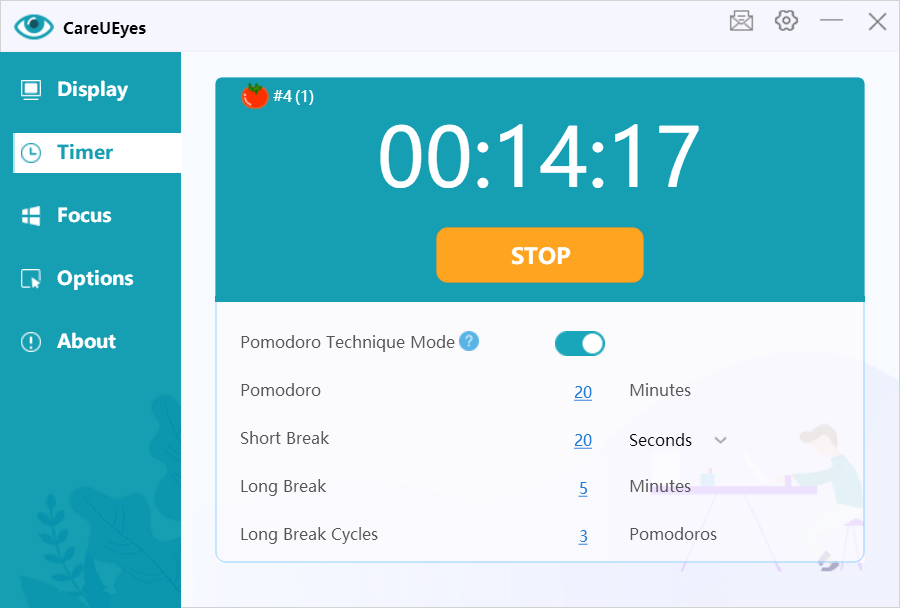
CareUEyes Timer feature is a versatile tool designed to promote healthy screen habits and reduce eye strain. It allows users to set both short breaks and long breaks, adhering to the 20-20-20 rule, which recommends taking a break every 20 minutes, looking at something 20 feet away for at least 20 seconds. Users can customize their breaks based on this principle, akin to the Pomodoro Technique, where 20 minutes constitute one cycle. Following each cycle, users can take a short 20-second break, and after completing three cycles, a longer break ensues. This cyclical approach ensures that users maintain optimal productivity while giving their eyes the necessary rest. By integrating the Timer feature into their workflow, users can effectively manage their screen time and safeguard their visual health.
Customizable Settings: Users can customize the software settings according to their preferences and needs, including adjusting filter intensity, color temperature, and rest reminder intervals.
How CareUEyes Helps Alleviate Migraine Headaches
By using CareUEyes, individuals frequently experiencing photosensitivity migraine headaches can find effective relief:
Reduced Blue Light Exposure The color temperature adjustment feature of CareUEyes plays a crucial role in alleviating photosensitive headaches, dizziness, and nausea. To grasp this, it’s important to understand the relationship between color temperature and blue light. Color temperature refers to the appearance of light sources, typically measured in Kelvin units. Lower color temperatures (such as warm tones) exhibit more red and yellow, while higher color temperatures (like cool tones) display more blue.Digital screens often emit significant amounts of blue light, which under prolonged exposure, can lead to eye fatigue and discomfort. By adjusting the screen’s color temperature, CareUEyes can filter out some blue light.When you’re using the device at night or in low-light conditions, it adjusts the display’s color temperature to present warmer hues, thus reducing the amount of blue light emitted. This filtering effect helps alleviate the strain on your eyes caused by excessive exposure to blue light, thereby reducing eye fatigue and discomfort.Therefore, with CareUEyes’ color temperature adjustment feature, you can comfortably use your computer or other digital screens for extended periods, lessening the occurrence of migraine headaches.
Brightness adjustment The brightness adjustment feature of CareUEyes is crucial for alleviating migraine headaches. This feature reduces the screen’s brightness level to ease eye strain and fatigue. Excessive screen brightness, especially in dim lighting, can stimulate the eyes and lead to discomfort.What sets CareUEyes apart is its ability to automatically adjust screen brightness smoothly throughout the day based on sunrise and sunset times, facilitating a gradual transition for users. This smooth brightness adjustment not only helps alleviate photosensitive headaches, nausea, and dizziness but also enhances users’ visual comfort, enabling them to use computers and other digital screens comfortably for extended periods.
Timely Rest Breaks The software’s timed rest reminders help users take regular breaks, preventing the worsening of discomfort associated with prolonged computer use.
Conclusion
Migraine headaches is a common issue for many individuals when facing electronic device screens. CareUEyes, as software specially designed to alleviate eye fatigue and discomfort, features powerful blue light filtering and color temperature adjustment capabilities, making it an effective solution for alleviating these discomforts. Therefore, we strongly recommend CareUEyes to those in need, enabling them to enjoy a more comfortable computer usage experience.