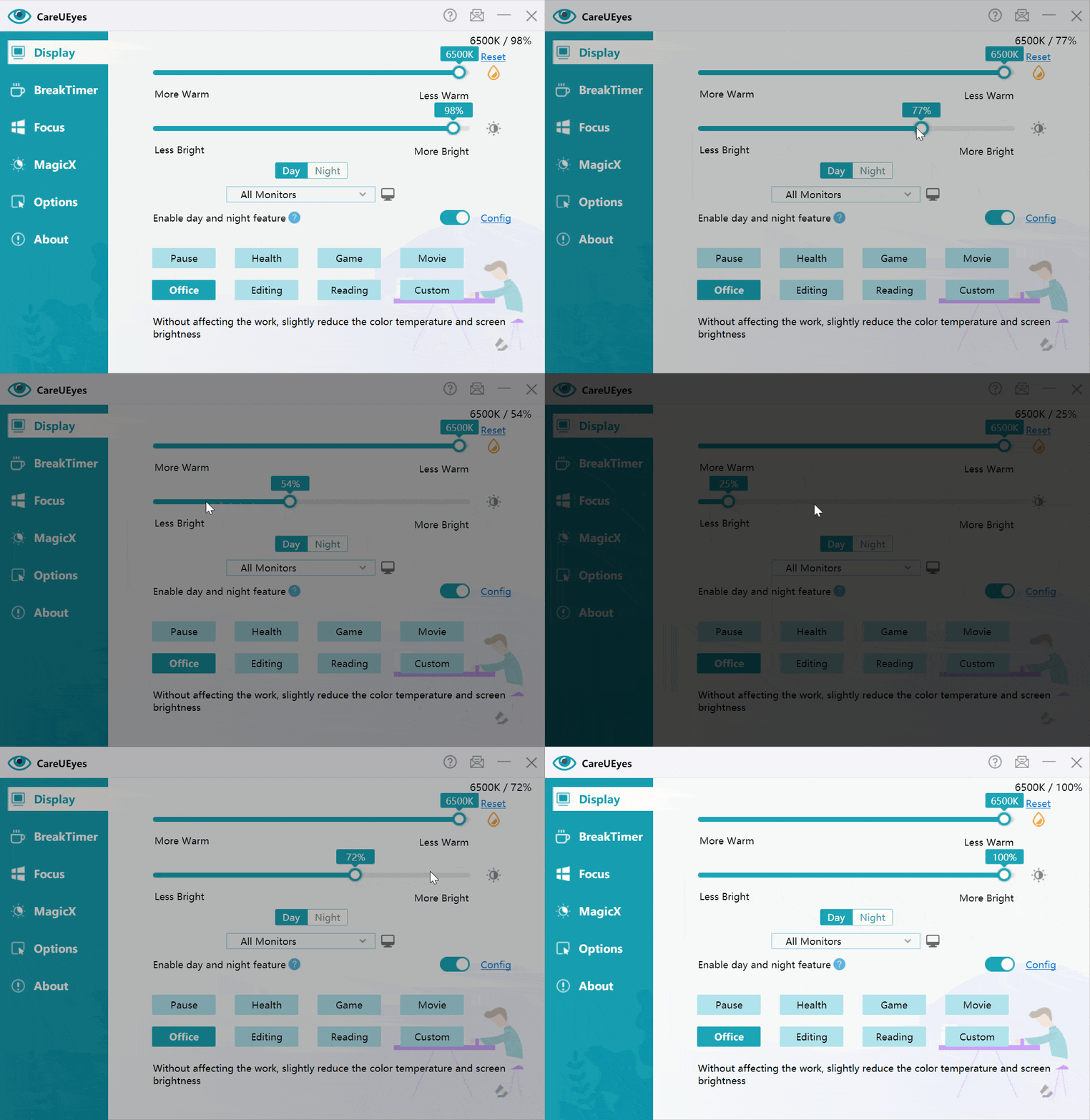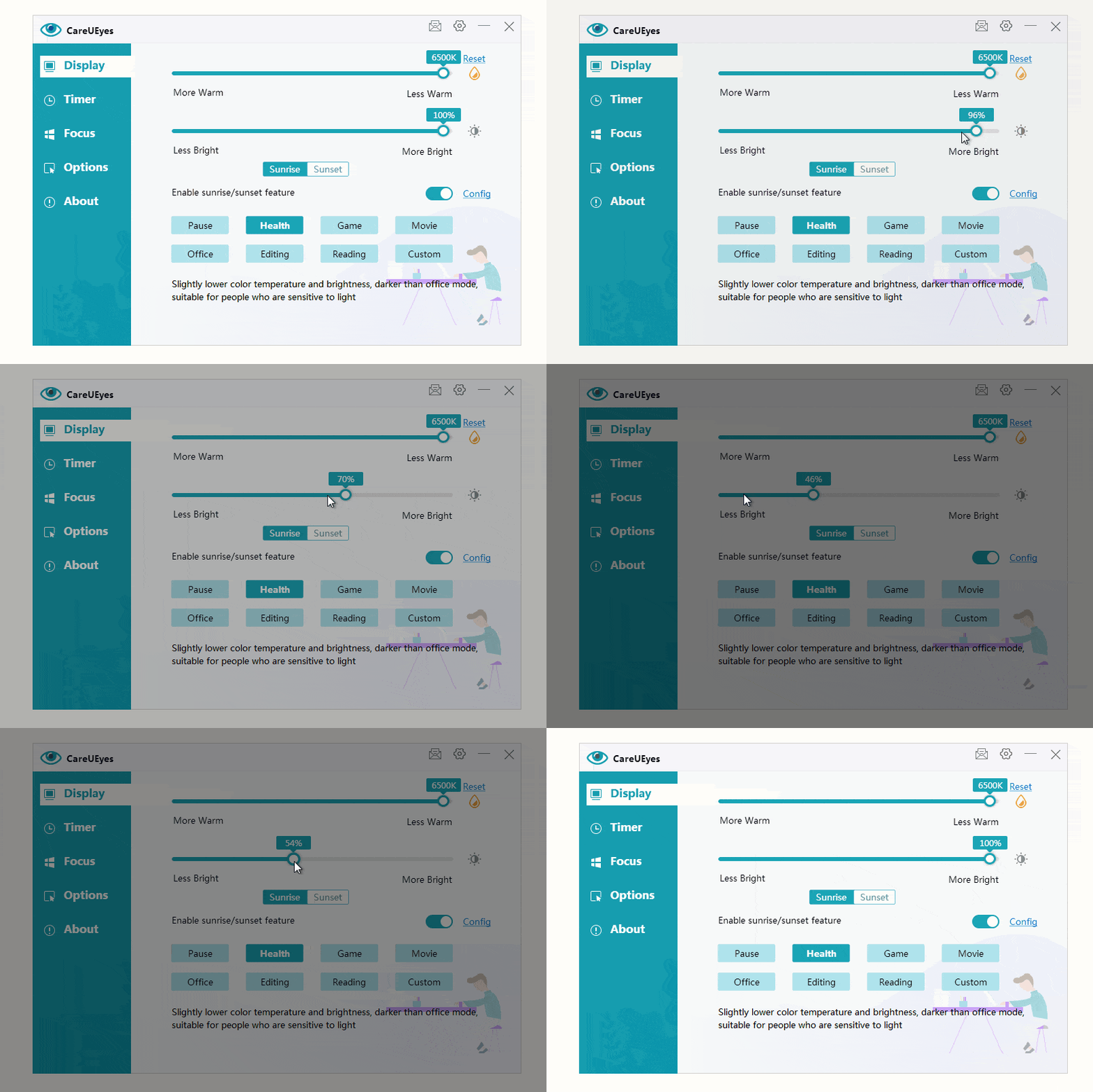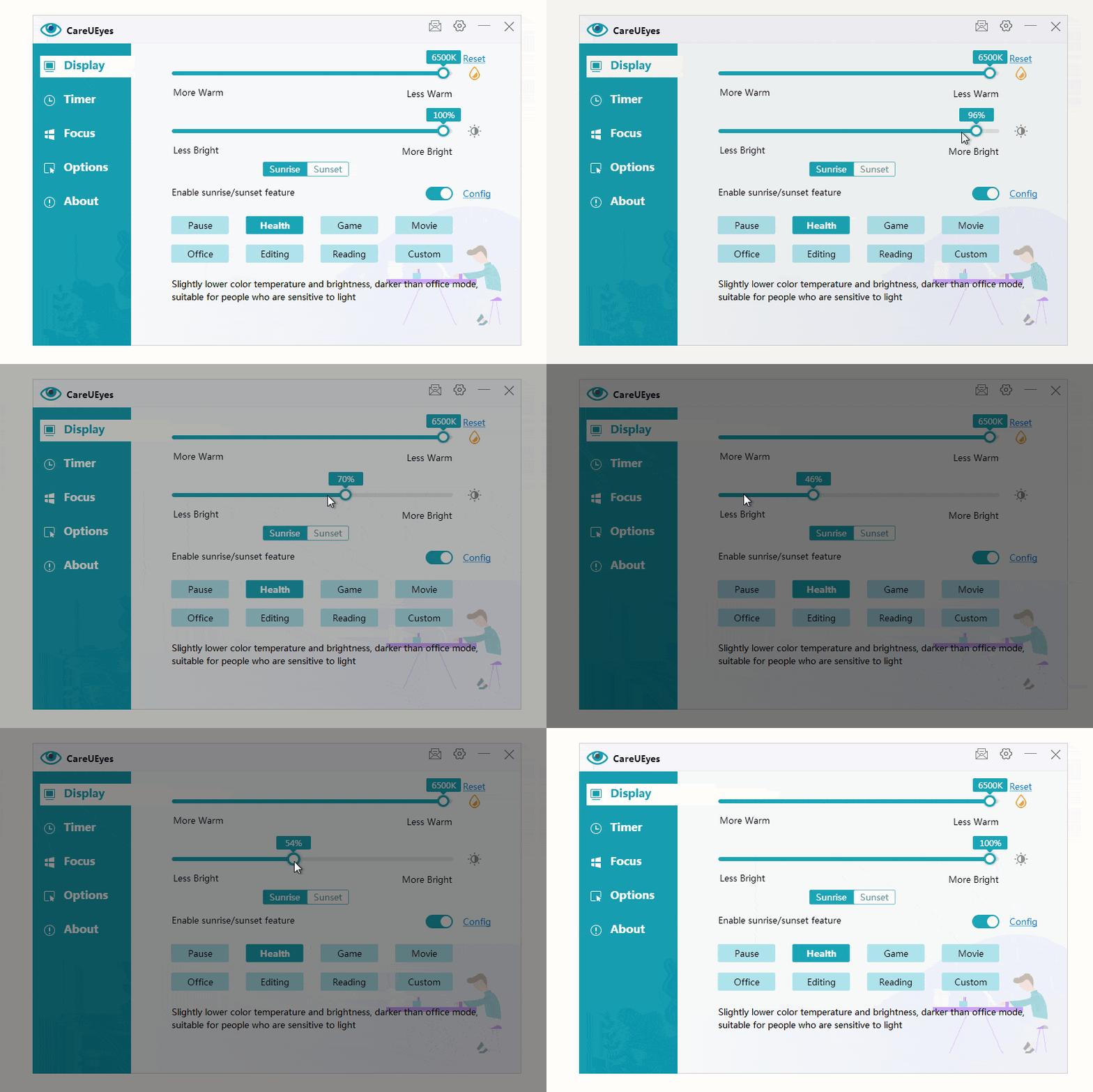
How To Adjust Screen Brightness On Windows 7

Quick answer:
You can adjust brightness on Windows 7 using shortcut keys, Control Panel, or Windows Mobility Center. If brightness is not working or you’re using an external monitor, you can use a brightness control tool like CareUEyes for easier control.

Fastest Ways to Adjust Brightness (Windows 7)

If brightness is not working, jump to the fix section below.

Method 1: Adjust Brightness Using Shortcut Keys

The fastest way to adjust brightness on Windows 7 is using keyboard shortcuts.

– Increase brightness: Fn + F10
– Decrease brightness: Fn + F9

These keys work on most laptops, but may vary depending on the manufacturer (HP, Dell, Lenovo, etc.).

If shortcut keys don’t work, it’s usually due to missing drivers or disabled settings. See the fix section below.

Method 2: Adjust Brightness via Control Panel

  1. Click Start
  2. Open Control Panel
  3. Go to Hardware and Sound
  4. Click Power Options
  5. Use the brightness slider at the bottom

This is the most standard way to adjust brightness in Windows 7.

Method 3: Use Windows Mobility Center

  1. Press Windows Key + X
  2. Find Display Brightness
  3. Adjust the slider

This method is faster than using the Control Panel and works on most laptops.

Method 4: Use a Brightness Control Tool (e.g., CareUEyes)

If you’re using a desktop computer or an external monitor, Windows 7 cannot directly control screen brightness.

In this case, you can:

– Use the physical buttons on your monitor
– Open the monitor menu (OSD)
– Adjust brightness manually

However, this method is not very convenient.

A better solution is to use a brightness control tool like CareUEyes, which allows you to adjust brightness using your mouse and works on external monitors as well.

dimmer


Download

Brightness Not Working on Windows 7? (Fix Guide)

If you cannot adjust brightness, try the following solutions:

1. Update Graphics Driver

  • Open Device Manager
  • Expand Display Adapters
  • Update or reinstall your graphics driver

2. Enable Generic PnP Monitor

  • Go to Device Manager → Monitors
  • Make sure Generic PnP Monitor is enabled

3. Fix Missing Brightness Slider

  • Open Power Options
  • Reset or change your power plan

4. Fix Shortcut Keys Not Working

  • Install laptop hotkey drivers (from manufacturer website)
  • Update BIOS if necessary

5. Desktop Brightness Not Changing

  • This is normal in Windows 7
  • Use monitor buttons or software instead

 If none of these methods work, use a brightness control tool below.

Best Way to Control Brightness Easily (Recommended)

While Windows 7 provides basic brightness controls, they have limitations—especially on external monitors or when shortcut keys don’t work.

Tools like CareUEyes offer a more flexible solution:

– Adjust brightness using your mouse (no hardware limitations)
– Works on external monitors
– Add custom shortcut keys
– Reduce eye strain by dimming your screen below the minimum brightness supported by Windows (ideal for night use)
– Automatically adjust brightness based on time of day, so your screen stays comfortable in both daytime and nighttime environments(optional)

This makes it a more convenient and reliable way to control brightness compared to built-in system options.

FAQ

How do I adjust brightness on Windows 7?

Use shortcut keys (Fn + F9/F10), Mobility Center (Win + X), Power Options or a brightness control tool like CareUEyes for easier control.

Why can’t I change brightness on Windows 7?

This is usually caused by outdated drivers or disabled monitor settings.

What is the shortcut key for brightness?

Fn + F9 decreases brightness, and Fn + F10 increases brightness on most laptops.

Why is the brightness slider missing?

Your display driver may not be installed correctly or the monitor is not recognized.

How do I fix a dim screen?

Update your graphics driver or use a brightness control tool.

Final Tip

For most users, shortcut keys or Mobility Center are the fastest ways to adjust brightness.
If those methods don’t work, fixing drivers or using a dedicated brightness control tool is the most reliable solution.

Download

Screen Brightness Adjuster for Windows

Control your screen brightness instantly — without opening system settings.
Adjust brightness using a simple slider or hotkeys, and manage multiple monitors with ease.

CareUEyes is a lightweight and trusted brightness control tool that helps you manage screen brightness quickly and comfortably. It works as both a screen dimmer and a screen brightener, giving you full control in any lighting condition.

Download

A Faster Way to Adjust Screen Brightness

Instead of relying on built-in Windows controls, CareUEyes gives you a faster and more flexible way to adjust brightness.

You can change brightness instantly without opening settings, making it easier to switch between tasks or work across multiple displays.

Key Features of the Screen Brightness Adjuster

Instant Brightness Adjustment

Adjust brightness in real time using a simple slider or keyboard shortcuts. No need to open Windows settings.

You can also adjust brightness directly from the system tray menu, making quick adjustments even faster and more convenient.

screen brightness adjuster

screen brightness adjuster - hotkey

Multi-Monitor Support

Control brightness across multiple monitors from one place — including external displays. Adjust each screen independently or sync all monitors to change brightness together.

Precise Brightness Adjustment

Fine-tune brightness levels to match your environment, whether you’re working, reading, or watching content.

Smart Brightness Scheduling

Automatically control brightness with smart scheduling.
Set your preferred brightness for day and night, and let it adjust automatically in the background.

Lightweight & Easy to Use

Minimal interface, fast response, and designed for everyday use without complexity.

Full Control Over Your Screen Brightness

With CareUEyes, you get full control over how your screen brightness works.

Adjust brightness instantly, control multiple monitors, and automate changes — all in one simple and efficient tool.

Download

How Screen Brightness Adjuster Works

CareUEyes uses gamma-based rendering to control brightness at the software level, bypassing the limitations of standard system controls.

This enables more precise adjustments, smoother visual output, and consistent behavior across multiple monitors.

Adjust Screen Brightness on Windows & Multiple Monitors

• Windows 11/10/8/7/XP
• Works on laptops and desktop computers
• Supports multiple monitors, including external displays

Adjust brightness across all your screens from one place.

Download Screen Brightness Adjuster

Make brightness control simple again.
Adjust brightness the way you want — instantly, across multiple monitors, and automatically throughout the day.

Screen Dimmer – Adjust Brightness for All Monitors

Is your screen still too bright—even at the lowest setting?
A reliable screen dimmer for PC can help you lower screen brightness and improve comfort.

Why You Need a Screen Dimmer for PC

Built-in Windows brightness controls are often limited and may not provide enough adjustment for comfortable viewing. This issue becomes even more noticeable when using external or multiple monitors.

A screen dimmer for PC gives you more precise control over brightness, helping reduce eye strain during long hours of use—especially in low-light environments.

CareUEyes is an advanced screen brightness adjuster for PC that solves these problems. It can be used as both a screen dimmer and a screen brightener, giving you full control over your screen brightness in any lighting condition.

Unlike standard brightness controls, CareUEyes goes beyond your monitor’s hardware limits—dimming your screen down to just 1% with no flicker, while preserving natural colors and clarity. It also works seamlessly across single, external, and multiple monitors for consistent brightness control.

Core Features of CareUEyes Screen Dimmer

CareUEyes is a powerful screen dimmer for Windows 11 and 10, with additional support for legacy systems like Windows 8, 7, and XP.

High-Precision Screen Brightness Control  for PC (1% Increments)

Many screen dimmer tools offer only a few fixed brightness levels, which limits precise screen brightness control. CareUEyes works as an advanced screen brightness controller, allowing you to adjust brightness in precise 1% increments. This level of screen brightness control lets you fine-tune your display to the exact brightness level you need, whether you’re working at night or in low-light environments.

Multi-Monitor Brightness Control

CareUEyes works as a powerful screen brightness reducer that lets you control brightness across multiple monitors.You can:

    • Synchronize brightness across all monitors simultaneously
    • Adjust brightness for each monitor independently

Ideal for developers, designers, and multi-monitor workstations.

Preset Screen Brightness Modes for Different Activities 

CareUEyes includes preset screen brightness modes that allow quick switching between different usage scenarios — Reading, Office, Movie, Night, and Custom. Switch with a click or assign a hotkey.

Automatically Adjust Screen Brightness Based on Time of Day

CareUEyes can automatically adjust brightness throughout the day. Brightness gradually changes based on local sunrise and sunset times, creating a smooth transition between daytime and nighttime brightness levels.

Benefits include:

    • Reduced eye strain
    • Natural adjustment matching your environment
    • Automatic brightness changes without manual input

Use Hotkeys and Quick Controls to Adjust Screen Brightness on PC

CareUEyes allows quick brightness adjustments without opening the main application. Brightness can be controlled via:

    • Keyboard hotkeys
    • System tray brightness slider
    • Presets

Blue Light Filter for Eye Protection

Blue light exposure can contribute to eye strain. CareUEyes includes a blue light filter feature that reduces blue light while maintaining comfortable screen colors.


Download


Why CareUEyes Is a Better Screen Brightness Controller

Lower Screen Brightness with Gamma-Based Dimming

Many screen dimmer tools lower screen brightness by placing a dark overlay. While this approach can reduce visible brightness, it often causes several problems:

    • Reduced contrast and washed-out colors
    • Screenshots capture the darkened overlay
    • Overlay disappears in full-screen applications (games, video)
    • Unreliable on multi-monitor setups

CareUEyes uses a different approach. Instead of a dark overlay, it adjusts the screen’sgamma levels. This modifies how the GPU renders every pixel, so the screen genuinely outputs less light — without adding any layer on top. The result is more natural dimming that works consistently across different monitor types and remains active in full-screen applications.

Screen Dimmer That Works in Fullscreen Games and Video on PC

Many screen dimmers fail to function in games or video apps. CareUEyes utilizes GPU-level gamma adjustment, ensuring your brightness settings stay active even in full-screen games and streaming sessions without any flickering or resets.

CareUEyes vs Other Screen Dimmer Tools

FeatureCareUEyesDimmer (Nelson)DimScreenf.lux
Brightness Adjustment MethodGamma (GPU-level)Dark overlayDark overlayColor shift
Brightness Precision1% increments (high precision)Basic slider10 fixed levels⚠️Limited
Dim Below System Minimum✅Yes✅Yes✅Yes⚠️Limited
Multi-Monitor Support✅ Full control (per display)⚠️Limited❌No❌No
Blue light filter✅Built-in❌No❌No✅Built-in
Screenshot Compatibility✅ No impact❌Affected❌Affected✅No impact
Full-Screen App Support✅StableSometimes failsSometimes fails✅Stable
Auto Brightness / Scheduling✅Yes❌No❌No✅Yes
Preset Modes (Scene Modes)✅Yes❌No❌NoLimited

If you need a solution that supports full-screen gaming, independent multi-monitor adjustment, and crystal-clear screenshots, CareUEyes is the most professional choice on the market.


Screen Dimmer for PC Reviews: What Users Say About CareUEyes

Source: Facebook Reviews

★★★★★

“With several modes to choose from and customizable brightness levels, I’m no longer forced to stare bright-eyed for long hours at the computer.”

— Kurty Wong

★★★★★

“Great software for sensitive eyes. It easily adjusts color and brightness settings, and it even reminds you to take breaks during long computer sessions.”

— Brian Bloch

★★★★★

“I was looking for a dark mode for the whole screen. After trying the trial version and exploring the features, I was impressed and decided to buy the lifetime license.”

— William McGroarty

★★★★★

“Commendable brightness and color adjustments plus break reminders. Exactly what I needed for long workdays.”

— Heinrich Müller

★★★★★

“I recommend this eye protection software, especially if you need to work on the computer for several hours daily.”

— Daniel Cañizares Corrales

★★★★★

“This software has a great range of features that works perfectly out of the box. It’s a must-have for anyone who uses a computer for extended periods.”

— Richard Brus

How to Lower Screen Brightness with CareUEyes

Getting started takes less than two minutes:

  1. Install and launch CareUEyes

  2. Open the main interface from the system tray

  3. Select your monitor (Optional): If you have multiple displays, use the dropdown to choose All Monitors to sync brightness across every screen, or select a specific monitor to adjust it independently. If you only have one screen, you can skip this step.
    External Monitor Brightness Control
  4. Choose a preset mode (Health or Office)

  5. Drag the brightness slider to your preferred level: slide to the left to lower screen brightness, and to the right to increase it

    Note: For even deeper dimming, go to Options > Display and check “Use wider brightness range (0-100)”.

Screen Dimmer for PC FAQs (Common Questions Answered)

Can a screen dimmer lower screen brightness with Gamma-Based Dimming below the system limit?

Yes. Your system brightness slider is limited by your monitor’s hardware floor. CareUEyes adjusts gamma through the graphics driver independently of that limit, so you can reduce perceived brightness well below what the system slider allows — even down to 1%.

Does screen dimming affect screenshots?

Not with CareUEyes. Gamma adjustment changes how the monitor renders the signal, not the underlying pixel data. Screenshots capture the original data before gamma is applied, so they remain at full brightness regardless of your dimming setting. Overlay-based dimmers do affect screenshots.

Can I use a screen brightness darkener with multiple monitors?

Yes. CareUEyes controls each connected monitor independently. You can set different brightness and color temperature values per display, or sync all monitors with one click. This works with any number of monitors, including mixed-resolution setups.

Can brightness be controlled with hotkeys?

Yes. CareUEyes supports configurable keyboard shortcuts to increase or decrease brightness, toggle the blue light filter, and switch between scenes — without opening the app. All shortcuts can be customized in the app settings.

Will screen dimming software damage my monitor?

No. Gamma adjustment changes the signal your GPU sends to the monitor. No electrical stress is placed on the display hardware. The monitor simply renders what it receives, exactly as it always does. Neither gamma dimming nor hardware backlight dimming causes wear or damage.

Why does my screen brightness keep changing automatically?

This is almost always caused by adaptive brightness — a system feature that uses an ambient light sensor to auto-adjust backlight intensity. Disable it in your system display settings (“Change brightness automatically when lighting changes”) for full manual control with CareUEyes.

Does CareUEyes work with external monitors via HDMI or DisplayPort?

Yes. Gamma adjustment applies to all monitors connected through your GPU, regardless of cable type. HDMI, DisplayPort, USB-C, and DVI are all supported. The only exception is monitors connected via USB display adapters that use their own independent rendering pipeline.

Can a screen dimmer help with migraines?

Bright screens are a recognized migraine trigger for people with photophobia. CareUEyes allows dimming well below the system minimum — often to 10–20% — which can meaningfully reduce visual stimulus. It also combines brightness reduction with a blue light filter in a single tool. For medical advice specific to your condition, consult a neurologist or headache specialist.

Does screen dimmer software affect gaming or video performance?

No. Gamma adjustment happens at the driver level and adds no rendering overhead. CareUEyes does not hook into graphics APIs (DirectX, OpenGL, Vulkan) or inject overlays, so gaming and video performance are completely unaffected.

What is the difference between software dimming and monitor OSD brightness?

Monitor OSD controls the physical backlight and has a hardware floor below which it cannot go. Software gamma dimming adjusts the GPU signal to the monitor and can go below that floor. Software dimming also works across all monitors from one app, supports scheduling and automation, and requires no physical button access on each monitor.


Download Screen Dimmer

If your screen is still too bright even at the lowest brightness setting, a screen dimmer can make a big difference.

CareUEyes lets you dim screen brightness below the system minimum, making your display more comfortable for night use or dark environments. With features like multi-monitor support, hotkeys, and precise brightness control, it’s an easy way to reduce eye strain while working on your PC.

Download CareUEyes and start dimming your screen in seconds.

Download

Screen Too Bright at Night? How to Reduce Monitor Brightness

If your computer screen is too bright at night, even when the brightness is set to the lowest level, you are not alone. Many users experience eye strain when using their computer in dark environments.
Bright screens can cause discomfort, headaches, and difficulty focusing, especially during late-night work or reading.
One effective solution is using a screen dimmer that can reduce brightness below the system limit and make the display more comfortable for nighttime use.

Why Your Screen Is Too Bright at Night

There are several common reasons why your screen may feel too bright at night.

1. Minimum brightness is still too high

Many monitors have a hardware brightness limit. Even at the lowest setting, the screen may still appear too bright in dark environments.
This is especially common with:
  • external monitors
  • high-brightness displays
  • desktop monitors designed for daylight use

2. Room lighting is dark

At night your eyes become more sensitive to light. A screen that feels comfortable during the day may feel extremely bright in a dark room.

3. Blue light from the display

Computer screens emit blue light that can increase glare and contribute to eye strain during nighttime use.

How to Reduce Screen Brightness at Night

There are several ways to make your screen more comfortable when using your computer at night.

Method 1: Lower the monitor brightness

Most monitors allow brightness adjustment using built-in controls.
Steps:
  1. Press the menu button on your monitor
  2. Navigate to brightness settings
  3. Reduce brightness to the lowest level
However, many users find that the lowest brightness is still too bright.

Method 2: Enable Night Light in Windows

Windows includes a feature called Night Light, which reduces blue light and makes the screen warmer.
Steps:
  1. Open Windows Settings
  2. Go to System → Display
  3. Turn on Night Light
Night Light can reduce glare slightly, but it does not lower brightness beyond the monitor’s limit.

Method 3: Use Dark Mode

Dark mode reduces bright white backgrounds in applications.
You can enable dark mode in:
  • Windows settings
  • web browsers
  • many productivity apps
While this helps reduce glare, it still does not reduce the actual screen brightness.

Method 4: Use Screen Dimmer Software

If your screen is still too bright at night, the best solution is to use a screen dimmer.
A screen dimmer can:
  • reduce brightness below the system limit
  • dim the screen further than monitor controls allow
  • improve comfort when using the computer at night

For example, using a screen dimmer like CareUEyes allows you to reduce brightness below the system limit and adjust brightness more precisely.

CareUEyes also supports multi-monitor brightness control, hotkeys, and automatic brightness adjustment based on sunrise and sunset.

dimmer
Download

Extra Solution: Reduce Brightness Below 10%

Some users find that even very low brightness levels are still too bright, especially when working late at night in a completely dark room.
By default, CareUEyes allows brightness adjustment between 10% and 100% to ensure stable display output.
However, CareUEyes also includes an option called “Use wider brightness range (0–100)”.
After enabling this option, you can reduce brightness all the way down to 0%, allowing the screen to become significantly darker than normal brightness controls allow.
This feature is particularly useful for:
  • working late at night
  • reading in dark environments
  • reducing eye strain during long computer sessions
With this extended brightness range, CareUEyes works as a powerful screen dimmer for users who need brightness levels lower than the system minimum.

Benefits of Using a Screen Dimmer

Screen dimmer software provides several advantages compared with built-in system settings.

More precise brightness control

Some dimmer tools allow brightness adjustments in very small increments, making it easier to find a comfortable level.

Better comfort at night

Lower brightness can reduce eye strain and make it easier to work or read at night.

Works across multiple monitors

Many users today work with two or more monitors. Screen dimmers allow brightness control across all displays.

When a Screen Dimmer Is Most Useful

A screen dimmer is especially helpful in situations such as:
  • working late at night
  • reading on the computer in a dark room
  • using external monitors that cannot dim enough
  • multi-monitor setups with inconsistent brightness
In these situations, reducing brightness further can significantly improve visual comfort.

Frequently Asked Questions

Why is my screen still too bright at the lowest brightness?

Some monitors have hardware brightness limits that cannot be reduced further using system controls.

Can Windows reduce brightness below minimum?

No. Windows brightness settings cannot go below the hardware limit of the display.

Is it safe to use screen dimmer software?

Yes. Screen dimmer software adjusts display output through software and does not modify monitor hardware.

Conclusion

If your screen is too bright at night, adjusting system brightness or enabling Night Light may help slightly. However, these methods often cannot reduce brightness enough for comfortable nighttime use.

Using a screen dimmer like CareUEyes allows you to dim the screen further and create a more comfortable viewing experience when working or reading in low-light environments.

Download

How To Change Brightness On Windows 10

As a software developer, I’m glued to my screens all day—whether I’m running a dual-monitor setup or a triple-head rig. And for years, one thing absolutely drove me up the wall: the Windows 10 brightness control. Sometimes it works fine, but other times, it just completely flakes out on me.

If you’ve ever plugged in an external monitor and found that the brightness slider disappeared, you’re not alone. Let me explain why this happens — and how I fixed it for myself (and maybe for you too).


💡 The Problem with Windows Brightness Settings

Windows does offer several ways to adjust brightness:

    • Settings → Display → Brightness slider

    • Action Center quick controls

    • Fn keys on laptops

But here’s the catch: These only work under specific conditions. For example:

    • You must be on a laptop with integrated display

    • You must use eDP or LVDS connections (internal display types)

    • HDMI, DisplayPort, or USB-C displays? No dice — Windows can’t change their brightness

This means if you’re:

    • Using an external monitor

    • Connecting through HDMI / DP / USB-C

    • Running multiple displays

Then your brightness slider might be missing, grayed out, or completely useless.

As a developer, that’s unacceptable — especially when working at night or trying to reduce eye strain.


🔧 My Solution: CareUEyes

I developed CareUEyes to address this very issue, providing a more reliable brightness controller than the standard Windows settings. Instead of relying on hardware brightness (which Windows is often blind to), it uses a software-based brightness layer that:

    • Works with any monitor, no matter the connection type

    • Doesn’t depend on graphics card drivers or system-level support

    • Lets you dim the screen even below the system minimum

change brightness on Windows 10

Download


🖥️ One Tool, All Monitors

CareUEyes lets me adjust brightness on:

    • External monitors connected by HDMI or DisplayPort

    • USB-C portable screens

    • Multi-monitor setups with mixed resolutions

    • Desktop PCs without built-in displays

It just works — whether Windows “detects” your brightness settings or not.


Bonus: It Does More Than Just Brightness

I figured, if I’m already building a brightness controller, why not make it eye-friendly too?

    • Blue Light Filter – Warms up screen color to reduce eye strain

    • Preset Modes – Reading, Night, Office, etc.

    • Automatic Scheduling – Switch modes based on time of day

    • Screenshot-Safe – Brightness and color overlays are invisible in screenshots

All lightweight. No bloat. No system conflicts.

Download

🧠 Why This Matters

If you’ve tried everything — drivers, GPU settings, random registry hacks — and still can’t dim your screen on certain monitors, it’s not you. It’s Windows. It simply wasn’t built for modern multi-monitor setups with flexible brightness needs.

CareUEyes steps in where Windows stops.

Download

READ NEXT:

> how to change brightness on windows 7

screen dimmer for the night

In today’s society, computers have become an integral aspect of our daily life, work, and education. Do you experience eye fatigue, headaches, or difficulty falling asleep when using the computer at night?

blue light cause eyestarin

 A screen dimmer for the night is essential

Why are computer screens harmful to our health, particularly at night? One significant reason is that computer screens emit blue light. The brighter the screen, the more blue light it emits. Blue light can lead to eye fatigue and disrupt sleep patterns. Research has shown that excessive exposure to blue light at night can suppress melatonin production, disrupting our natural circadian rhythms and tricking our brains into thinking it’s still daytime. Therefore, a screen dimmer is highly recommended for anyone who uses computers at night.

What features should a screen dimmer have for nighttime use?

A screen dimmer for nighttime use is a software tool designed to reduce screen brightness and filter out blue light. By minimizing exposure to harsh, bright light at night—especially blue light—it helps protect your eyes from strain and supports a healthier sleep cycle.

CareUEyes is an excellent screen dimmer application.


screen dimmer for night

CareUEyes is a professional brightness controller for PCs and laptops, supporting Windows 11/10/8/7/XP.

CareUEyes can dim all screens, including desktop monitors, laptop monitors, external monitors connected to laptops, or computers with multiple monitors. Adjusting brightness with CareUEyes is simple; you can dim screen brightness from 100% to 20%.

There are three ways to reduce screen brightness.

The first way is to drag or click the brightness slider to adjust screen brightness.

screen dimmer for night

The second method involves adjusting brightness in the tray right-click menu.

The third method allows you to customize hotkeys and then use the keyboard to adjust brightness.

screen dimmer hotkey

Smart Brightness Transitions

CareUEyes’ brightness adjustment feature offers a seamless transition throughout the day by automatically adjusting screen brightness based on sunrise and sunset times. This intelligent function ensures a comfortable viewing experience by smoothly transitioning brightness levels in accordance with natural light changes.

Reduce Blue Light and Improve Sleep

CareUEyes accomplishes this by reducing blue light through color temperature adjustments that enhance reddish colors, giving the computer screen a warmer appearance.

You can adjust the color temperature using the color temperature slider. Moving it to the left decreases the color temperature, reducing blue light, while moving it to the right increases the color temperature, intensifying blue light.

screen dimmer for night.

You can also customize hotkeys to quickly adjust the color temperature.

screen dimmer for night

CareUEeys has more features that can protect your eyes 

1. Editing mode

editing mode

Editing mode changes your white screen to black, making it easier on the eyes at night. This feature is very suitable for you to edit or read the text at night because the black background can eliminate most of the blue light and relax your eyes.

2. Remind you to take regular breaks

Screen dimmer for night


Windows10 brightness not working

Adjusting the brightness of your computer screen is crucial for maintaining good eye health. If your screen is too bright, it can strain your eyes and lead to fatigue or headaches. Conversely, if it’s too dim, text may become unclear, causing visual strain. Moreover, on laptops, a bright screen can drain battery life more quickly.

When the brightness adjustment feature in Windows 10 isn’t working properly, what’s the best alternative?

Although Windows 10 usually lets you adjust brightness in the Control Panel, the option isn’t always available. When that happens, using dedicated brightness adjustment software is a better solution.

Better Solution for Windows 10 Brightness Issues


CareUEyes is a professional brightness adjustment software. It can easily assist you in achieving intelligent brightness adjustment.

Change brightness on Windows 10

It offers eight preset modes, each configured with the optimal brightness setting. Simply select the appropriate mode to adjust the screen brightness. If the default brightness doesn’t meet your needs, you can modify it by clicking or dragging the brightness slider.

Additionally, you can customize hotkeys for quicker brightness adjustments.

Change brightness on Windows 10


Some software employs overlay translucent windows for brightness adjustments, but CareUEyes directly manipulates the display’s RGB values, ensuring compatibility with other software.

Enhanced Eye Protection Features

Moreover, CareUEyes also incorporates blue light filtering capabilities. It filters blue light by altering the color temperature, with lower color temperatures resulting in more effective blue light filtration. You can adjust the color temperature by dragging the color temperature slider.

brightness adjustment

CareUEyes is a professional eye protection software that can adjust screen brightness, filter blue light, and remind you to take regular breaks. With CareUEyes, you can comprehensively protect your eyes.

timer
timer
take a break
take a break


Download

Best Screen Brightener for Windows: Easy Brightness Control

Screen brightness plays a crucial role in eye comfort and overall screen usability. Whether you’re working late at night or using your computer in bright daylight, adjusting the brightness properly can reduce eye strain and improve visibility. In this guide, we’ll show you how to adjust your screen brightness using built-in system settings. If your system doesn’t provide the flexibility you need, we recommend using CareUEyes, a powerful screen brightener that offers more advanced features.

How to Make Computer Screen Brighter Using System Settings

If you’re using a Windows laptop, you can easily adjust the screen brightness using the built-in settings:

  • Using the Action Center:
    1. Press Win + A to open the Action Center.
    2. Use the brightness slider to increase  brightness.
  • Using Windows Settings:
    1. Go to Settings > System > Display.
    2. Locate the brightness slider and adjust it as needed.
  • Using Function Keys: Many laptops have dedicated function keys (F1-F12) to adjust brightness. Look for keys with a sun icon and press them while holding the Fn key.

What If You Can’t Increase Brightness Using System Settings?

Sometimes, built-in brightness controls may not work, especially on desktops or external monitors. In such cases, you need a dedicated screen brightener like CareUEyes, which offers more control and flexibility.

You can make computer screen brighter simply by dragging or clicking the brightness slider in the CareUEyes interface—move it  right to increase it.

Screen Brightener
Screen Brightener


Download


Alternatively, you can adjust the brightness from the CareUEyes tray right-click menu.


Why CareUEyes is the Best Screen Brightener

Unlike system brightness controls, CareUEyes provides several advantages that make it a superior screen brightening solution:

1.Make computer screen brighter with Hotkeys

CareUEyes allows you to adjust brightness instantly using keyboard shortcuts. This is much faster than navigating through system settings, making it an efficient screen dimmer and screen brightener for quick adjustments.

change brightness using keyboard

2. Auto Adjust Brightness Based on Time of Day

CareUEyes can automatically adjust your screen brightness according to sunrise and sunset. This feature ensures that your screen is bright enough during the day but dims at night to reduce eye strain. Most system settings lack this level of automation, making CareUEyes the smarter choice for adaptive screen brightness control.


3. Independent Brightness Control for Multiple Monitors

One of the biggest limitations of built-in brightness controls is that they often do not support external monitors. CareUEyes allows you to adjust the brightness of each monitor independently, making it an ideal screen brightening software for multi-screen setups.

4. Eight Preset Modes for Easy Brightness Adjustment

Finding the perfect brightness level can be time-consuming, but CareUEyes makes it effortless with eight preset modes: Pause, Health, Game, Movie, Office, Edit, Read, and Custom. Each mode is optimized for different activities, allowing you to quickly switch between settings that best suit your needs. Whether you’re working in an office, reading documents, or watching a movie, CareUEyes ensures you have the ideal screen brightness level for maximum comfort.

8 preset modes
8 preset modes

5. More Than Just a Screen Brightener—CareUEyes Filters Blue Light

CareUEyes is not just a screen brightness software—it also includes a blue light filter to reduce eye strain and improve sleep quality. By adjusting both brightness and color temperature, it helps minimize blue light exposure, making it a comprehensive eye protection software. Whether you need a screen dimmer for late-night work or a blue light filter for long hours in front of the screen, CareUEyes provides an all-in-one solution for a healthier and more comfortable viewing experience.

Conclusion

If you’re looking for an easy way to control your screen brightness, the built-in system settings may be sufficient for basic adjustments. However, for more advanced features like hotkey control, automatic brightness adjustments based on time, and multi-monitor support, CareUEyes is the best screen brightener available. Try CareUEyes today and experience a smarter, more comfortable way to adjust your screen brightness!

Download

How to Use CareUEyes Multi-Monitor Adjustment Feature

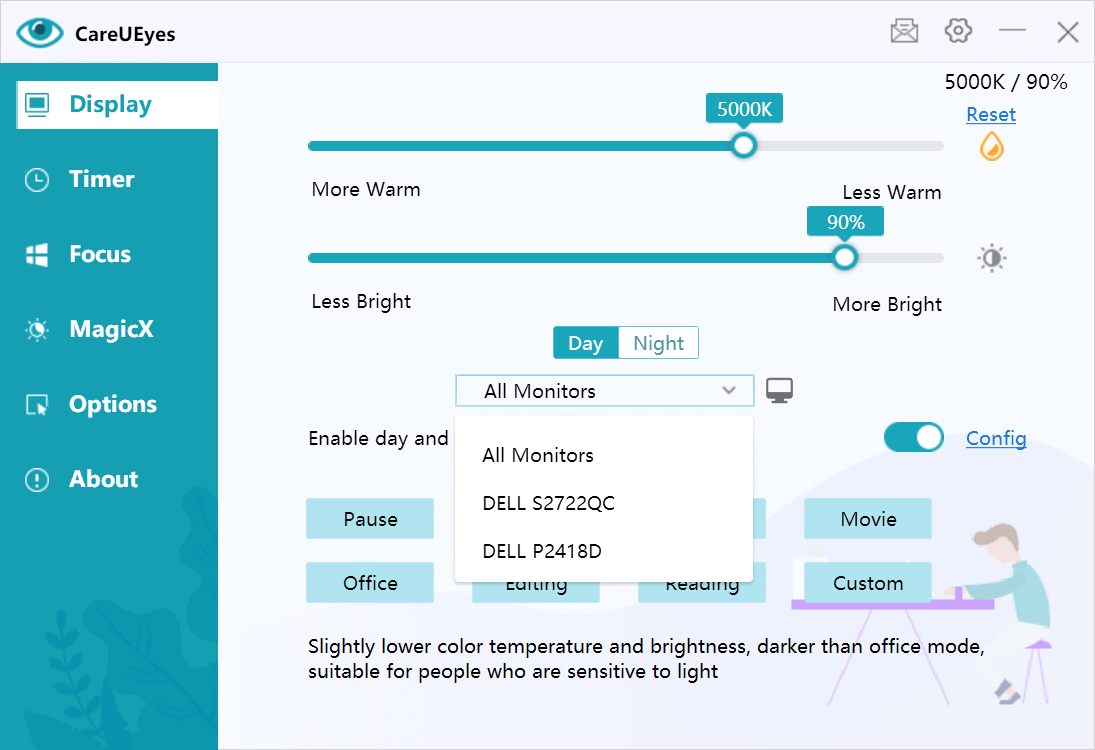
In version 2.4.0.0 of CareUEyes, when your PC is connected to multiple monitors, the “Display” UI will list the names of the connected monitors, such as: DELL P2418D, DELL S2722QC.

If you have two identical monitors connected, they will have a numerical identifier added to the original monitor name. For example, if two DELL P2418D monitors are connected, the list will display DELL P2418D and DELL P2418D-1.

Generally, if you want all monitors to maintain the same brightness and color temperature, you can select “All Monitors“.

If you need to adjust a specific monitor individually, you can select the desired monitor and then adjust the color temperature and brightness separately. You can also choose different work modes for each monitor.

If you’re unsure which name corresponds to which monitor, you can click the🖥️ button.

This will display the monitor names in the lower-left corner of the screen, helping you identify them.

Additionally, when you enable fullscreen disable or custom rules, only the monitor corresponding to the application that triggers the rule will be affected, providing you with a better user experience.

Download