Blue Light Effect on Eyes: What Actually Matters (and What Doesn’t)

If you’ve been searching about the blue light effect on eyes, you’ve likely seen conflicting advice.

Some say it damages your eyes. Others say it’s harmless.

The reality is more practical—and more useful:

Blue light is not the main cause of eye problems, but it does contribute to eye strain and sleep disruption, especially with long screen use.

This guide explains what actually matters—and how to reduce eye strain effectively.

Is Blue Light Bad for Your Eyes?

This is the most common question—and the answer is nuanced.

  • There is no strong evidence that blue light from screens causes permanent eye damage
  • However, extended exposure can lead to digital eye strain
  • Nighttime exposure can interfere with sleep cycles

In short:
Blue light is not dangerous in normal use, but it affects comfort and sleep

What Causes Eye Strain from Screens? (Not Just Blue Light)

Focusing only on blue light is misleading.

Eye strain is caused by a combination of:

  • Long periods of screen use
  • High screen brightness
  • Poor lighting conditions
  • Reduced blinking
  • Cool (blue-heavy) color temperature

This explains why:

You can still feel eye strain even if you reduce blue light alone

How Blue Light Affects Your Eyes

1. Increased Visual Stress

Blue light scatters more than other wavelengths:

  • Reduces contrast
  • Increases glare
  • Forces your eyes to work harder

2. Sleep Disruption

Blue light exposure at night:

  • Suppresses melatonin
  • Delays sleep onset

3. Eye Fatigue (Most Noticeable Effect)

Common symptoms:

  • Dry eyes
  • Blurred vision
  • Headaches
  • Difficulty focusing

Where Does Blue Light Exposure Come From?

Blue light is everywhere:

  • Sunlight (strongest source)
  • LED lighting
  • Computer screens and phones

 Important:

Although screens emit less blue light than the sun, they cause more problems because:

  • You look at them for hours
  • They are very close to your eyes

How to Reduce Eye Strain from Screens

1. Follow the 20-20-20 Rule

Every 20 minutes:

  • Look at something 20 feet away
  • For 20 seconds

2. Lower Screen Brightness

Avoid overly bright displays, especially in dark environments.

Using a screen dimmer can help reduce glare and visual fatigue.

👉Learn how a screen dimmer can reduce eye strain 

3. Use Warmer Color Temperature at Night

Cool light is harsher at night.

Switching to warmer tones:

4. Take Regular Breaks

Short, consistent breaks are more effective than long, occasional ones.

The Easiest Way to Reduce Blue Light and Eye Strain

The biggest challenge isn’t knowing what to do—it’s doing it consistently.

Most users:

  • Don’t adjust brightness regularly
  • Forget to reduce blue light at night
  • Skip breaks

PC eye protection software can automate these adjustments.

For example, CareUEyes can:

  • Automatically adjust color temperature
  • Work as a smart screen dimmer
  • Remind you to take breaks
  • Keep your screen optimized throughout the day
Download

FAQ: Blue Light and Eye Strain

Can your eyes recover from blue light exposure?

Yes. Eye strain from blue light and screen use is usually temporary and improves with rest.

What is the 20-20-20 rule?

It’s a simple method to reduce eye strain:
Every 20 minutes, look 20 feet away for 20 seconds.

Does blue light cause permanent eye damage?

Current evidence does not support that normal screen exposure causes permanent damage.

Do blue light glasses really work?

They may improve comfort for some users, but they don’t solve all causes of eye strain.

Is blue light worse at night?

Yes. Nighttime exposure can disrupt sleep by suppressing melatonin.

Final Thoughts

The real blue light effect on eyes is often misunderstood.

  • It’s not as harmful as many claims suggest
  • But it does contribute to eye strain and sleep issues

The key is not to eliminate blue light completely, but to:

  • Optimize your screen settings
  • Reduce prolonged exposure
  • Use tools that make eye care automatic

Best blue light filter for PC:Reduce Eye Strain and Improve Sleep

Looking for a blue light filter for PC? Let’s find the right solution for your eyes.

Why a Blue Light Filter for PC Is Essential for Eye Health

Blue light from screens can cause eye strain, fatigue, and disrupt sleep—especially at night. A blue light filter reduces harmful blue light and helps you stay comfortable during long hours of screen use.

How to Choose Blue Light Filter Software for PC and Laptop

When selecting a blue light filter software for PC or blue light filter software for laptop, several factors come into play, such as compatibility, customization options, and ease of use. You’ll want software that can adjust the color temperature and brightness based on your activities, whether you’re working, gaming, or watching movies.

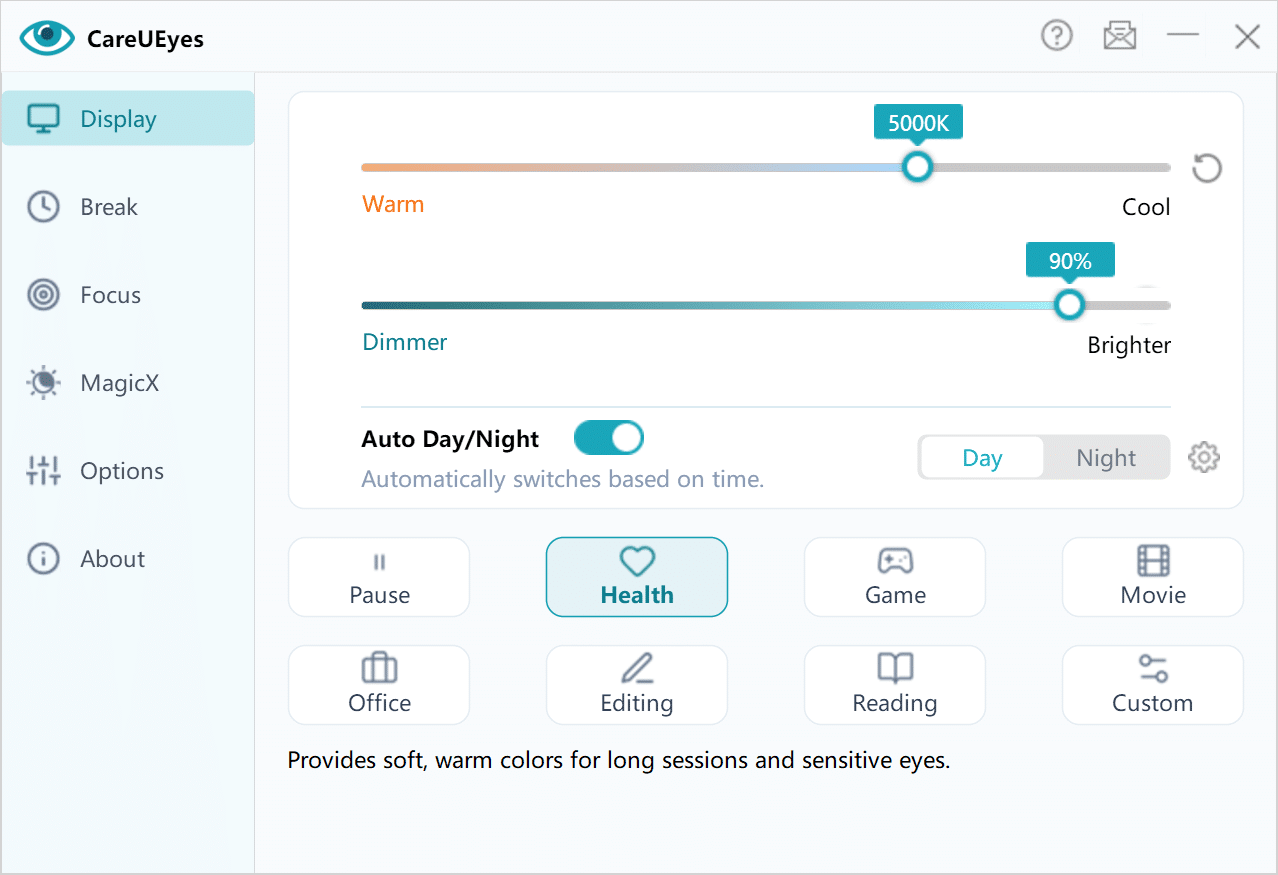
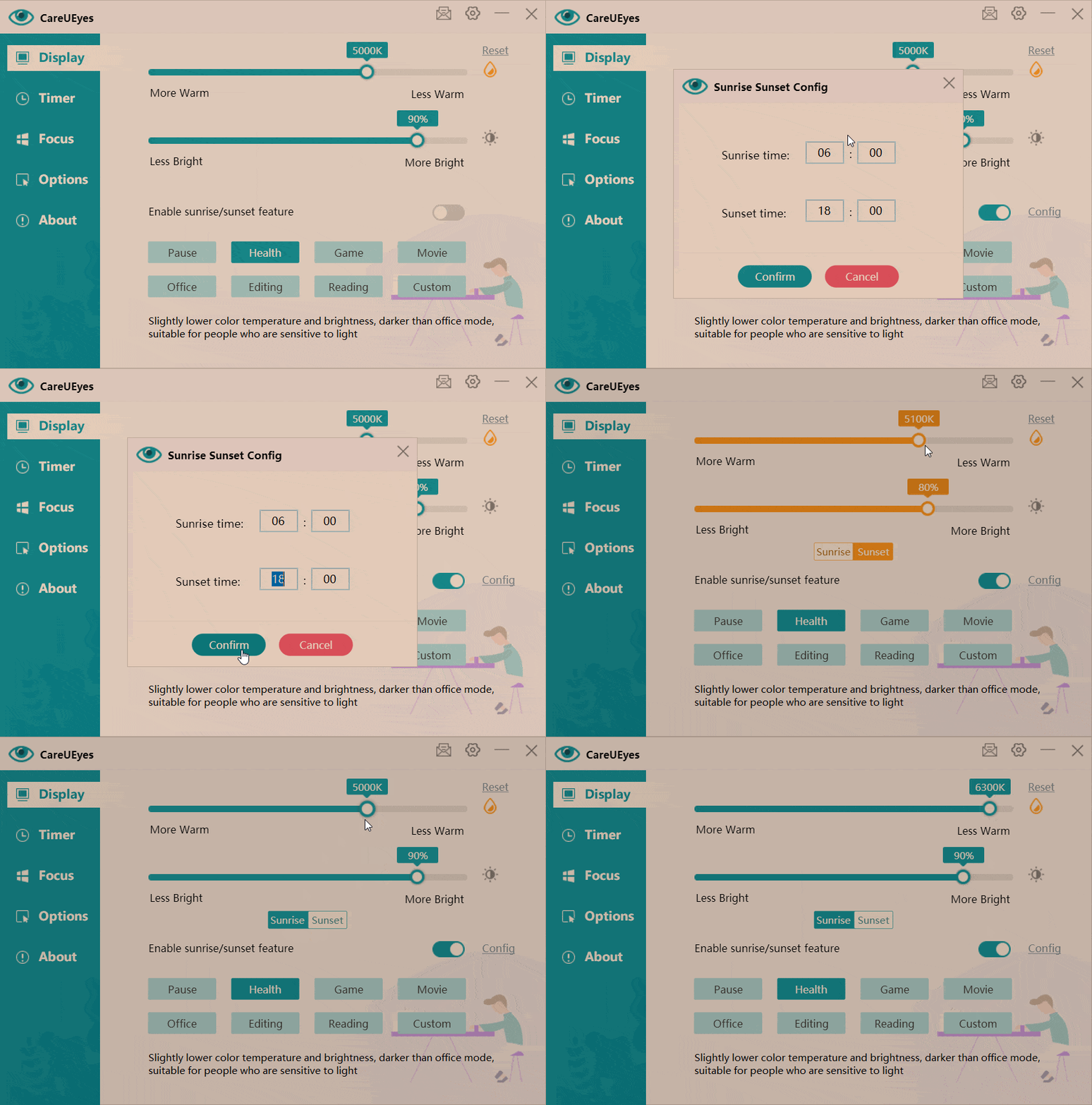
CareUEyes is a blue light filter for PC designed to reduce eye strain. It offers 8 ready-to-use eye protection modes, each with carefully optimized color temperature and brightness—just choose a mode and enjoy instant comfort.

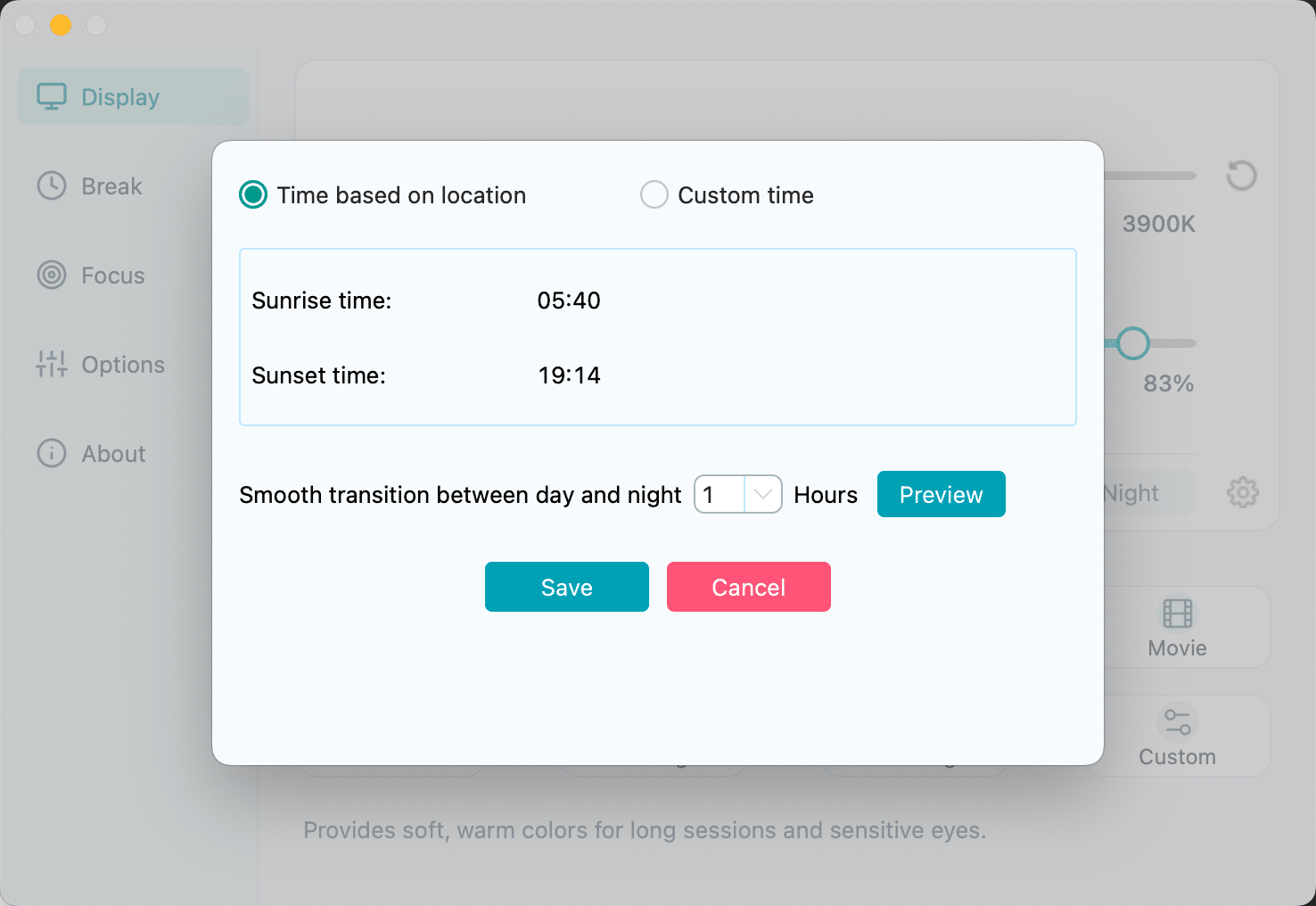
You can also customize each mode to match your preferences. CareUEyes automatically adjusts your screen based on local sunrise and sunset, with smooth transitions that keep your eyes comfortable throughout the day.

Why CareUEyes Is Better Than Basic Blue Light Filters

blue light filter app for pc


Download

8 Eye Protection Modes for Long Screen Time

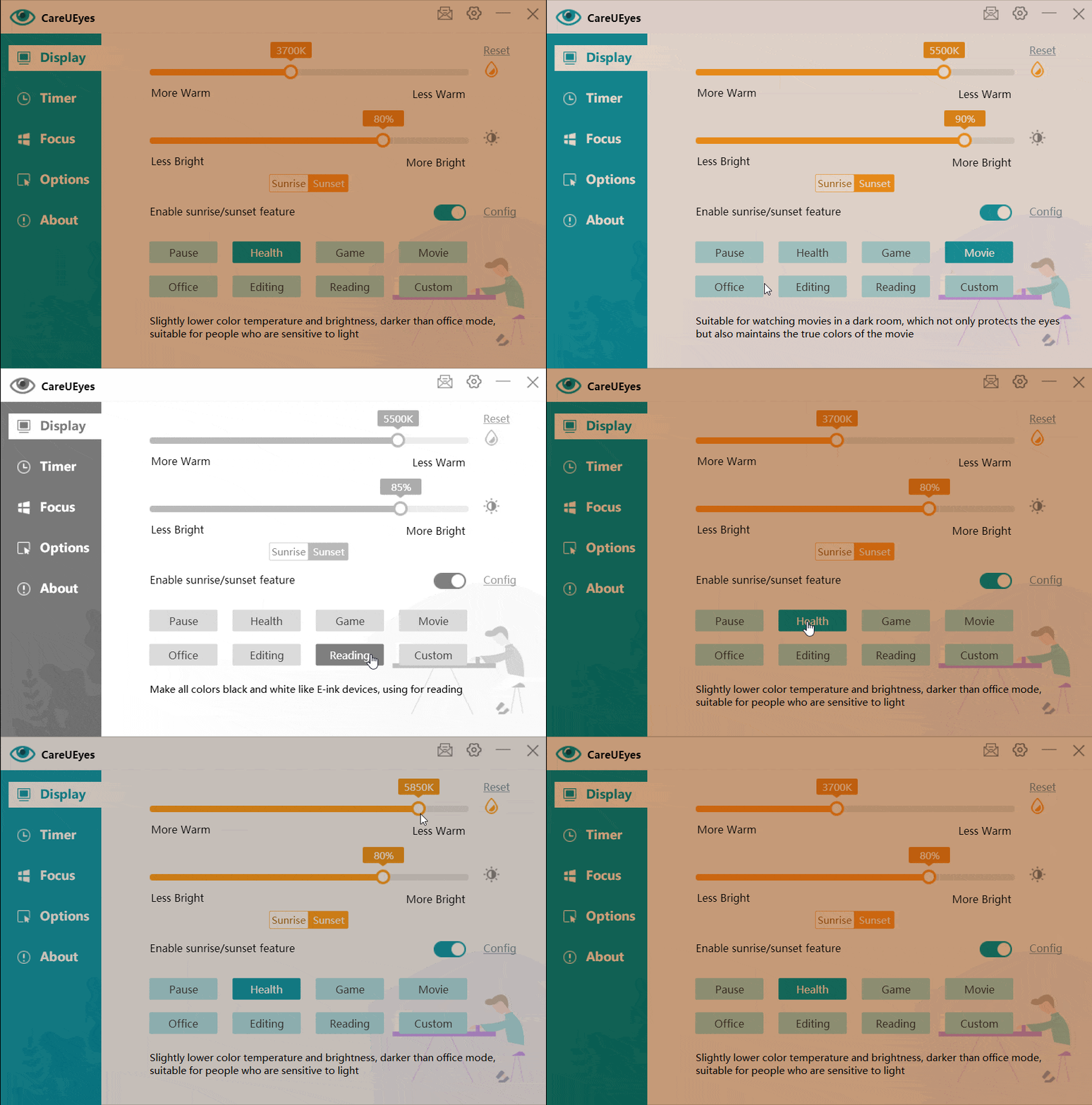
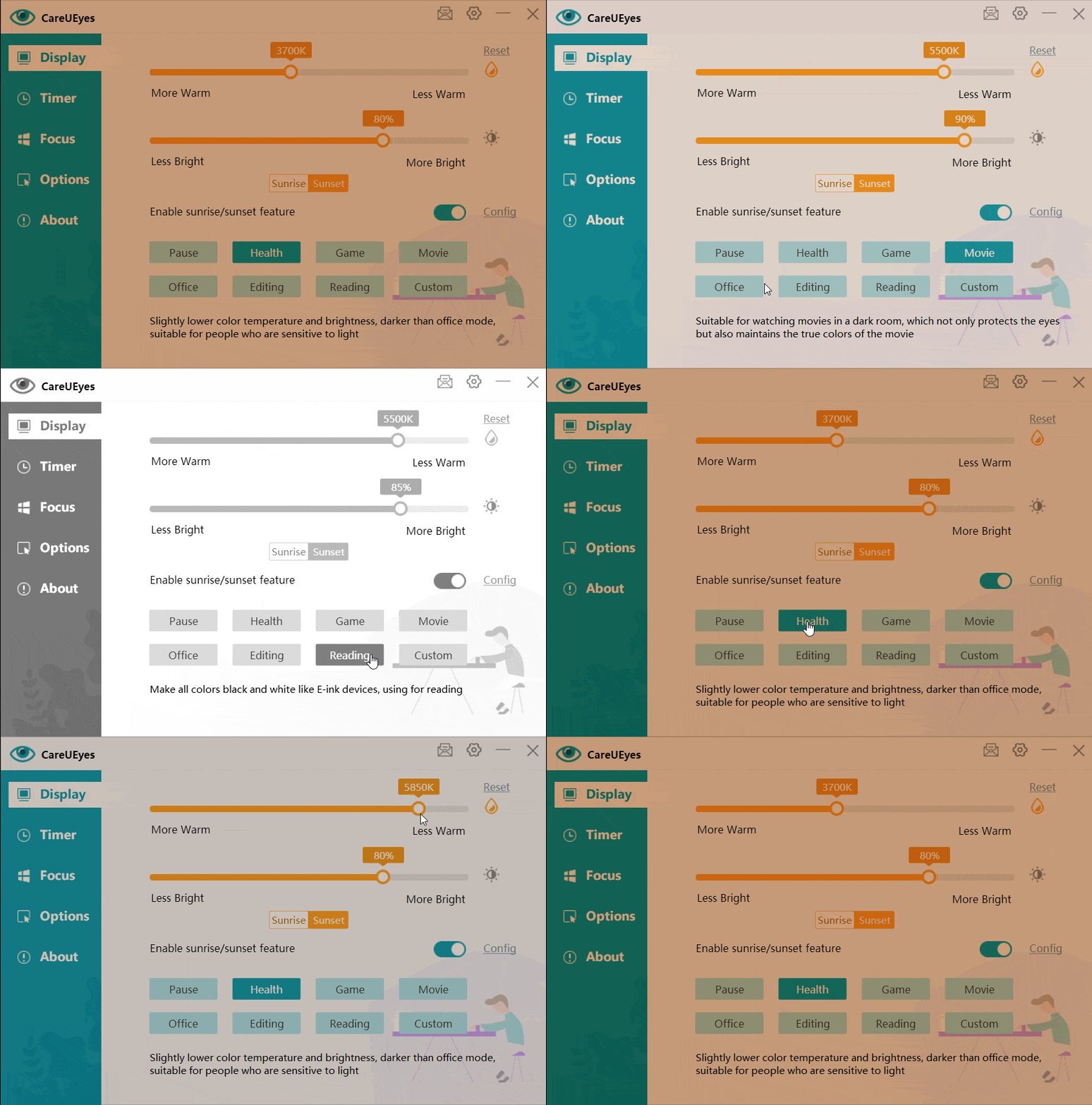
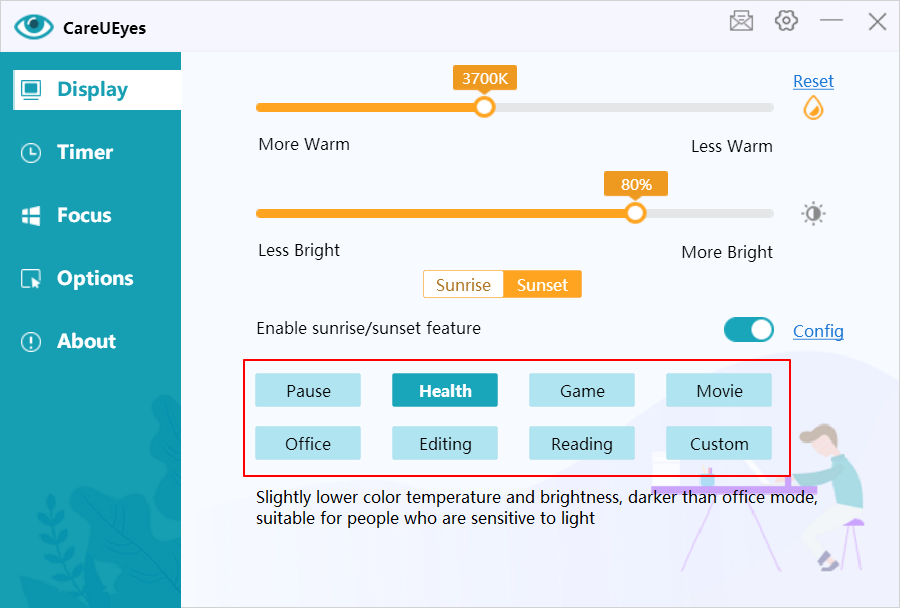
CareUEyes provides 8 preset modes: Health, Office, Reading, Game, Movie, Editing, Custom, and Pause.
Each mode comes with carefully set color temperature and brightness, so you can start using it immediately without any setup and quickly find a mode that fits your situation.

Fully Customizable Color Temperature for Eye Comfort

You can adjust the color temperature and brightness of every mode to match your personal preference.
This allows you to create a screen environment that feels comfortable for your eyes, so you can reduce eye strain during long hours of use.

Automatic Day and Night Blue Light Adjustment for Better Sleep

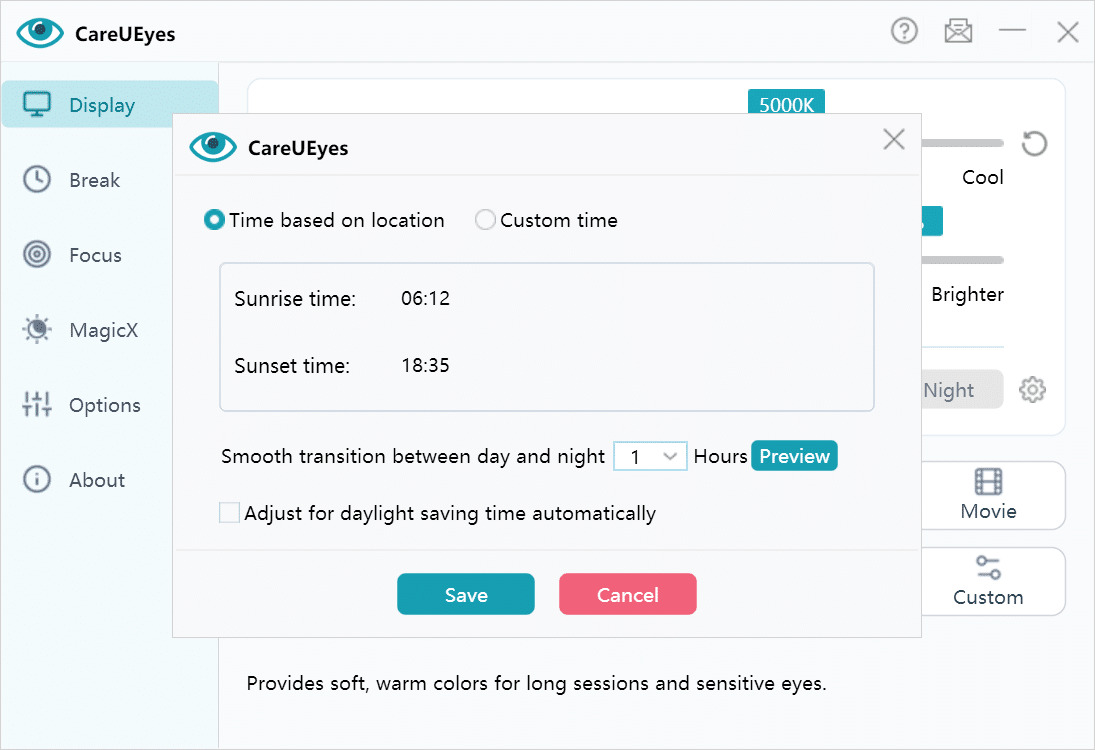
CareUEyes automatically changes the screen color based on your local sunrise and sunset time.
The transition is smooth and gradual, so your eyes can adapt naturally and you can maintain a healthier sleep routine.

Take True-Color Screenshots Without Blue Light Yellow Tint

Unlike many blue light filters, CareUEyes does not affect your screenshots.
Your screenshots will keep their original colors without any yellow tint, so you can share or work with accurate visuals without extra editing.

Wide Color Temperature Range for Better Blue Light Control on PC

CareUEyes offers a much wider adjustment range than most similar tools.
You can fine-tune your screen from very warm to very cool, so you can stay comfortable in any lighting condition, day or night.

Multi-Monitor Blue Light Control on PC for Consistent Eye Comfort

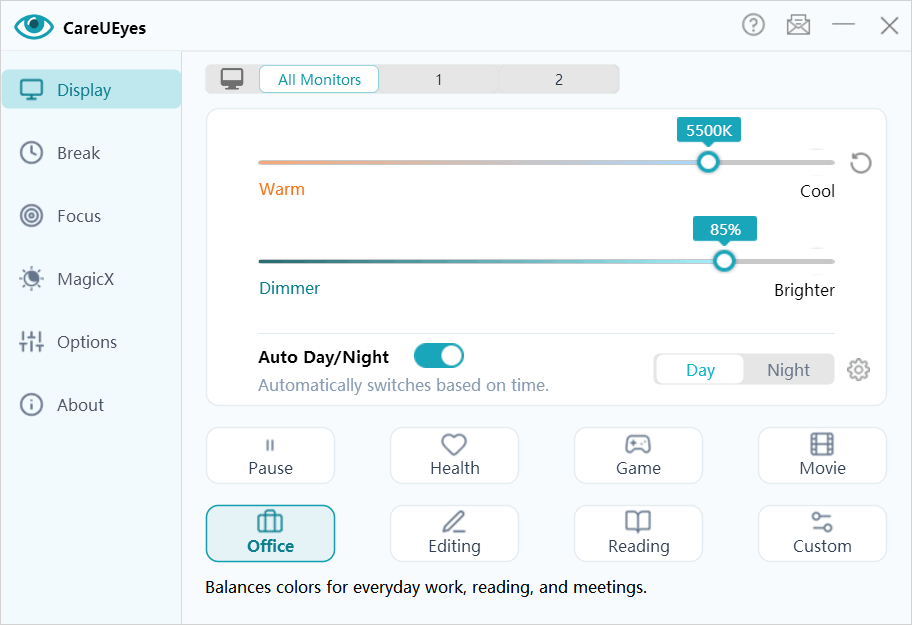
If you use multiple monitors, you can adjust each screen separately or apply the same settings to all screens with one click.
This makes it easier to keep a consistent viewing experience, so your eyes don’t need to constantly readjust between screens.

Set Blue Light Filter Rules for Different Apps on PC

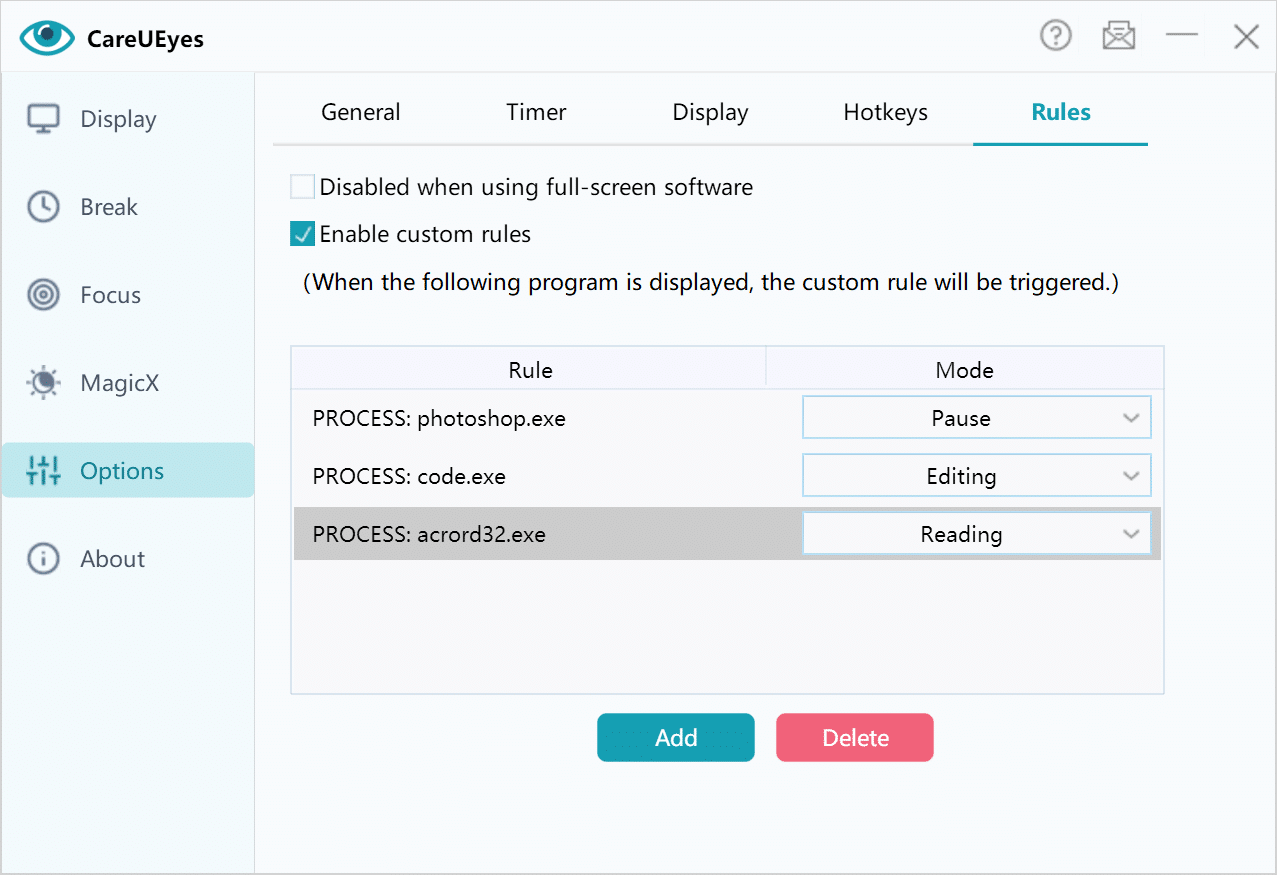
You can set different mode for different applications.
For example, you can set Reading mode for PDF apps and Editing mode for coding tools.
CareUEyes will switch automatically when you open or switch between apps.

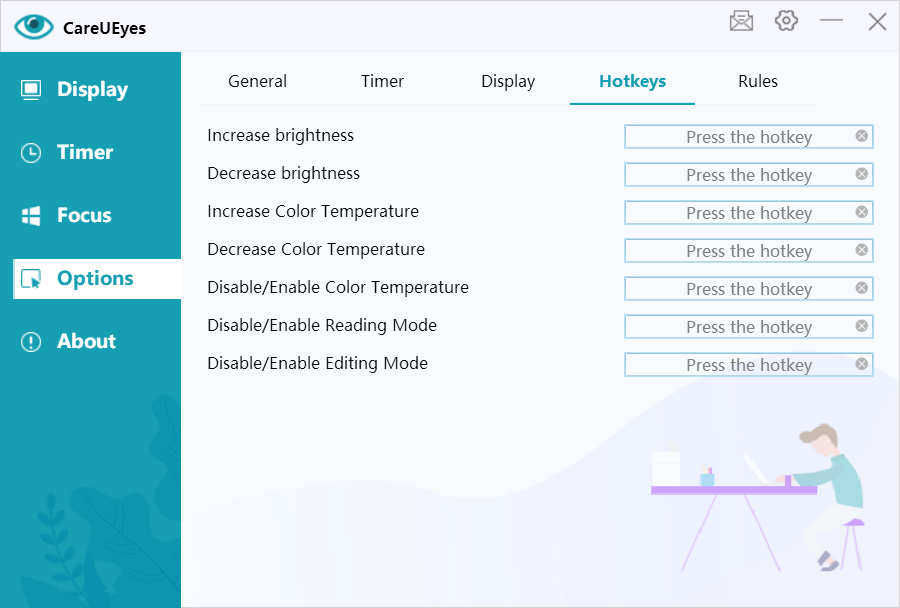
Use Hotkeys to Adjust Blue Light Settings Instantly on PC

CareUEyes allows you to set custom keyboard shortcuts.
You can quickly change modes or settings at any time, so you don’t have to interrupt your workflow.

More Control Than Windows Night Light for Blue Light and Brightness

Compared to Windows Night Light, CareUEyes gives you more control over both brightness and color temperature.
This gives you more flexibility, so you can fine-tune your screen exactly the way you want.

Beyond Blue Light Filtering

CareUEyes also includes advanced brightness control and smart break reminders to better protect your eyes.

Unlike basic screen dimming, it adjusts brightness without flicker, reducing eye fatigue in both bright and low-light environments. At the same time, built-in break reminders encourage you to rest your eyes regularly—helping prevent dryness, strain, and long-term discomfort.

Blue Light Filter for PC Reviews: What Users Say About CareUEyes

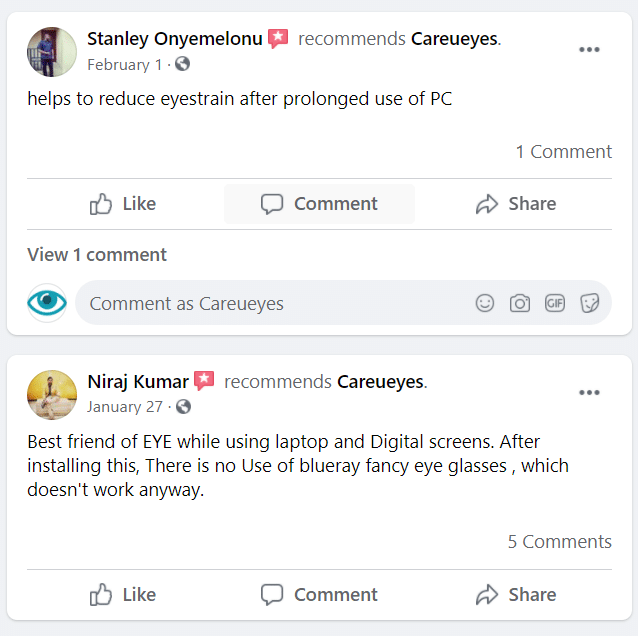
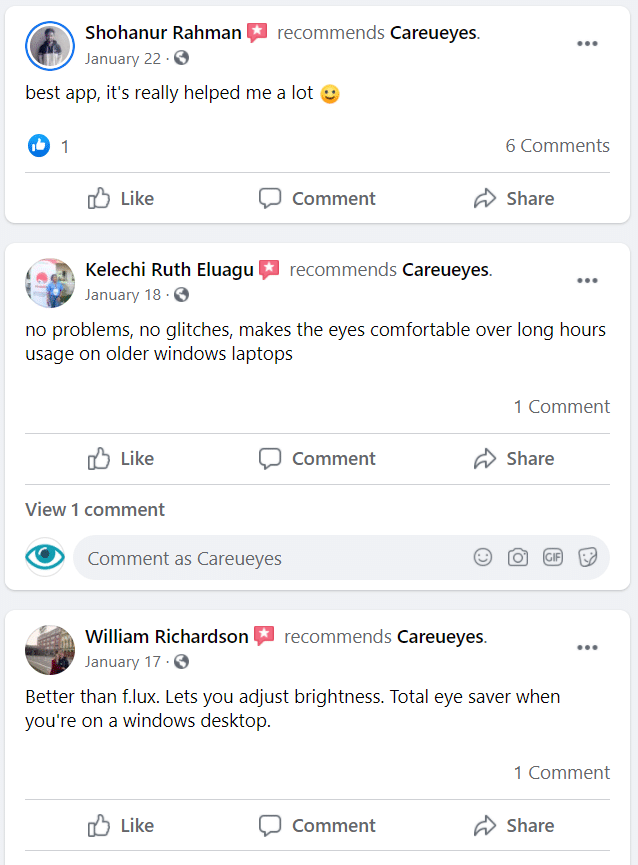
CareUEyes has received overwhelmingly positive feedback from users on Facebook.
Many users report that it significantly reduces eye strain, especially during long hours of screen use.

Users particularly appreciate its flexible brightness and color temperature controls, with some describing it as an “eye saver” that makes screen time much more comfortable.

From light-sensitive users to professionals working long hours, CareUEyes is widely recommended for its effectiveness, ease of use, and noticeable impact on visual comfort.

👉 See real user reviews on Facebook

How to Reduce Blue Light with CareUEyes

Follow these easy steps to start protecting your eyes today:

  1. Download the Blue Light Filter App for PC:
    Visit the official CareUEyes website to download the software for Windows or your laptop.Download
  2. Install and Launch:
    After installation, open the program and select the preferred blue light filter.
  3. Adjust the Settings:
    Choose from preset modes like Health, Game, and Movie, or manually adjust the color temperature and brightness to suit your needs.

Blue Light Filter for PC FAQs (Common Questions Answered)

Q: How does a blue light filter work on a PC or laptop?
A blue light filter works by adjusting the color temperature of your screen, reducing the amount of blue light emitted. This helps alleviate eye strain and prevents the disruption of your sleep cycle.

Q: What’s the difference between a blue light filter and a blue light screen protector?
A blue light screen protector is a physical filter that can be attached to your device, whereas a blue light filter software for PC or laptop is a digital tool that adjusts the screen’s settings.

Q: Can I use CareUEyes as a blue light filter for Windows 10?
Yes, CareUEyes is fully compatible with Windows 10 and other versions of Windows. It also supports multiple monitors, so you can protect all your screens at once.

Q: Is CareUEyes the best blue filter app for PC?
Yes, CareUEyes is one of the best blue filter apps for PC available due to its robust features and ease of use. It’s designed to reduce eye strain, improve sleep, and offer customizable settings for all your devices.

Download Blue Light Filter for PC

If you spend long hours on your computer, a better blue light filter can make a real difference in comfort and sleep quality. CareUEyes provides a simple and effective solution.

Download

Night mode for PC

Looking for a night mode for PC? Choose the option that fits your system:

  • Windows 10/11 users: Enable built-in Night Light for Windows or use CareUEyes (a more advanced night mode app for PC with brightness and color adjustment) for better eye comfort
  • Windows 7/8 users: Night Light is not available — Download Night Mode APP for PC

Download Now

Safe • No flicker • Works on Windows 11/10/8/7/XP

✔ Automatically adjusts brightness and color together
✔ Follows sunrise and sunset for natural eye comfort
✔ Smooth transition between day and night
✔ No flicker, no performance impact
✔ Works on Windows 11/10/8/7/XP
✔ Automatic light & dark mode switching
night mode for PC

What Is Night Mode on PC?

Night mode on PC is designed to reduce eye strain and improve comfort in different lighting conditions.

Most people think night mode only reduces blue light, but that’s only part of the story.

A complete night mode for PC solution should include:

  • Color temperature adjustment
  • Brightness adjustment
  • Adaptation to time of day

Eye comfort is not just about reducing blue light — it’s about balancing brightness and color temperature together.

How to Turn On Night Mode for Windows (Built-in Night Light)

So how does Windows handle night mode?

Windows includes a feature called Night Light, which acts as a basic night mode for Windows.

It can automatically turn on based on sunrise and sunset, but its functionality is limited.

Windows Night Light is only available in Windows 10 and later, so it is not an option for users on Windows 7 or 8.

Method 1: Enable Night Light on Windows 10/11

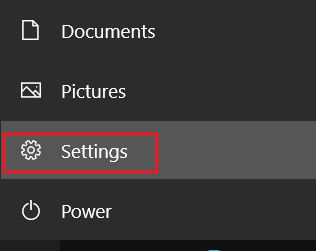
  1. Open Settings
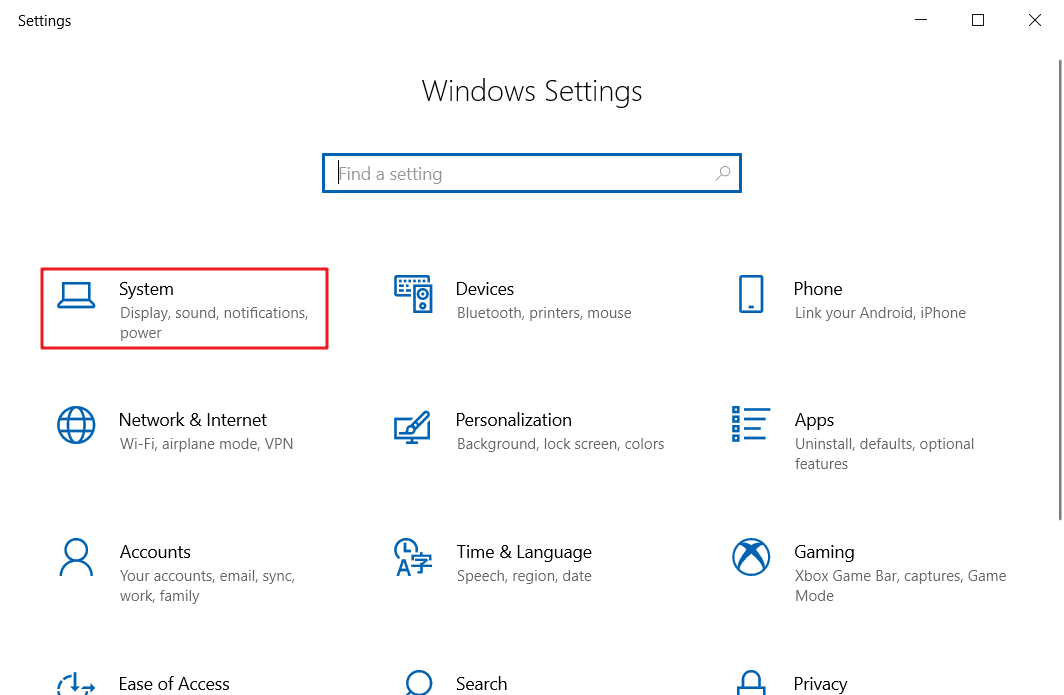
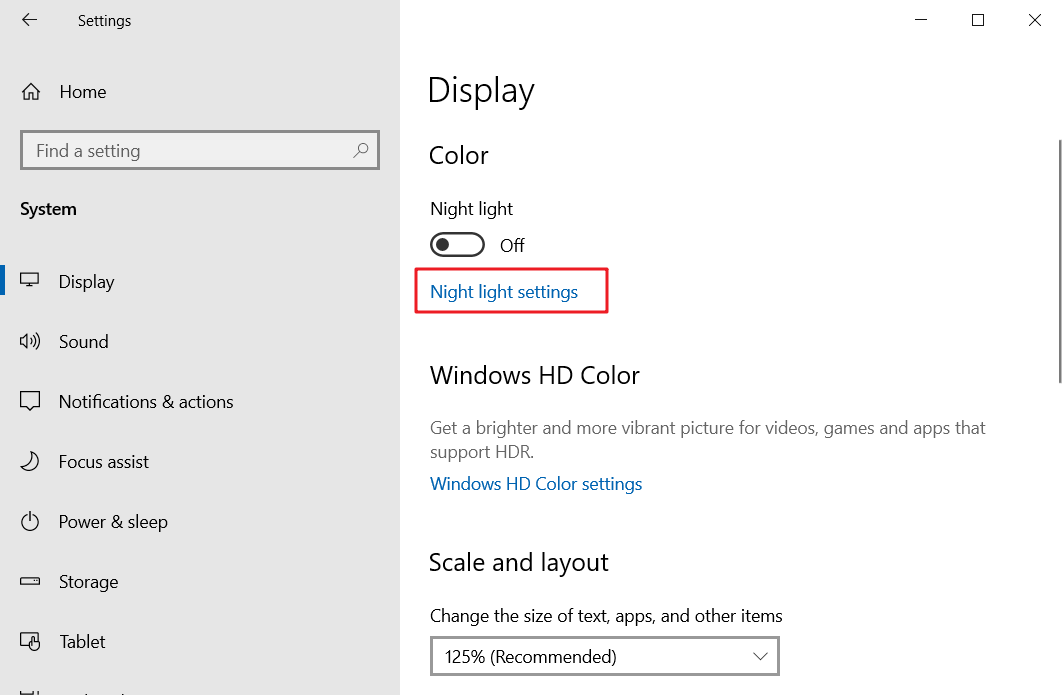
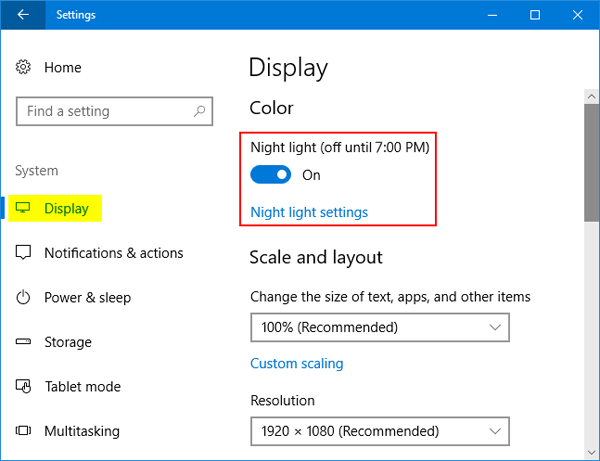
  2. Go to System > Display
  3. Turn on Night Light
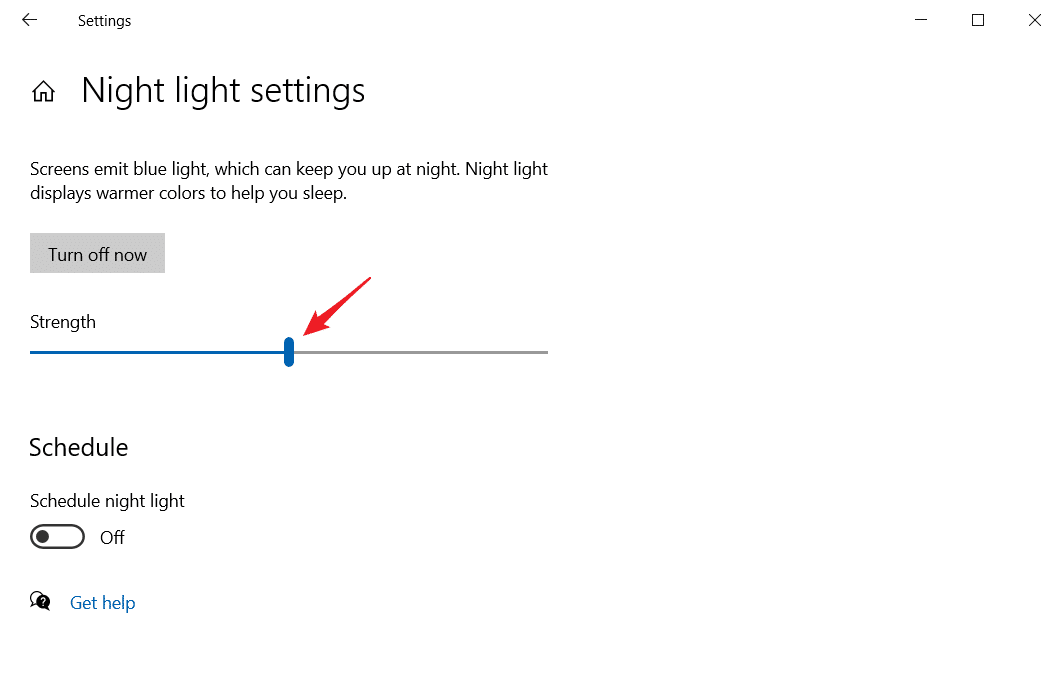
  4. Adjust strength and schedule

This provides a basic night light for PC experience.

Method 2: Use Dark Mode (Helpful, but Not a Complete Night Mode)

Dark Mode changes the UI to darker colors, which can reduce glare and make the screen more comfortable in low-light environments.

✔ Reduces perceived brightness from bright UI elements
✔ More comfortable for night-time use
✔ Helpful for long reading or coding sessions

However:

Dark mode is not a complete night mode for PC.

It does NOT:

• Adjust screen brightness
• Reduce blue light effectively
• Switch automatically based on time (in Windows)

It improves appearance, but does not fully protect your eyes.

For a complete solution, you need both display adjustments and automatic theme switching.

Why Windows Night Light Is Not Enough

While night light is useful, it only solves part of the problem.

❗ Key limitations

Windows Night Light:

  • Only adjusts color temperature
  • Does not adjust brightness
  • Uses a short, fixed transition period (not customizable)
  • Does not support automatic dark mode switching

As a result, the screen may still feel too bright at night, even if the color looks warmer.

Best Night Mode App for PC (Free Download Included)

If you want a better experience, using a night mode app for PC is the best choice.

Windows Night Light vs f.lux vs CareUEyes

FeatureWindows Night Lightf.luxCareUEyes
Adjust color temperature
Adjust brightness
Sync brightness + color✅ ⭐
Day & night automatic adjustment
Smooth transition⚠️ Limited
Custom transition duration⚠️ Limited
Automatic dark mode switching✅ ⭐
Supported Windows versionsWindows 10+ onlyWindows 7+Windows XP/7/8/10/11 ✅

Most tools like Windows Night Light and f.lux only adjust color temperature.

CareUEyes goes further by adjusting both brightness and color together, and even automatically switching between light and dark modes — creating a complete day-to-night experience.

Why This Matters

A true night mode for PC should do more than just change screen color.

Eye comfort depends on:

  • Brightness
  • Color temperature
  • Visual theme (light vs dark)

CareUEyes combines all of them into one system, while most tools only handle part of the problem.

Why CareUEyes Is the Best Night Screen for PC

CareUEyes provides a complete night screen for PC experience.

Adaptive Brightness and Color (Core Advantage)

Most tools only change color temperature.

CareUEyes adjusts both brightness and color temperature together based on the time of day.

  • Daytime → brighter and cooler
  • Nighttime → dimmer and warmer

This creates a more natural and comfortable viewing experience.
Your screen adapts naturally — not just changes color.

Follows Natural Light Rhythm

  • Automatically adapts based on sunrise and sunset
  • Continuous adjustment throughout the day
  • More natural than fixed-time changes

Smooth Transition Between Day and Night

  • Gradual transition around sunrise and sunset
  • Adjustable duration (0–5 hours)
  • No sudden color shifts

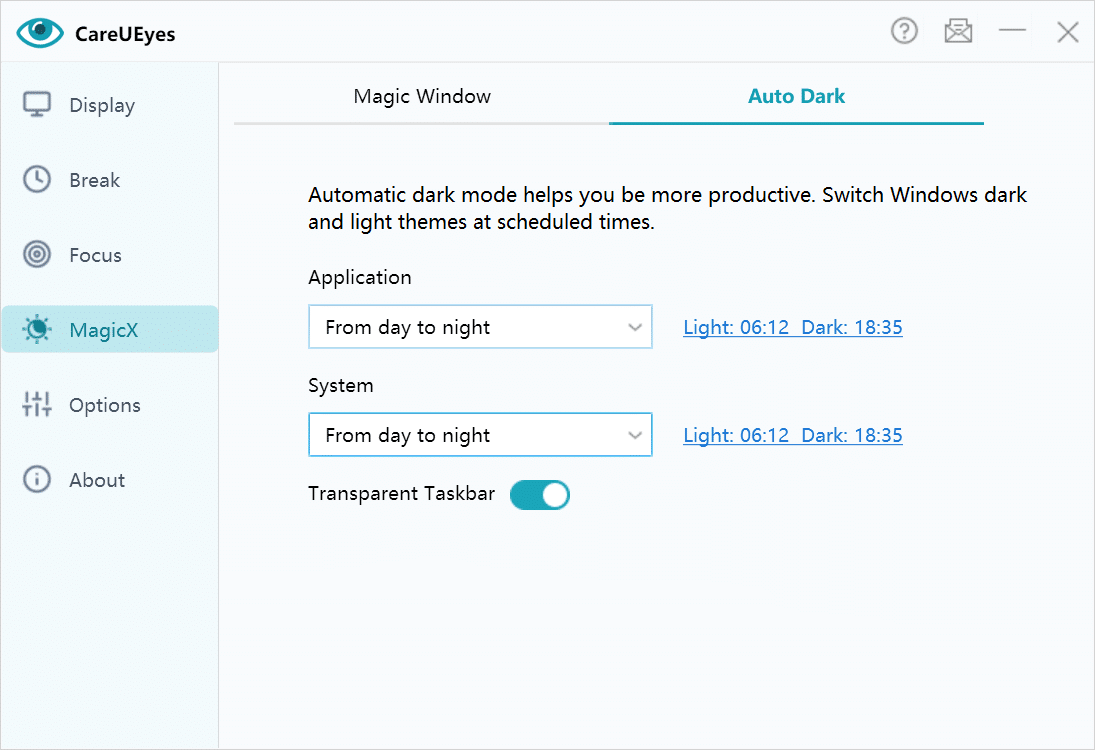
Automatic Dark Mode Switching

CareUEyes can automatically switch between light and dark modes:

  • Follow time or sunrise/sunset
  • No manual switching required
  • Works seamlessly with system themes

Windows does not provide built-in automatic switching for dark mode.

Works on All Windows Versions

CareUEyes works on Windows 11, 10, 8, and 7.

Unlike Windows Night Light, which is only available in Windows 10 and later, CareUEyes provides full functionality across all supported systems.

Smart Preset Modes

Includes multiple modes:

  • Office
  • Reading
  • Gaming
  • Custom

Download Night Mode for PC (Free Trial)

Ready to improve your screen comfort?

Download Now

This night mode for PC free download gives you full control over brightness, color, and visual comfort.

FAQs About Night Mode for PC

How do I turn on night mode on a PC?

You can:

  • Enable Windows Night Light
  • Or install a night mode app for PC for better control

Can Windows Night Light adjust brightness?

No.

It only changes color temperature and does not control screen brightness.

Does Windows support automatic dark mode?

No.

Windows does not provide built-in automatic switching for dark mode — it must be changed manually or with third-party tools.

Does night mode work on Windows 7 or 8?

Windows Night Light is not available on Windows 7 or 8.

You need a night mode app for PC like CareUEyes to enable similar functionality.

What is the best night mode software for PC?

If you want full control over brightness, color, and automatic switching, CareUEyes is the best choice.

Download Now

Windows 7 Night Light

Windows 10 and 11 include a built-in feature called Night Light, which reduces blue light emission to protect your eyes and support better sleep.However, this feature is not available for older operating systems like Windows 7. If you’re using Windows 7, you won’t find the built-in night light option. Fortunately, you can still achieve similar eye protection with a third-party solution like CareUEyes.

windows night light

In comparison to Night Light, CareUEyes is not just software that filters blue light, but also offers additional eye protection features.

Download

  1. CareUEyes offers a greater variety of preset “effects” compared to Night Light.

8 mode

Compared to Win10’s Night Light, CareUEyes provides a broader range of options. For instance, CareUEyes offers numerous pre-set options like Office, Game, and Movie, making it easier for you to find your preferred effect quickly.

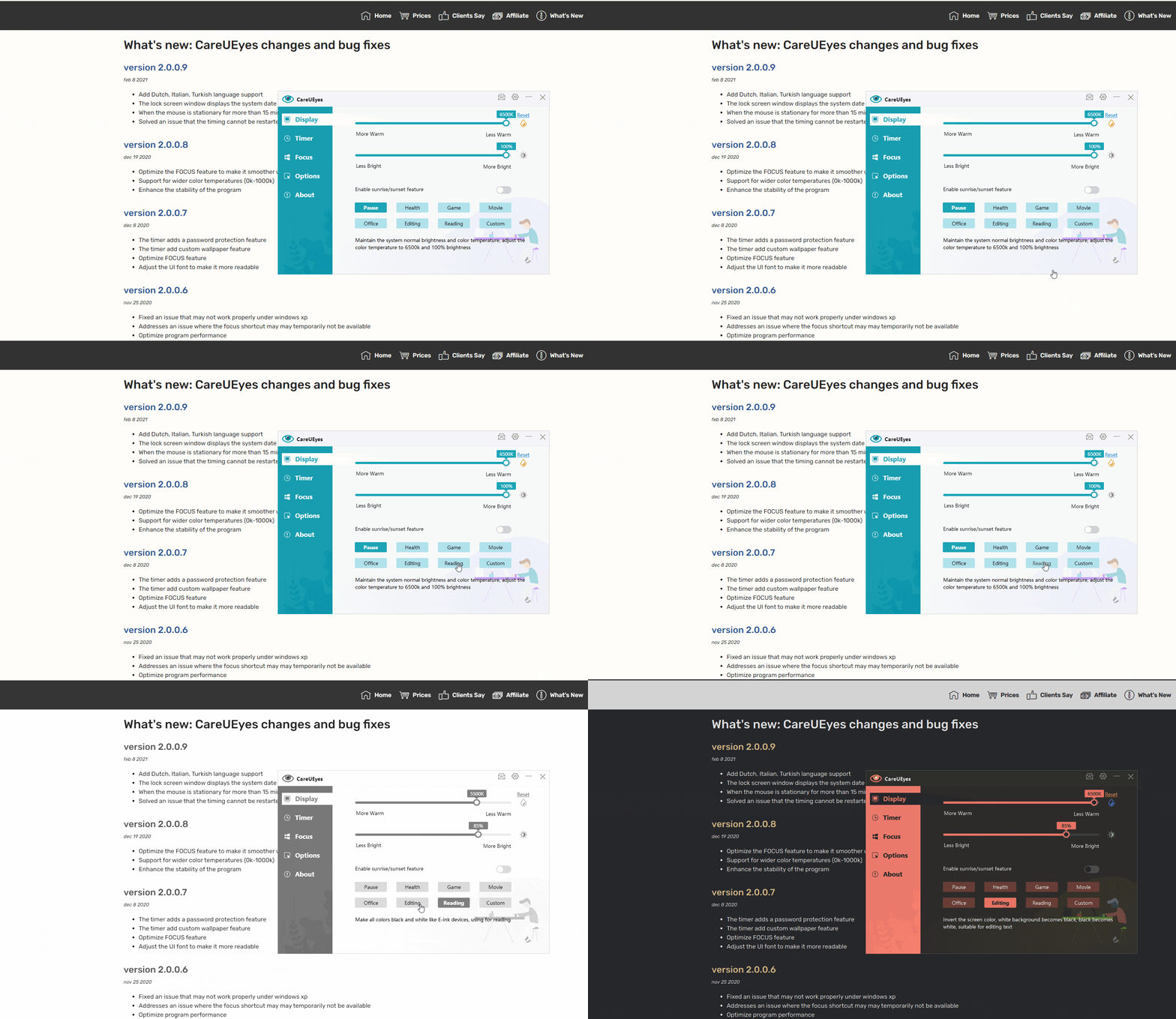
The Editing mode inverts colors, turning black to white and white to black. Using this mode to read text at night can significantly reduce blue light exposure and minimize eye strain. This feature is not available in Win10’s Night Light.

Additionally, the Reading mode mimics E Ink screens, making it ideal for prolonged reading sessions.


2.More Precise Control

CareUEyes allows you to adjust color temperature and brightness independently, giving you full control over how your screen looks—something Night Light cannot do. Night Light changes color temperature only and doesn’t let you adjust brightness effectively.

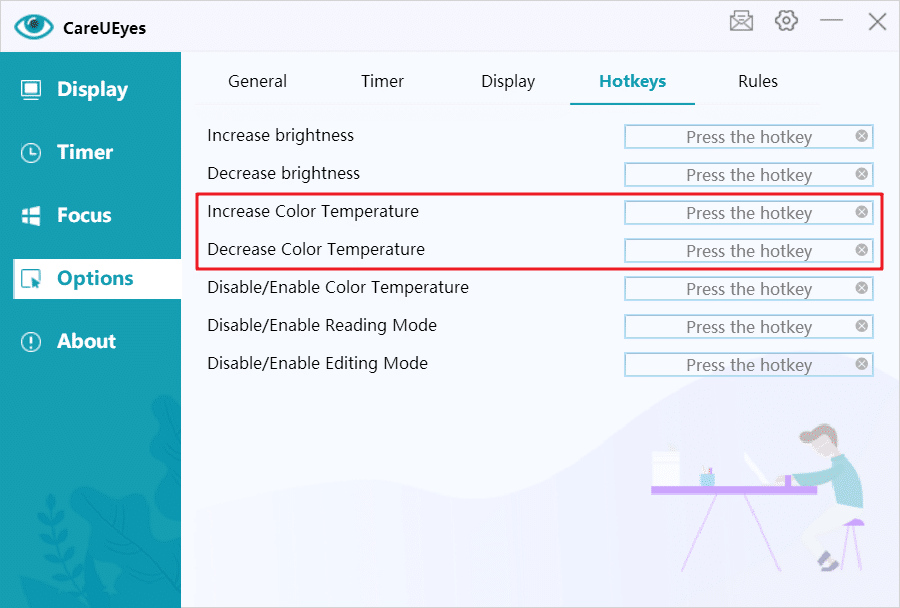
It even offers dedicated shortcuts for quick access—something that Windows 10’s Night Light doesn’t provide.


3.  Customize rules

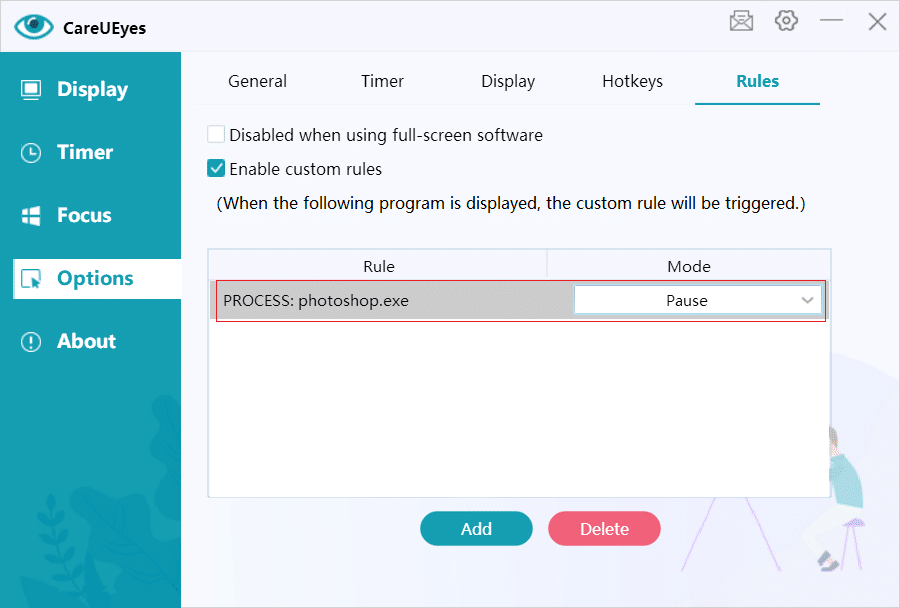
f you occasionally work with photos, turning on the Night Light feature can distort the colors in the images. Imagine the hassle of constantly toggling Night Light on and off. Fortunately, using CareUEyes eliminates such issues. You can customize rules to automatically pause color temperature adjustments when using photo editing software. Additionally, you can set up other rules, such as automatically switching to a default mode when using specific software.
rule

4. Focus mode

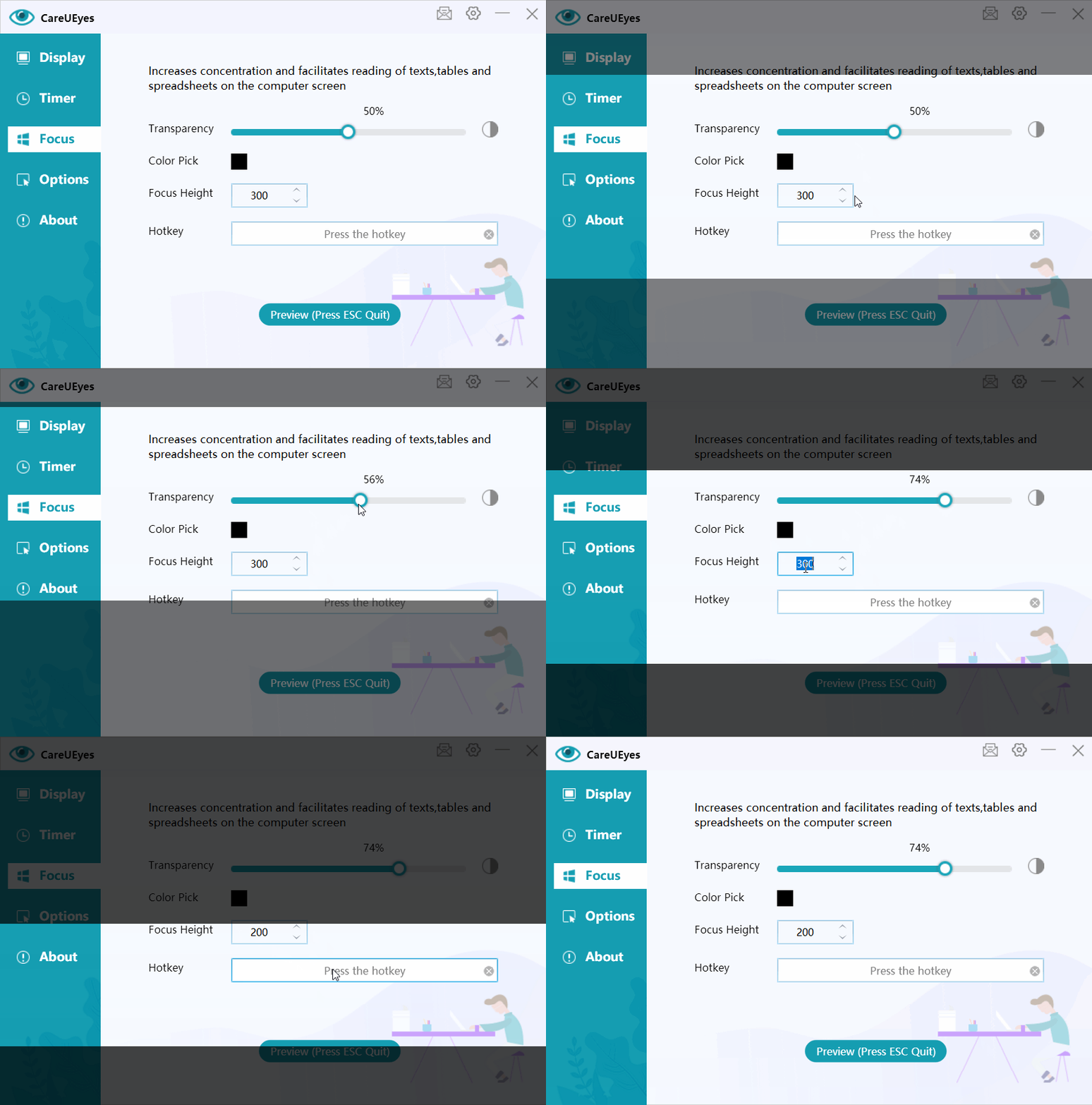
 Focus mode helps you to read with greater concentration.

focus feature

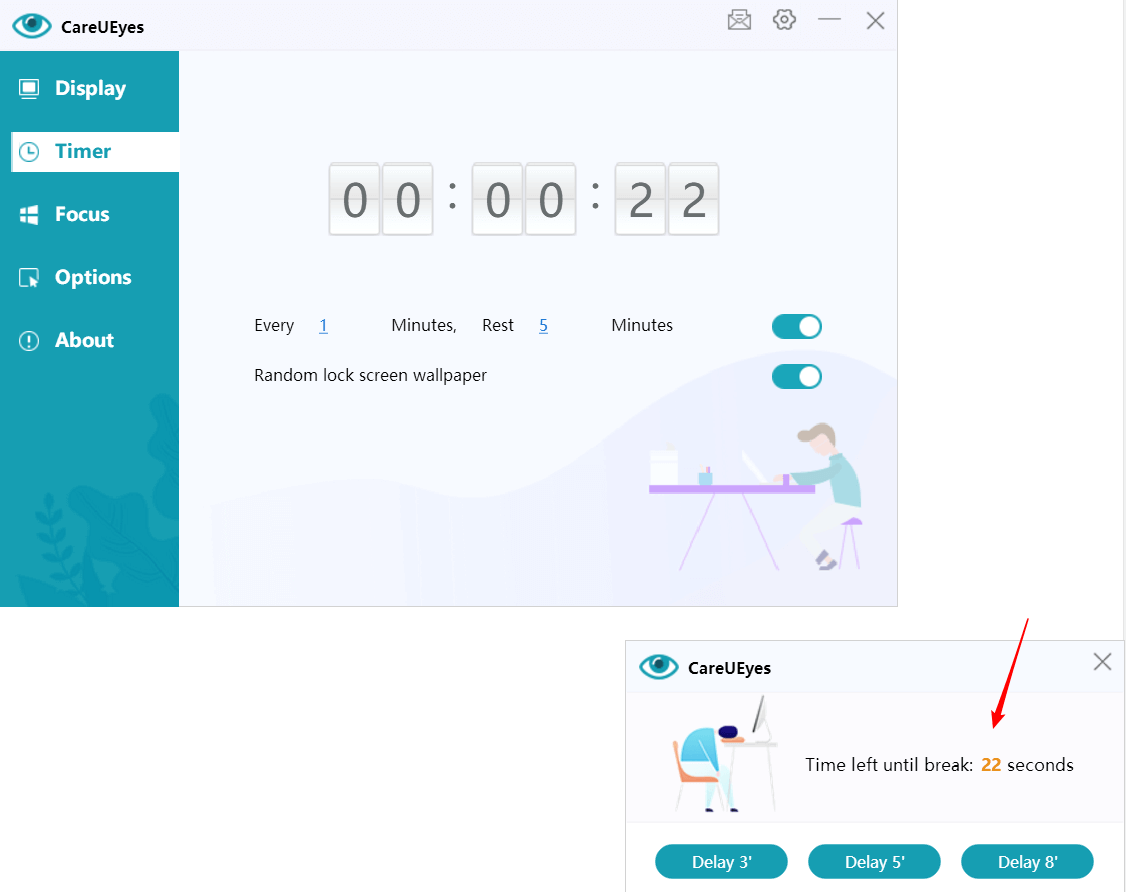
5. Break timer

Staring at a computer screen for extended periods can lead to computer vision syndrome, characterized by symptoms such as eye fatigue, discomfort, dryness, redness, blurred vision, headaches, and neck and shoulder pain.

Humans typically blink about 15 times per minute, but this rate significantly decreases when we focus on computer or mobile phone screens, leading to dry eyes and fatigue.

Prolonged sitting in the same position can cause tension and pain in our back, neck, shoulders, and arms.

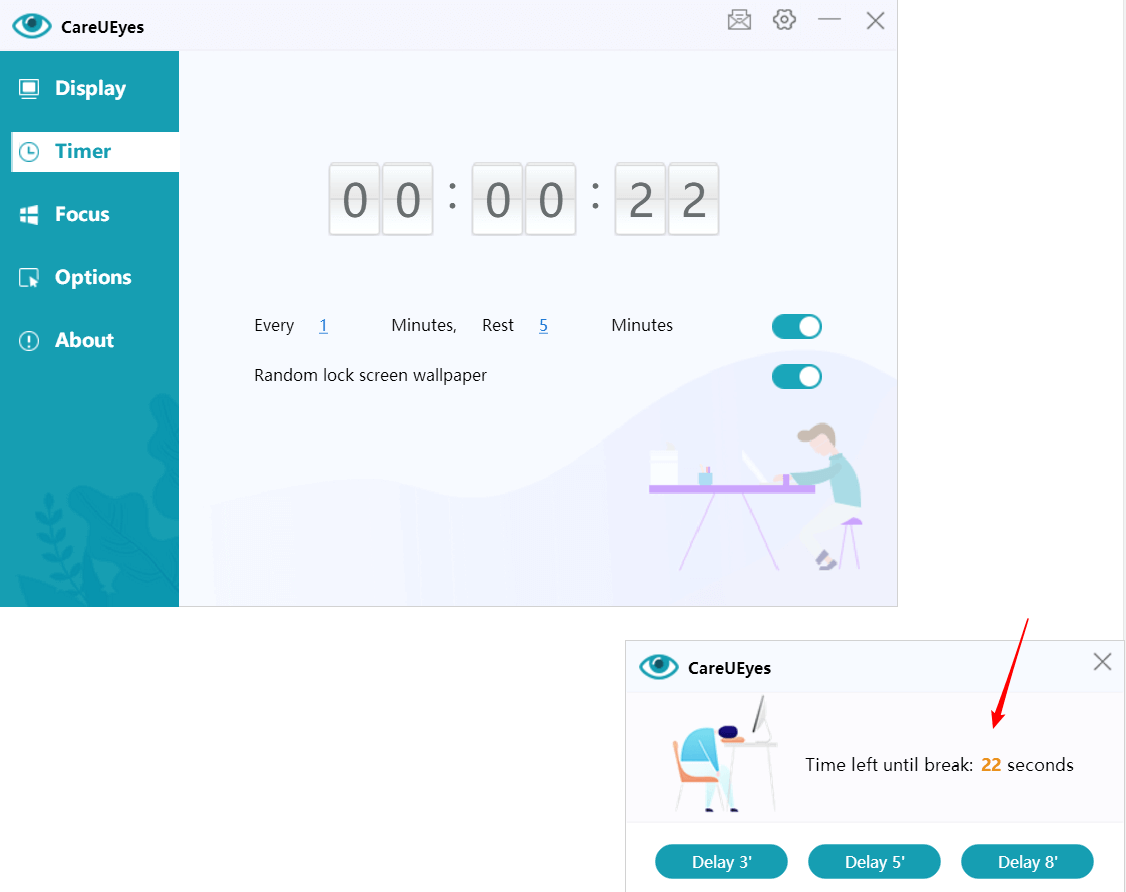
Taking periodic breaks to gaze at distant objects can alleviate symptoms of eye fatigue. One well-known method is the 20-20-20 rule, which suggests looking at an object 20 feet (6 m) away every 20 minutes for 20 seconds.

However, without reminders, many people become engrossed in their work and forget to take regular breaks. CareUEyes provides reminders to take breaks at intervals. During these breaks, you can stand up, walk around, and stretch to reduce fatigue in your eyes, shoulders, neck, and arms.

timer

Overall, Night Light can only adjust the color temperature, whereas CareUEyes not only adjusts the color temperature but also offers more eye protection features than Night Light. Additionally, the user experience with CareUEyes is more user-friendly compared to Night Light.

Blue light filter Windows 10

Blue Light Filter in Windows 10: Understanding Its Benefits and How to Enable It

In the era of digital dominance, our daily lives are intricately woven with the use of electronic devices such as computers, smartphones, and televisions. However, with this technological integration comes a growing concern about the potential health risks associated with the blue light emitted by these devices. Blue light, categorized as high-energy visible (HEV) light, has been linked to disruptions in our circadian rhythm, leading to issues like eye strain, headaches, and sleep disturbances. Acknowledging these concerns, Microsoft has integrated a blue light filter into its Windows 10 operating system to address these challenges.

This article delves into the concept of blue light, exploring its impact on our well-being and shedding light on the benefits of utilizing the blue light filter available in Windows 10. We will guide you through the process of activating the built-in night light feature, while also introducing a third-party alternative, CareUEyes, which offers a more comprehensive solution to enhance eye protection. As we navigate the intricacies of blue light and its effects, let’s empower ourselves with the knowledge and tools needed to strike a balance between our digital lifestyles and our health.

What is Blue Light?

Blue light is a form of light that is given off by electronic devices such as computers, smartphones, and televisions. It has a shorter wavelength than other kinds of light and belongs to the high-energy visible (HEV) light range. Research has shown that this particular type of light can disrupt our circadian rhythm, which is the internal clock in our bodies that controls our sleep and wake patterns.

Windows 10 Night Light: A Built-in Blue Light Filter 

The latest Windows 10 update includes a feature called night light, which is designed to reduce the amount of blue light emitted from the screen. This feature aims to reduce eye strain and promote healthy sleep patterns by adjusting the color temperature to create a warmer screen appearance and decrease blue light emission.

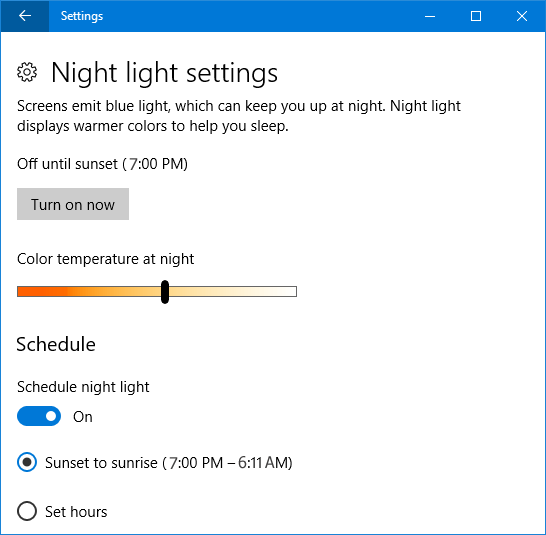
You can also customize Night Light by going to the Night Light settings. Here, you can set a schedule for when Night Light turns on and off, and adjust the color temperature to your liking.

Enabling the Night Light Feature

To activate the blue light filter in Windows 10, follow these steps:

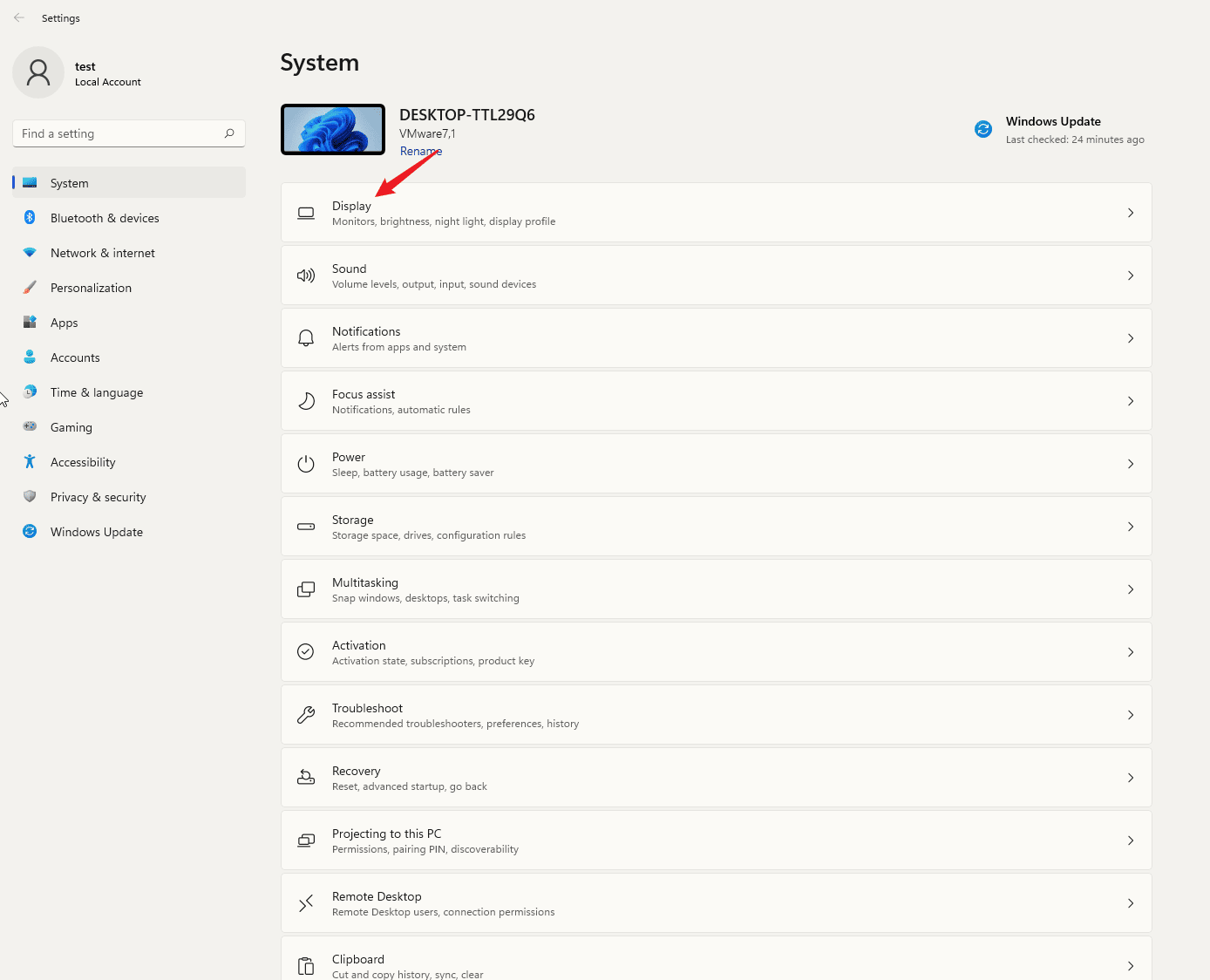
1. From the Start menu, click on the Settings button.

Blue light filter windows 10


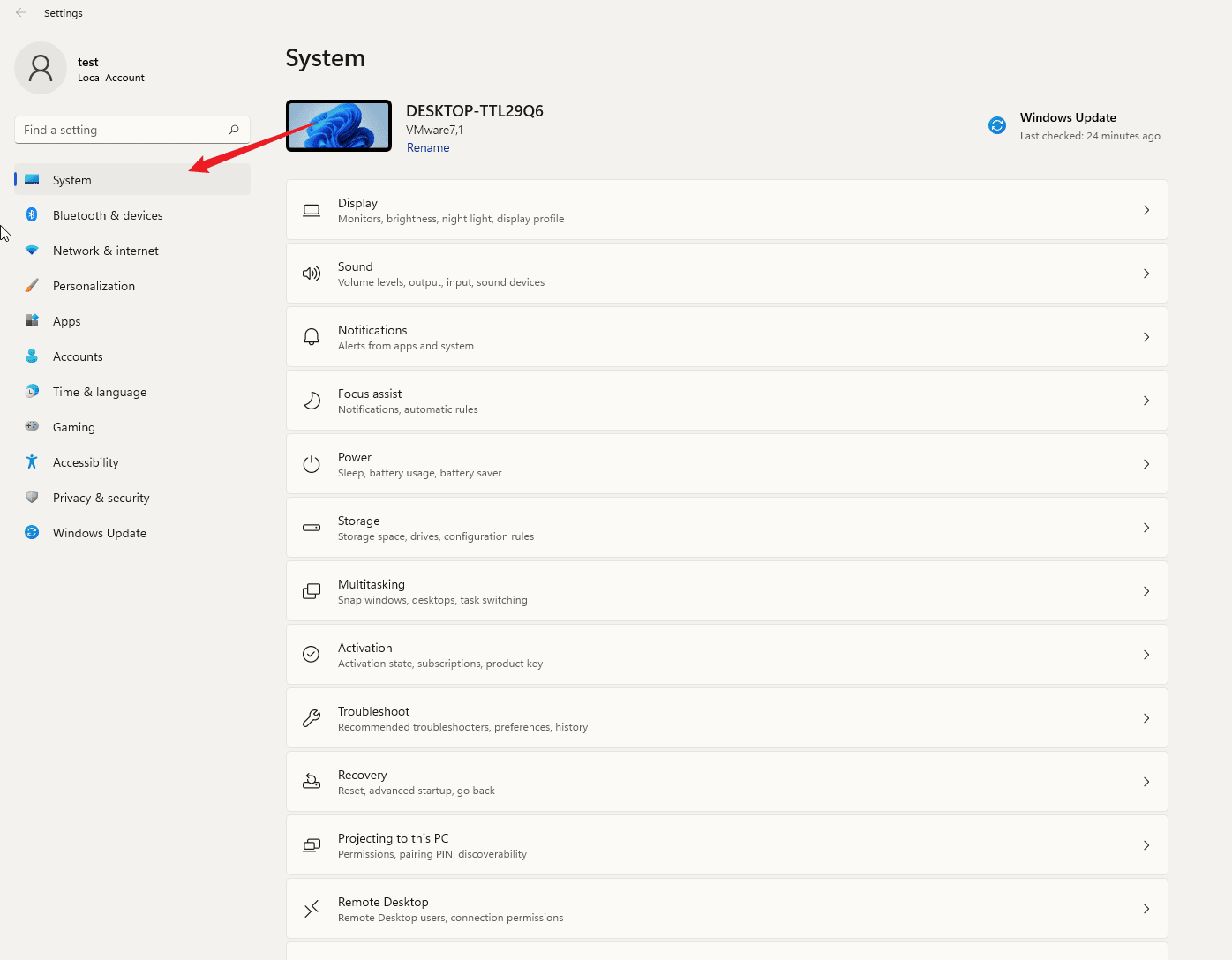
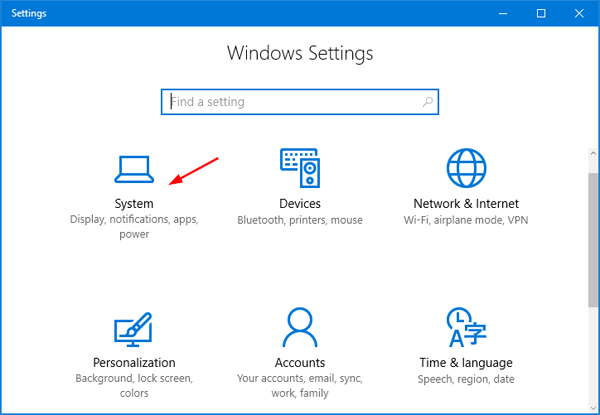
2. When Windows Settings appears on the screen, click on the System option.

Blue light filter Windows 10


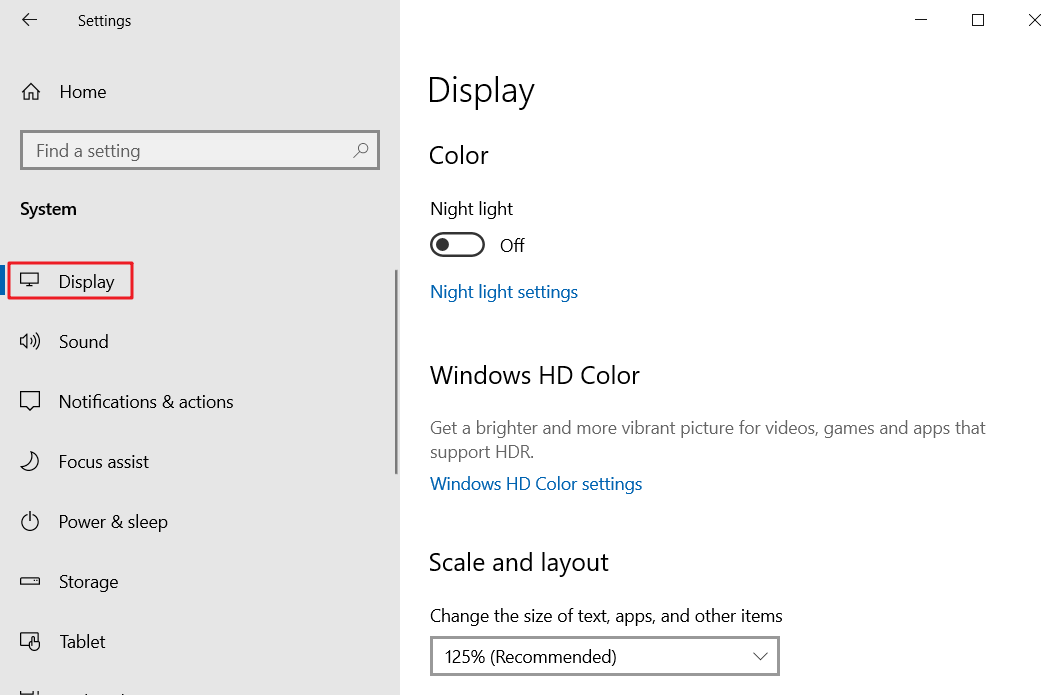
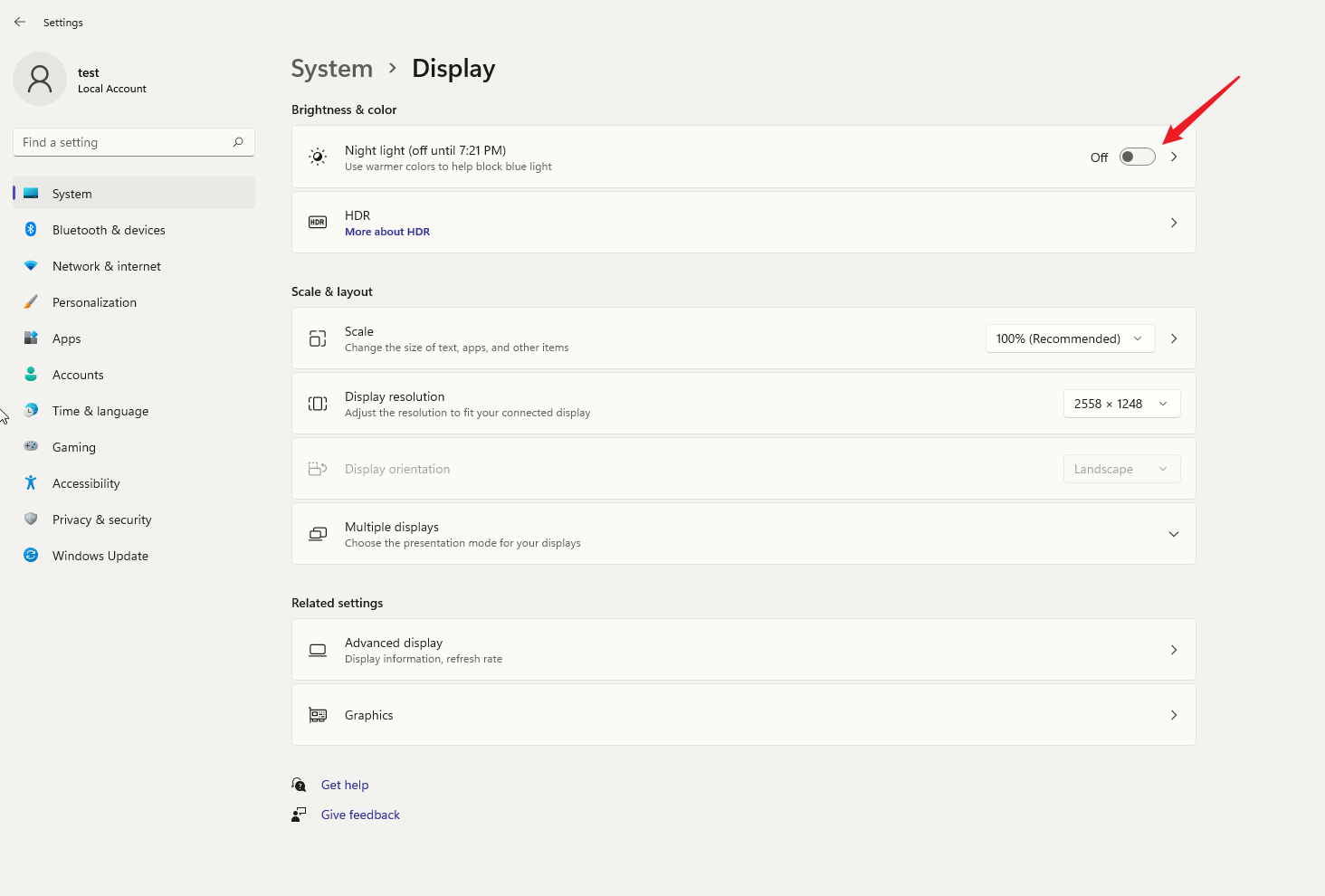
3. Click on the “Display” option.

4. Click on the night light settings.

Blue light filter Windows 10

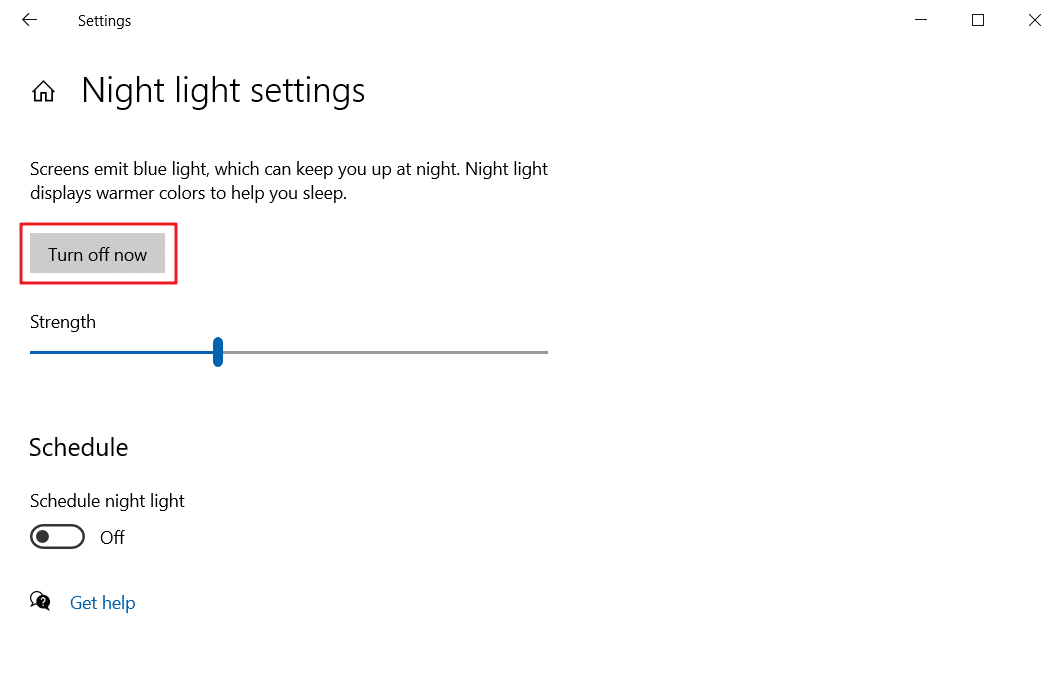
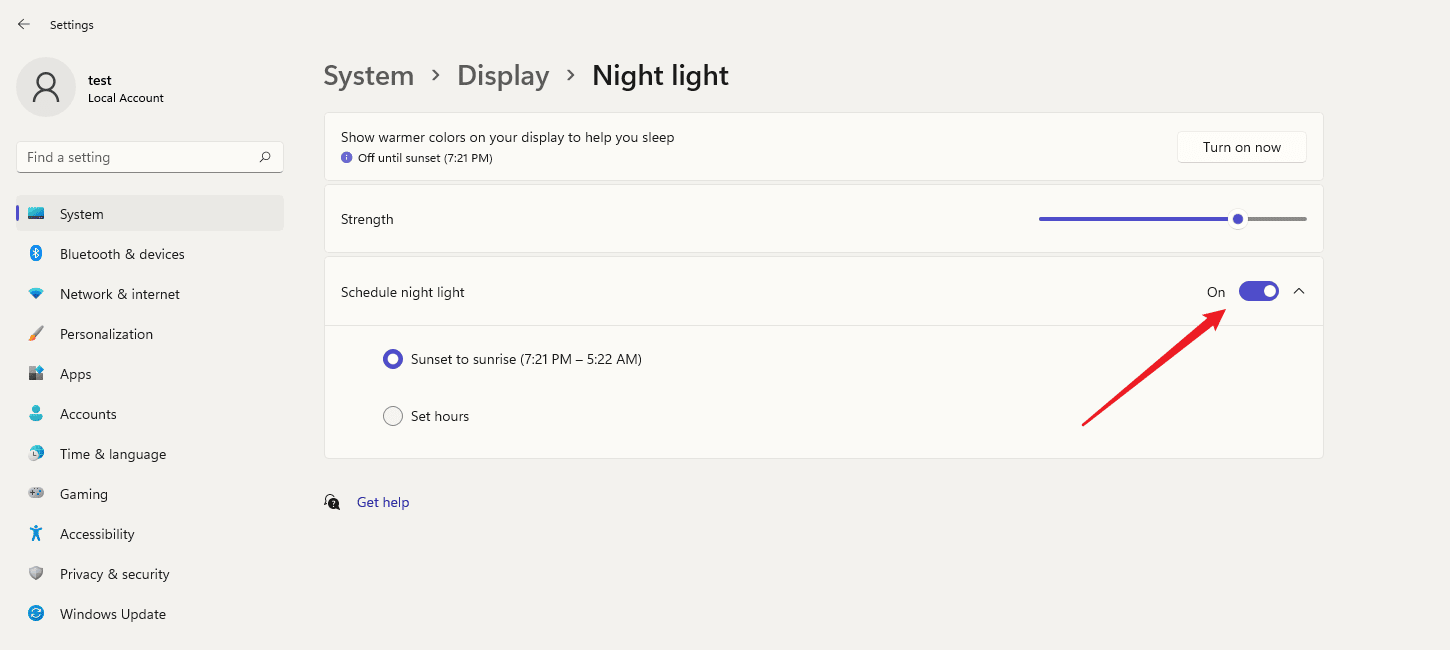
5. Toggle the night light switch to On.

Blue light filter Windows 10


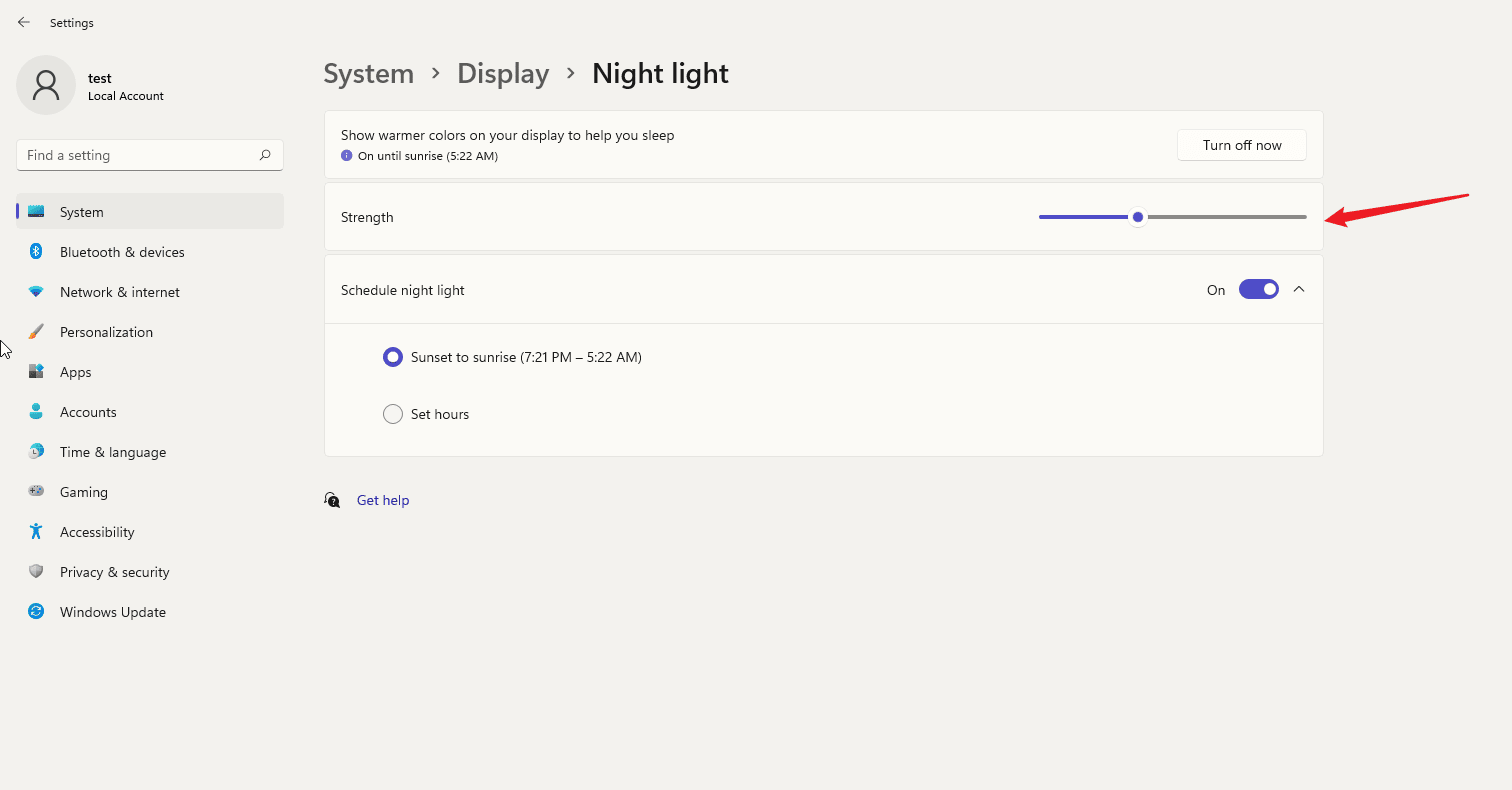
6. By sliding,  you can adjust the color temperature as per your requirement.

Limitations of the Night Light Mode

While the Night Light feature offers basic eye protection, it has certain limitations:

  1. Color Accuracy: Activating Night Light may alter color accuracy, which can be problematic for tasks requiring precise color representation, such as photo or video editing. Users may need to disable Night Light during such activities, leading to frequent manual adjustments.

  2. Single Color Temperature Mode: Night Light allows only one color temperature setting. However, different activities may require varying color temperatures. For instance, a lower color temperature might be preferred for reading, while a standard setting is suitable for gaming or watching videos. The inability to switch between multiple modes can be inconvenient.

  3. Lack of Hotkey Support: Adjusting the color temperature requires navigating through several settings, as Night Light does not support hotkeys for quick modifications.

  4. No Day-Night Variation: Night Light does not support setting different color temperatures for day and night, necessitating manual adjustments during sunrise and sunset.

Exploring Third-Party Alternatives: CareUEyes

To address the limitations of Windows 10 night light, you have the option to install a third-party software known as CareUEyes. CareUEyes functions similarly to the Windows 10 night light by filtering blue light through color temperature adjustments. However, what sets it apart is that it is not only compatible with Windows 10, but also with XP, Windows 7, and Windows 8.

CareUEyes is more user-friendly than the built-in Night Light feature

1. Multiple preset modes

CareUEyes has eight modes for you to choose from, you just need to experience each mode one by one when you use it for the first time, and you can find the most suitable model for you.

blue light filter windows 10


Download


2. Convenient and quick to adjust the color temperature

If the default mode doesn’t meet your satisfaction, you have the option to adjust the color temperature using the slider on the main interface of CareUEyes. Additionally, you can also customize the hotkeys to conveniently adjust the color temperature according to your preference.
blue light filter windows 10

Blue light filter windows 10

3. You can set different color temperatures for day and night

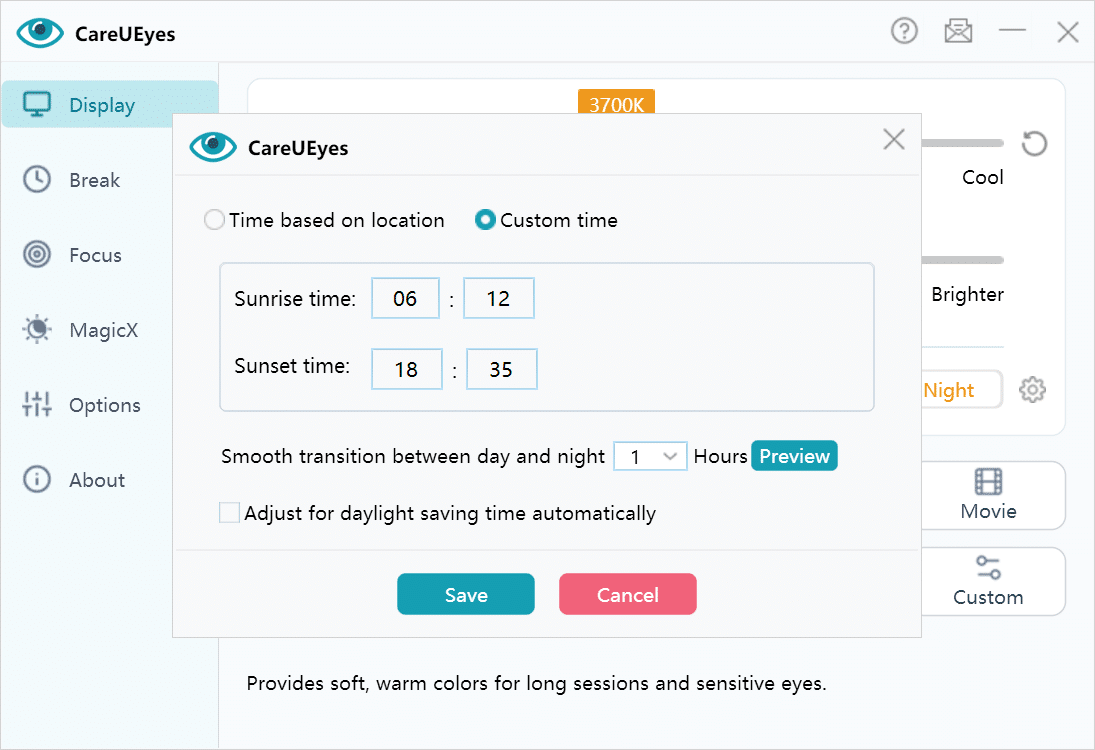
Simply activate the sunrise and sunset features of CareUEyes to customize color temperatures for day and night. CareUEyes will automatically adjust the color temperature according to the sunrise and sunset times you set.

blue light filter

4. Powerful customization rules

You have the option to customize the rules for entering specific modes while using an application. For instance, you can choose to pause the color temperature adjustment when using Photoshop, which activates the Pause mode. Similarly, you can activate the game mode when running CS: GO.

rule

5. More eye protection features

CareUEyes is more than just a blue light filter; it also has the capability to modify screen brightness, enhance focus, and provide reminders for regular breaks. This software offers multiple features for protecting the eyes.

Change brightness on Windows 10

timer
timer
take a break
take a break


Conclusion

In conclusion, while Windows 10’s night light feature is a step towards mitigating the impact of blue light, its limitations, such as color accuracy adjustments and a lack of customization options, make it less versatile for users with varied needs. For a more effective and user-friendly solution, CareUEyes emerges as a superior alternative. With its eight color temperature modes, convenient adjustments, and the ability to set different temperatures for day and night, CareUEyes not only provides enhanced eye protection but also offers additional features like screen brightness modification and break reminders. For a comprehensive and tailored blue light filter experience, I highly recommend users to opt for CareUEyes.

Download


blue light filter for laptop

Are you searching for the right blue light filter for your laptop?

You’re in the right place.
Next, I’ll introduce you to the best blue light filters for laptops.

What is a Blue Light Filter for Laptop?

A blue light filter for laptops can either be a physical barrier that blocks blue light (by filtering light in the 380nm to 495nm range), like screen protectors or anti-blue light glasses, or software that adjusts the display’s color temperature to reduce blue light emission.

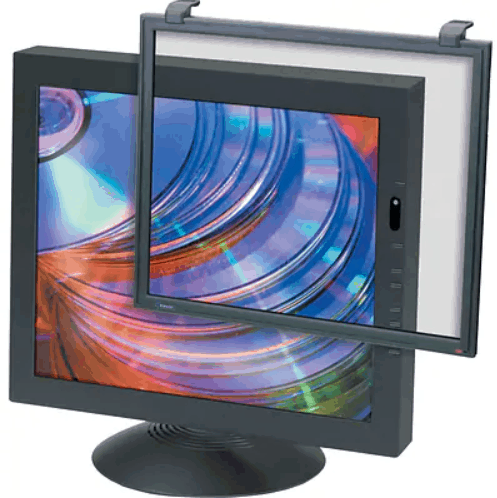
Blue Light Filter Screen Protectors for Laptop

blue light filter for laptop

A screen protector is a transparent plastic material that covers the display and reflects harmful blue light through a surface coating.

However, many screen protectors have issues with glare. If there’s a light source or window behind you, your computer screen may act like a mirror.
You should also be mindful of the screen protector’s transparency. If the transparency is too low, it can reduce the clarity of the display.

Additionally, some screen protectors don’t adhere well to the screen, which can cause blurriness and make text and images hard to see.

Since screen protectors are designed to fit specific laptop sizes, if you upgrade your laptop in the future, you may need to purchase a new one to match the new screen size.

Summary:

Screen protectors can cause reflection issues, need to fit the laptop’s display size, and may require replacement when upgrading to a new laptop.

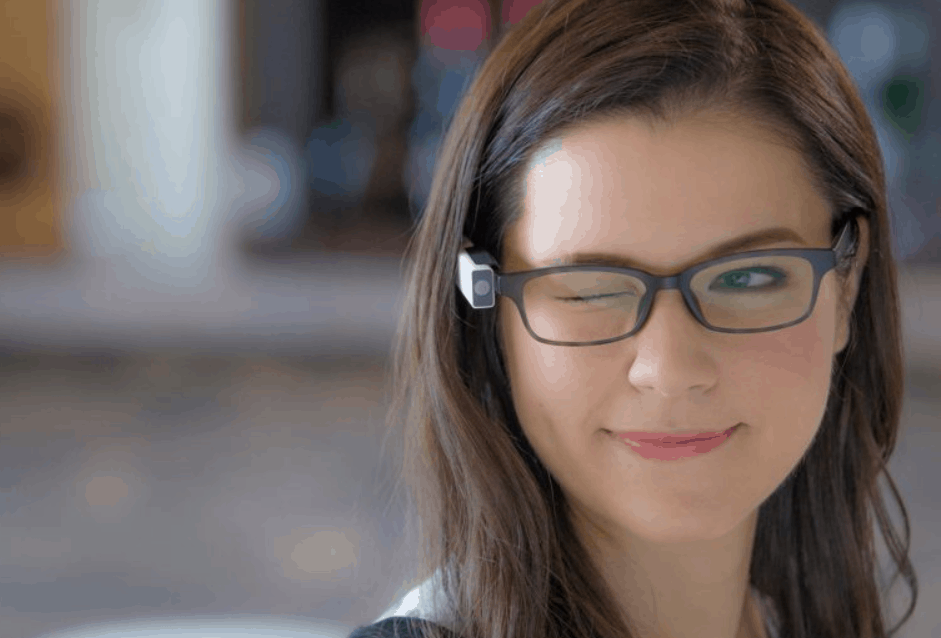
Blue light filter glassesblue light filter for laptop

Blue light filter glasses block harmful blue light by either coating the lens surface or using a color-bleeding method. This process involves adding yellow, the complementary color to blue, into the lens material to absorb blue light, effectively reducing blue light exposure.

A good physical blue light filter should mimic natural light. The blue light blocking rate shouldn’t be too high or too low. If it’s too low, it won’t be effective—but if it blocks too much blue light, it can interfere with your circadian rhythm.

Excessive blue light filtering can also cause significant color distortion and lead to visual fatigue. Ideally, the blue light blocking rate should be between 60% and 70%.

One downside of physical blue light filters is that they can be expensive and are often made from materials that aren’t very durable, meaning you might need to replace them frequently.

Using physical filters also impacts screen colors, especially for images. Another limitation is that the blue light filtering effect can’t be adjusted. If you need high color accuracy for certain tasks, this can be frustrating.

Software applications don’t have this issue, as they allow you to adjust the blue light blocking rate to your needs.

SUMMARY
Expensive and easily damaged, Cannot adjust the blue light filter value


If you want to compare the blue filter application with a physical blue light filter (such as glasses), then you will find that a physical blue light filter will significantly reduce the image quality and color quality, and the effect of filtering blue light is not Regulated, far from being like a class of applications.


Blue light filter software for laptop

blue light filter


CareUEyes is one of the most popular blue light filter apps for laptops.

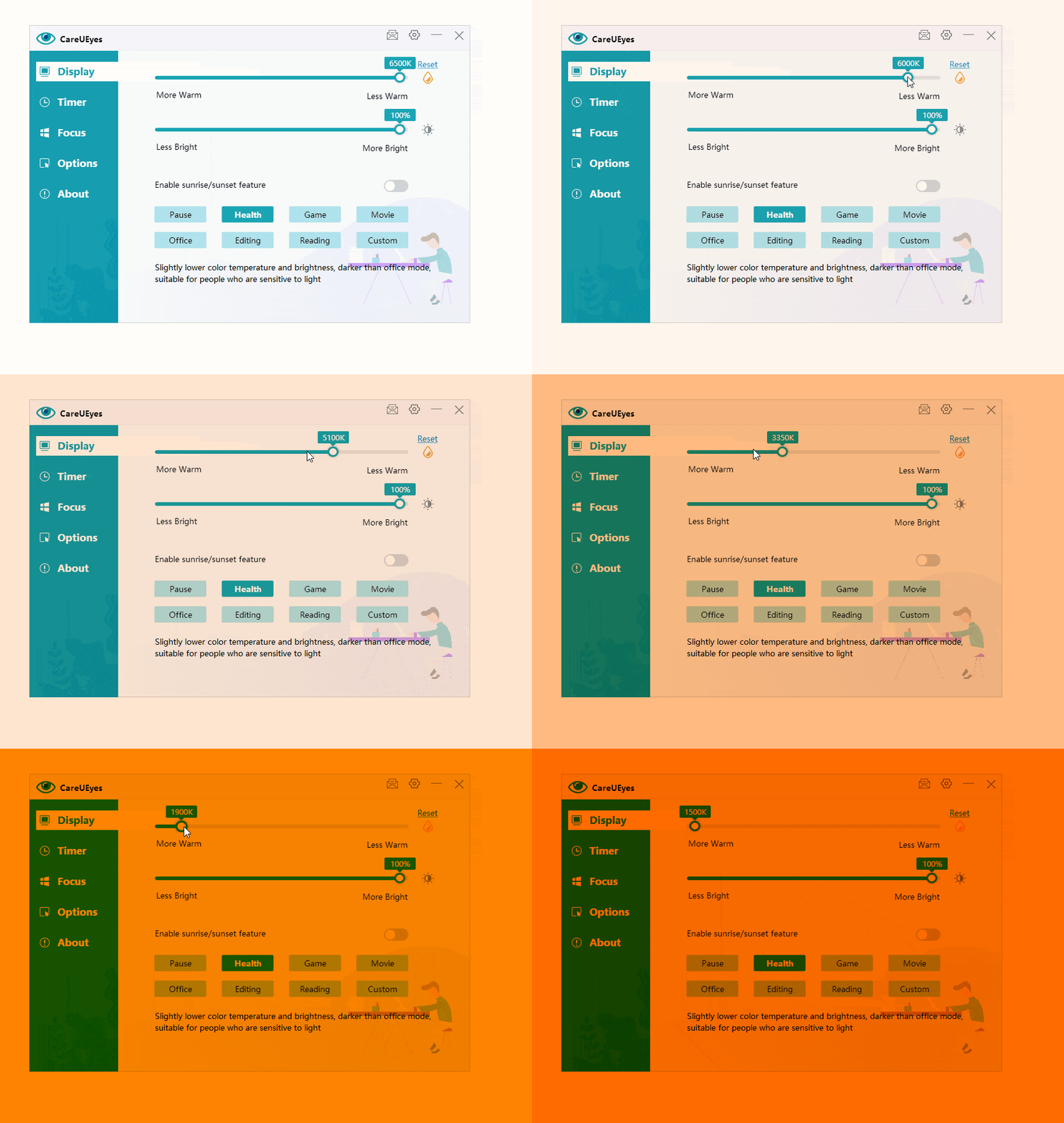
You can adjust the amount of blue light emitted from your screen by clicking or dragging the color temperature slider. Moving the slider to the left reduces blue light, making the screen appear redder and dimmer. Moving it to the right increases blue light, making the screen look bluer and brighter.

Like most blue light filter apps, CareUEyes reduces blue light, eases eye strain, helps prevent eye issues, and can be used at night to minimize blue light’s impact on sleep.

With CareUEyes, users can work comfortably for extended periods without putting excessive strain on their eyes or body.

Download

Unlike physical screen filters, CareUEyes works on multiple monitors, regardless of their size or configuration, eliminating the need to buy hardware like screen filters.

CareUEyes automatically adjusts the blue light blocking rate based on sunrise and sunset times. Reducing blue light exposure at night compared to daytime helps promote better sleep.

blue light filter for laptop

Physical blue light filters cannot adjust the amount of blue light filtering at will.

CareUEyes provides eight preset modes, you can switch between pause, health, game, movie, office, editing, movie, reading, and customization at will.

Each of these options provides a slightly different experience for the user and changes the brightness of the display to suit a specific task or activity. If you are not satisfied with the preset mode, you can also modify the preset mode.

    • Health model

Health mode is suitable for people who are sensitive to light. This mode has the lowest color temperature among the eight preset modes, that is, the model with the strongest blue light filtering effect.

    • Game mode

Generally, people have higher requirements for the realism of the color of the game screen when playing games. Under the premise of not affecting the game experience, this mode makes subtle adjustments to the color temperature and screen brightness.

    • Movie mode

The display of videos and movies is usually most affected by the blue light filter. Fortunately, the movie mode setting on this blue light filter is very good. When watching movies on a laptop late at night, the color of the screen will not be seriously distorted, and there will be an unsightly orange glare.

    • Office mode

This mode is suitable for daily office use. Working in this mode, your eyes will not get tired easily.

    • Edit mode

This mode is very useful for programmers who need to work at night, because it inverts the color of the screen, which can remove a large area of white background, thereby greatly reducing blue light.

    • Reading mode

The reading mode makes all colors black and white like electronic ink devices, suitable for reading.

    • Custom mode

Users can customize a mode and freely change the color temperature and brightness.

SUMMARY
The price is cheap, the blue light filter value can be adjusted automatically, and it can be used on multiple laptops


Conclusion

There are many options for blue light filters for laptops, blue light filter screen protectors and blue light glasses have their own advantages and disadvantages, but blue light filter software (CareUEyes) is simpler and more practical. It can provide you with the greatest value at the lowest cost.

Download

blue light filter for windows 11

The increasing use of digital devices has raised concerns about exposure to blue light, also known as high-energy visible (HEV) light, which is emitted by screens and can negatively impact our health.

As a result, using blue light filters has become essential in today’s digital age.

This article examines the benefits of using a blue light filter on your PC, with a close look at CareUEyes, one of the most popular software options available.

In addition, it provides instructions on enabling blue light filtering in Windows 11, covering both the built-in Night Light feature and a more effective alternative: CareUEyes.

Windows 11 Night Light: Blue Light Filter for Windows 11

The latest version of Windows, Windows 11, includes a feature called Night Light.

This feature is designed to reduce the amount of blue light emitted from your screen, which can cause eye strain and interfere with your sleep patterns.

Night Light works by adjusting the screen’s color temperature, decreasing blue light and boosting warmer tones, resulting in a display with a redder, warmer tint.

This helps protect your eyes and may improve your sleep cycles. Users can also customize and schedule the Night Light feature to suit their preferences.

How to Enable the Night Light Feature

To turn on the blue light filter in Windows 11, follow these steps:

  1. Click the Windows icon on the taskbar, then select the Settings gear icon. (You can also open the Settings app with the shortcut: Win + I)
  2. When the Windows Settings menu appears, click on System.


3. Click on the “Display” option.


4. Click on the night light settings.

5. Toggle the night light switch to On.


6. By sliding,  you can adjust the color temperature as per your requirement.

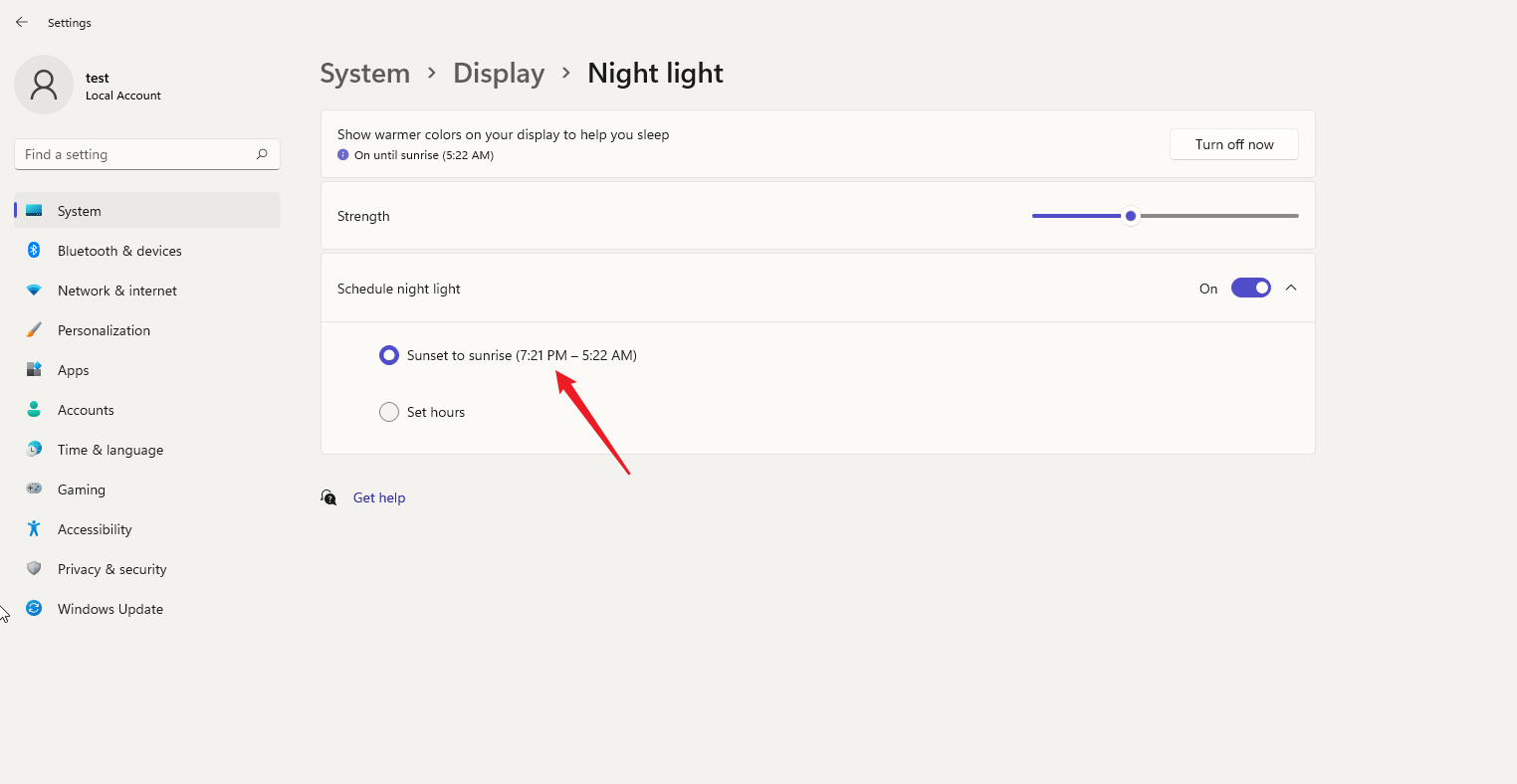
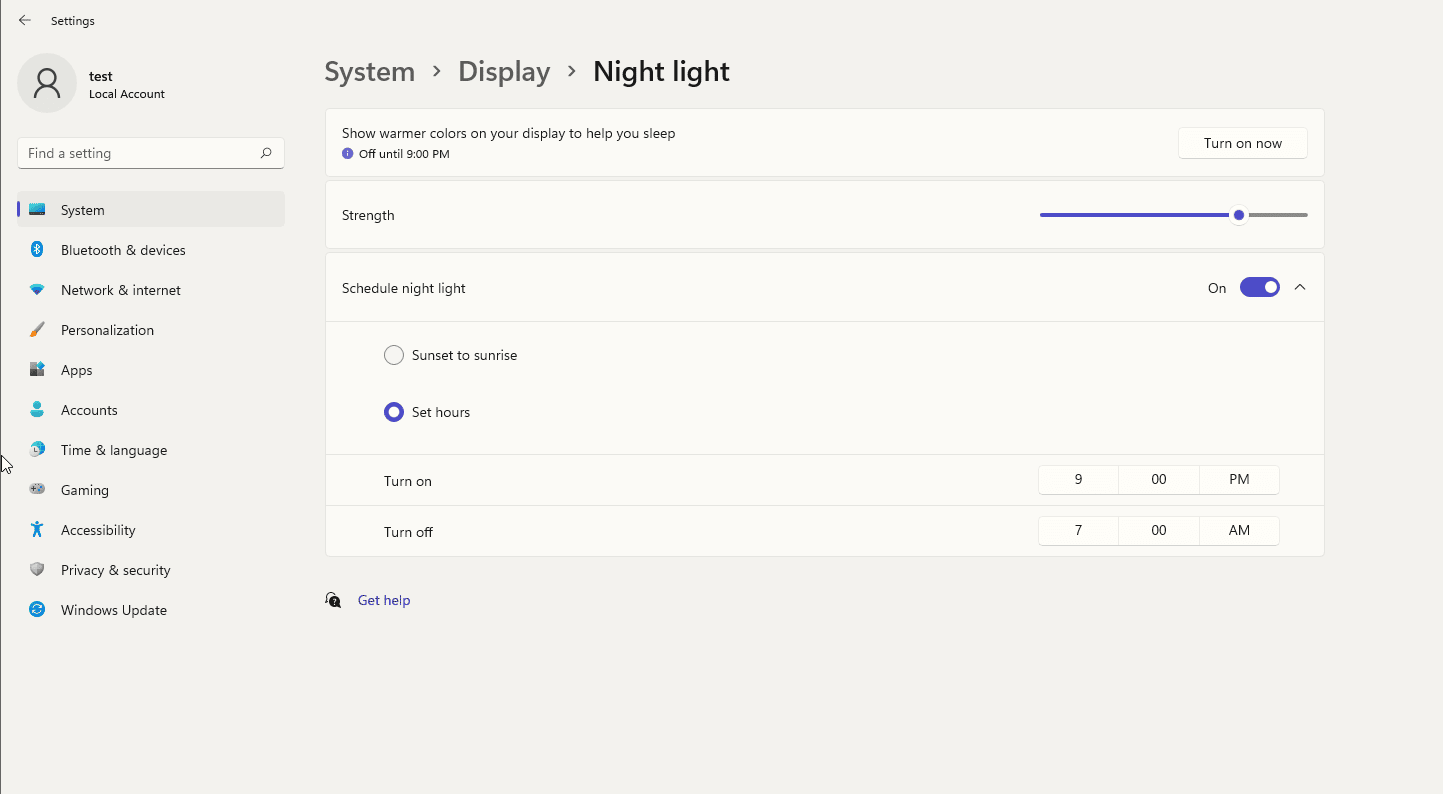
Schedule night light

7. If you want to schedule the night light to turn on and off automatically at specific times, toggle the Schedule night light switch to On and click on the Set hours button.


8. Modify the night light turn on and turn off time as per your requirement.

9. If you need to turn on and off the night light automatically according to the local sunset and sunrise time, toggle the Schedule night light switch to On and click on the Sunset to sunrise button.


Disadvantages of Night Light Mode

  1. Color Accuracy Issues
    The first drawback of Windows 11’s Night Light mode is that it affects color accuracy. If you’re using Night Light for the first time, your eyes might need some time to adjust, but after a while, they’ll adapt. However, if you’re editing videos or photos, you may need to turn off Night Light to maintain accurate colors. Constantly switching Night Light on and off can become a hassle.
  2. Limited to One Color Temperature
    The second downside is that Windows 11 Night Light only lets you set one color temperature. Different activities might require different color settings; for instance, people might prefer a lower color temperature for reading emails or browsing the web but wouldn’t want it to affect the screen when gaming or watching movies. It would be more convenient if Night Light allowed multiple color temperature presets for different scenarios.
  3. No Hotkey Support for Adjusting Color Temperature
    Another disadvantage is that Night Light mode doesn’t support hotkeys for quickly adjusting the color temperature. Typically, it takes about six steps to change the temperature, which can be inconvenient if you need to adjust it frequently.
  4. No Separate Day and Night Settings
    Windows 11’s Night Light also doesn’t allow different color temperature settings for day and night. You have to manually adjust the color temperature at sunrise and sunset.For those looking to improve sleep, it makes sense to turn on Night Light only after sunset. However, for users who want to protect their eyes from blue light during the day, it’s necessary to keep Night Light on, even though you typically don’t need as much blue light filtering during the day as you do at night. Having separate settings for day and night would be more practical.

A Better Third-Party Alternative

To overcome these limitations, you can install third-party software like CareUEyes. Like Windows 11 Night Light, CareUEyes adjusts color temperature to filter blue light, but it works on older versions of Windows, including XP, Windows 7, and Windows 8.

CareUEyes: Easier to Use Than Night Light

  1. Eight Built-In Color Temperature Modes
    CareUEyes includes eight preset modes, each designed for different scenarios. When using it for the first time, you can explore each mode to find the one that best fits your preferences and screen habits.

blue light filter windows 10


Download


2. Convenient and quick to adjust the color temperature

If you are not satisfied with the default mode, you can either adjust the color temperature through the slider on the main interface of CareUEyes or customize the hotkeys to adjust the color temperature.

blue light filter windows 10

Blue light filter windows 10

3. You can set different color temperatures for day and night

You just need to turn on the sunrise and sunset features of CareUEyes to set different color temperatures for day and night, and CareUEyes will automatically adjust the color temperature for you at the sunrise and sunset time you set.

blue light filter

4. Powerful customization rules

You can customize the rules to enter the specified mode when using an application, for example, you can specify to pause the color temperature adjustment when using Photoshop, i.e. enter Pause mode, and enter the game mode when running the game CS: GO.

rule

5. More eye protection features

CareUEyes is not just a blue light filter, it can also adjust the screen brightness, focus, and remind to take regular breaks, it is a multi-feature eye protection software.

Change brightness on Windows 10

timer
timer
take a break
take a break


Conclusion

The Windows 11 night Light is a simple blue light filter, if you need a more powerful and easy-to-use blue light filter with more comprehensive protection for your eyes, recommend you to install CareUEyes.

Download


Yellow screen keep your eyes healthy

Have you noticed a trend where more and more people are opting for warmer tones on their computer screens, some even leaning towards a yellowish hue? Is there any advantage to having a warmer screen for eye comfort?

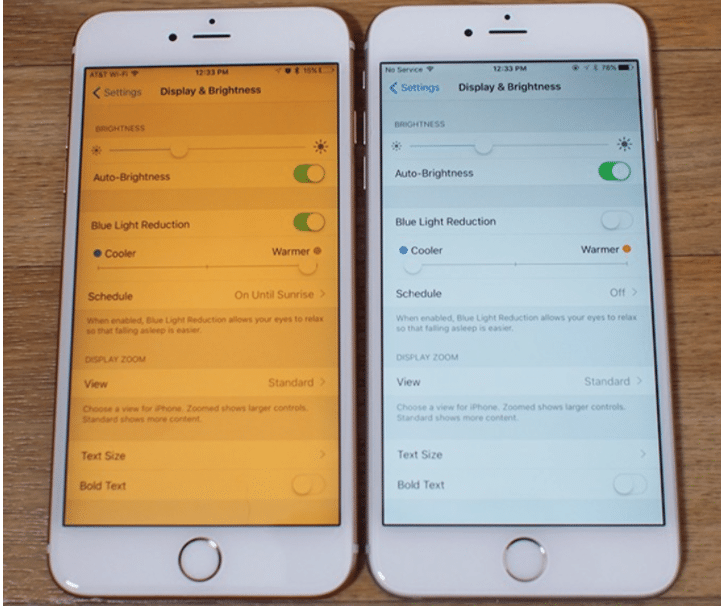
One example is Night Shift on iPhones, which adjusts the screen’s color temperature to a warmer, more yellow tone.

night shift

The Night Light feature, present in both Windows 10 and Windows 11, modifies the screen’s color temperature to a warmer yellow, providing eye protection.

However, there are other software options for eye protection on Windows, such as CareUEyes, which also allows users to adjust the color temperature.

yellow-screen

Download

Is a Yellow Screen Better for Your Eyes?

A yellow screen effectively reduces blue light emitted by the screen, alleviates eye strain, and can even help improve sleep quality.

If you’re unfamiliar with the dangers of blue light, you might not see the necessity of using a yellow-tinted screen.

What is Blue light?

Blue light is high-energy visible (HEV) light with a wavelength between 400nm and 480nm. It has a short wavelength and is part of the visible light spectrum.

Why is blue light Harmful?

blue light cause eyestarin

Blue light can penetrate the lens directly to our retina, causing the atrophy or even death of retinal pigment epithelial cells. The death of light-sensitive cells will result in decreased vision or even complete loss of vision. This damage is irreversible.

Blue light can also cause age-related macular degeneration, which can lead to permanent vision loss.

The lens of the human eye will absorb part of the blue light and gradually become cloudy to form cataracts, and most of the blue light will penetrate the lens, especially children’s lenses are clearer and cannot effectively resist the blue light, which is more likely to cause macular degeneration and cataracts.

Due to the short wavelength of blue light, the focus point does not fall on the center of the retina, but a little bit forward from the retina. To see clearly, the eyeballs will be in a state of tension for a long time, causing visual fatigue. You may experience symptoms such as eye fatigue, headache, blurred vision, dry eyes, neck and shoulder pain.

Blue light inhibits the production of melatonin in the body. Melatonin is a hormone produced by the pineal gland, which helps your body know when to sleep and wake up. Usually, at night, your body produces more melatonin. Once the sun starts to go down, the level of melatonin secretion starts to rise. This indicates that the body is ready to fall asleep. When the sun rises, the level of melatonin secretion starts to decrease and the body gradually began to wake up. Excessive exposure to blue light at night and insufficient melatonin secretion in the human body will keep people awake and unable to fall asleep, which causes the problem of insomnia.


Why Does a Yellow Screen Reduce Blue Light?

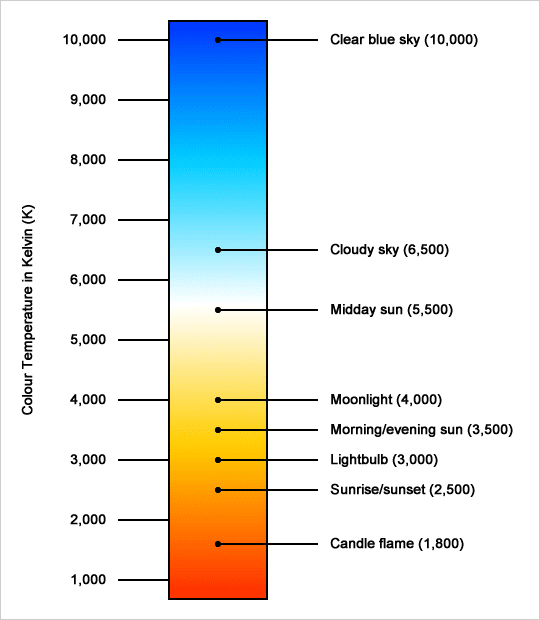
You need to know the concept of color temperature first. The concept of color temperature is based on an imaginary absolute black body, which emits different colors of light when heated to different temperatures, and its objects appear in different colors. Just like when an iron block is heated, the iron block first turns red, then yellow, and finally white. When heated to a certain temperature, the spectral component of the light emitted by the black body is called the color temperature at this temperature, and the unit of measurement is “K” (Kelvin).

If the light emitted by a light source has the same spectral components as the light emitted by a black body at a certain temperature, it is called a certain K color temperature.

For example, some common light sources and related parameters of color temperature: tungsten lamp 2700K; summer noon sun 5500K; cloudy 6500-7500K; candlelight 2000K and so on.

colour-temperature


The color temperature calibrated by this method is exactly the opposite of what the general public thinks of “warm” and “cold”. For example, people usually feel red, orange, and yellow are warmer, white and blue are colder, but in fact, red has the lowest color temperature, and then gradually increases are orange, yellow, white, blue, and blue is the highest color temperature.

A light source with a high color temperature appears blue and contains more blue light. A light source with a low color temperature appears reddish-yellow and contains less blue light.

The color temperature of the screen only indicates the spectral components of the light source, not the luminous intensity (the brightness of the screen indicates the luminous intensity of the screen).

Therefore, if we want to reduce the total amount of blue light emitted by the screen, one way is to reduce the blue light component in the spectrum, that is, lower the color temperature and adjust the screen to a yellowish tint. Another method is to reduce the luminous intensity of the screen, that is, to dim the brightness of the screen.

Should You Lower Color Temperature and Brightness as Much as Possible?

Although reducing the color temperature and brightness of the screen can help us reduce the harmful blue light, the color temperature and brightness of the screen are not as low as possible. Because the color temperature is too low, the screen will turn red, which will make the screen difficult to see. Too low screen brightness will also make the screen difficult to see, increasing eye fatigue. We need to keep the color temperature and brightness of the screen within an appropriate range.

How to Find the Right Color Temperature and Brightness?

CareUEyes has the function of adjusting the color temperature and the screen brightness. It designs eight preset modes according to the most commonly used scenes in people’s daily life. The eight preset modes are health, games, movies, office, editing, reading, customization, and pause modes.  They have preset suitable color temperature and brightness so that you can quickly find the color temperature and brightness that suit you.

8 modes


The healthy mode has the lowest color temperature among all modes, and the screen looks slightly yellow. Your eyes may not adapt well at first, but soon you will find that such a screen looks softer, your eyes will no longer be tingling, dry, and tired.

Although blue light is harmful to the eyes, proper blue light irradiation is beneficial to people during the day. Blue light can keep people awake and have the energy to finish work or study. Therefore, if you are not a person with extremely sensitive eyes, you only need to filter a small part of the blue light during the day and restore the light of the computer screen to light similar to daylight.

But at night, blue light becomes very harmful, you need to filter more blue light to prevent sleep from being disturbed by blue light.

According to people’s different needs for blue light day and night, CareUEyes provides sunrise and sunset functions. Compared with the sunrise and sunset, the color temperature and brightness after sunset are lower.

You only need to turn on the sunrise and sunset function, CareUEyes will automatically help you change the color temperature and brightness at sunrise and sunset.

blue light filter


Download


Conclusion: Protect Your Eyes and Sleep Better with a Yellow Screen

Switching to a yellow screen or using blue light filter software is one of the easiest ways to reduce digital eye strain, improve focus, and promote better sleep—especially if you work late into the night. By reducing blue light exposure, your eyes stay more comfortable, and your body can maintain a healthier sleep-wake cycle. Tools like CareUEyes make it easy to apply these changes with just a few clicks. Start protecting your eyes today and enjoy a more relaxing screen experience—day and night.

How To Enable or Disable Night Light in Windows 10

Night Light, introduced in the Windows 10 Creators Update, reduces blue light emissions by adjusting your screen to warmer colors. This makes it easier on your eyes and can help improve sleep quality. Here’s how to turn Night Light on or off in Windows 10.

Enable or Disable Night Light in Windows 10

  1. Press the Windows + I keyboard shortcut to open the Settings app, and then click on the System icon.
  2. Select the Display tab on the left side. You can then toggle the “Night light” button to On to enable it, or Off to disable it.
  3. If you enable the Night Light feature, you can configure it further by clicking the “Night light settings” link under the toggle.There, you can adjust the color temperature by dragging the slider and set Night Light to activate when the sun sets, automatically disabling it at sunrise. Once configured, you can click the “Turn on now” button to immediately enable the Night Light feature.

Fix: Night Light Option is Greyed Out

If you find that the Night Light toggle is unavailable (greyed out), follow these steps to resolve the issue:

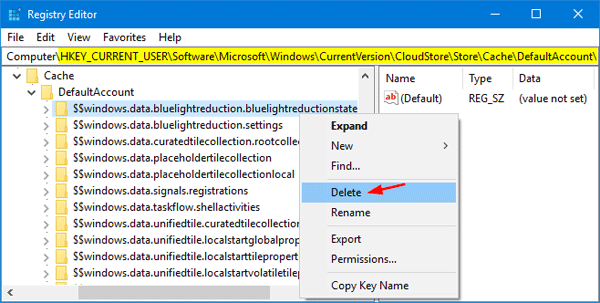
  1. Open the Registry Editor and navigate to the following key:
    HKEY_CURRENT_USER\Software\Microsoft\Windows\CurrentVersion\CloudStore\Store\Cache\DefaultAccount
  2. Expand the DefaultAccount key, then right-click and delete the following two subkeys:$$windows.data.bluelightreduction.bluelightreductionstate
    $$windows.data.bluelightreduction.settings

  3. When you’re done, close Registry Editor and reboot your computer. Open the Settings app and you should then be able to turn Night Light on or off.

    Use CareUEyes as a More Powerful Alternative to Night Light

If Night Light is not working properly or its features feel too limited, you may want to consider a more advanced solution—CareUEyes.

CareUEyes is a professional blue light filtering software that offers more control, better customization, and richer features compared to Windows 10’s built-in Night Light. While Night Light only lets you adjust the color temperature within a narrow range, CareUEyes gives you precise control over both color temperature and brightness, helping reduce eye strain more effectively, especially during long hours of screen use.

 Night Light in Windows 10
Night Light in Windows 10

In addition to basic blue light filtering, CareUEyes includes:

  • 8 preset modes tailored for different tasks like Reading, Office work, or Gaming

  • Auto-adjustment based on sunrise and sunset, with the option to manually set your own schedule

  • A built-in break timer to remind you to rest your eyes regularly

    timer
    timer
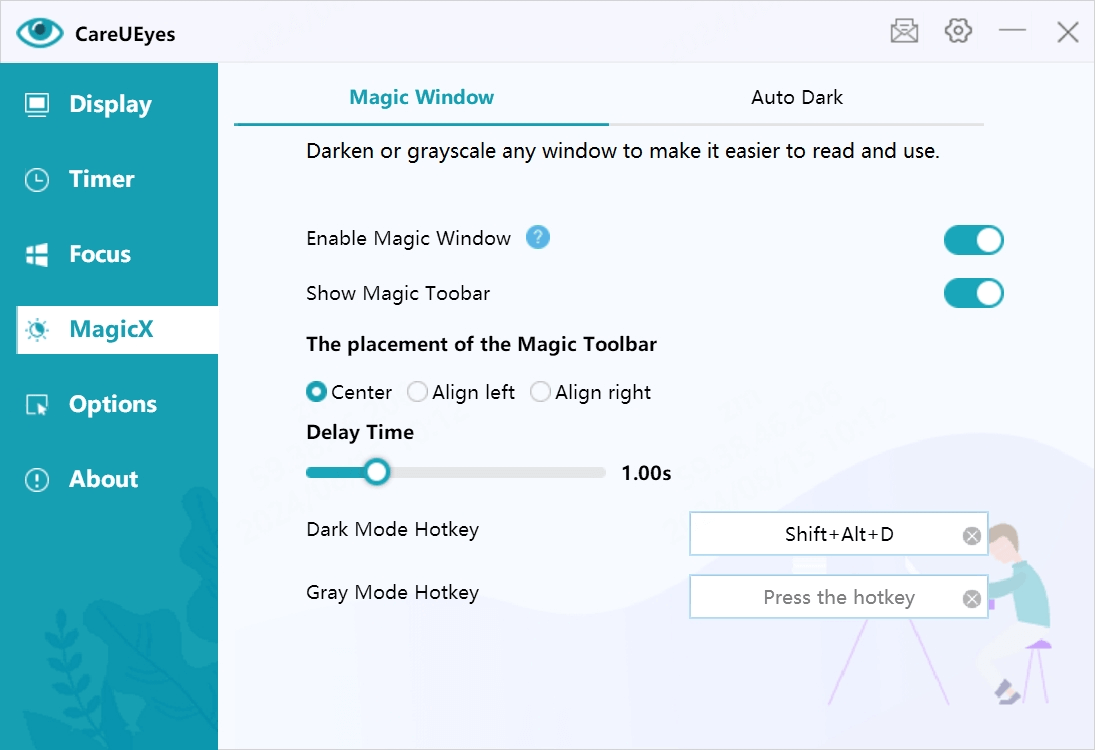
  • Focus and MagicX features that can dim or grayscale specific windows to reduce distractions

Unlike Night Light, which is only available on Windows 10 and above, CareUEyes supports Windows 7, 8, 10, and 11, making it a versatile solution for all users.

If you’re looking for a more effective way to protect your eyes and improve screen comfort, give CareUEyes a try.

Download CareUEyes now and experience a smarter alternative to Night Light.

Download

Blue light filter for computer screen

Are you searching for a blue light filter for your computer screen? You might be aware of some of the risks associated with blue light.

Blue light emitted by computer screens can significantly affect both eye health and sleep quality. Prolonged exposure to blue light can lead to digital eye strain, resulting in symptoms such as dryness, irritation, and difficulty focusing. Moreover, blue light interferes with the production of melatonin, the hormone responsible for regulating sleep. This disruption can make it harder to fall asleep and maintain a healthy sleep cycle, potentially leading to fatigue and decreased overall well-being.

eyestrain

What is a blue light filter for computer screen?

A blue light filter for computer screens is a technology designed to reduce the amount of blue light emitted by digital devices. Blue light is known to contribute to eye strain and can disrupt sleep patterns, making it important to manage exposure, especially during evening hours. Blue light filters can be software-based, allowing users to adjust the screen’s color temperature through settings, or hardware-based, involving physical screen protectors that block blue light. By using a blue light filter, users can create a more comfortable viewing experience, reduce eye fatigue, and promote better sleep by minimizing the blue light exposure before bedtime.

How does a blue light filter work?

Software-based blue light filters work by adjusting the color temperature of your computer screen to reduce the amount of blue light emitted. These filters typically use algorithms to shift the display’s colors towards warmer tones, such as amber or orange, especially during evening hours. This shift not only decreases blue light exposure but also enhances visual comfort, making it easier on the eyes. Many of these filters can be customized, allowing users to set specific times for activation and adjust the intensity according to their preferences, ultimately promoting better eye health and improved sleep quality.

Hardware-based blue light filters work by physically blocking or absorbing blue light before it reaches your eyes. These filters are typically applied as screen protectors or overlays that are placed directly on the display. They use specialized materials designed to filter out blue light wavelengths while maintaining the clarity and brightness of the screen.

Recommend a great software-based blue light filter for screen:CareUEyes


CareUEyes is a well-established blue light filtering software, first released in 2017.Over the past seven years, it has been continuously updated and improved, gaining a large and loyal user base with excellent reviews. The software offers several useful features, including blue light filtering to reduce eye strain, brightness adjustment for a more comfortable viewing experience, and break reminders to promote healthy screen habits. Users can easily customize the settings to suit their needs by selecting different modes or manually adjusting the screen’s color temperature and brightness. CareUEyes is user-friendly and designed to help protect your eyes and improve your overall comfort while using digital devices.


Download

The eye protection benefits of CareUEyes are widely praised by users for their noticeable impact.

In the sevnen years since CareUEyes was launched, we have received many emails from people who are sensitive to light in our back-end feedback.

They reported that after using CareUEyes, the eyes become relaxed and comfortable immediately, and they are no longer bothered by light sensitivity when using the computer and can work for a longer time.

We have just opened Facebook, and we have received many good comments from users.You can check out user reviews of CareUEyes here:https://www.facebook.com/CareUEyes/reviews.

facebookreview


Adjustable blue light blocking rate

sunrise-sunset
CareUEyes filters blue light by adjusting the color temperature, because the higher the color temperature of the computer screen, the more blue light is emitted, and vice versa.

Therefore, with CareUEyes you can adjust the blue light blocking rate arbitrarily (but the physical filter device cannot adjust it).

Why do I emphasize this point? Because it is very useful.

In the daytime, the color temperature should match the external light, and 5000K-5500k is recommended. This can eliminate the damage to the eyes caused by the accumulation of blue light energy, and at the same time, there is an appropriate amount of blue light to keep people awake during the day and be more energetic to deal with this day’s things.

At night, the color temperature should be set to match the light in your room, and a low temperature of 3700K-5000K is recommended. At this time, we don’t need blue light to suppress melatonin secretion, and the body does not need to be in a state of excitement. The beneficial blue light during the day has been transformed into harmful blue light at this time.

On the contrary, we need to secrete melatonin to a certain concentration, which will help us fall asleep and ensure good sleep quality.

Through the comparison of blue light intake at different time periods during the day and night, the changes in the concentration of melatonin can be better adjusted, and the quality of night sleep can be further improved.

As long as you turn on the sunrise and sunset functions, CareUEyes can automatically switch between the two modes for you according to the time of sunrise and sunset.

Eight preset modes allow you to easily and quickly filter blue light.

CareUEyes provides eight preset modes, you can switch between pause, health, game, movie, office, editing, movie, reading, and customization at will.

Each of these options provides a slightly different experience for the user and changes the brightness of the display to suit a specific task or activity.

If you are not satisfied with the preset mode, you can also modify the preset mode.

Adjustable screen brightness provides further protection for your eyes.

CareUEyes has the function of adjusting the brightness of the screen to protect the eyes more comprehensively.

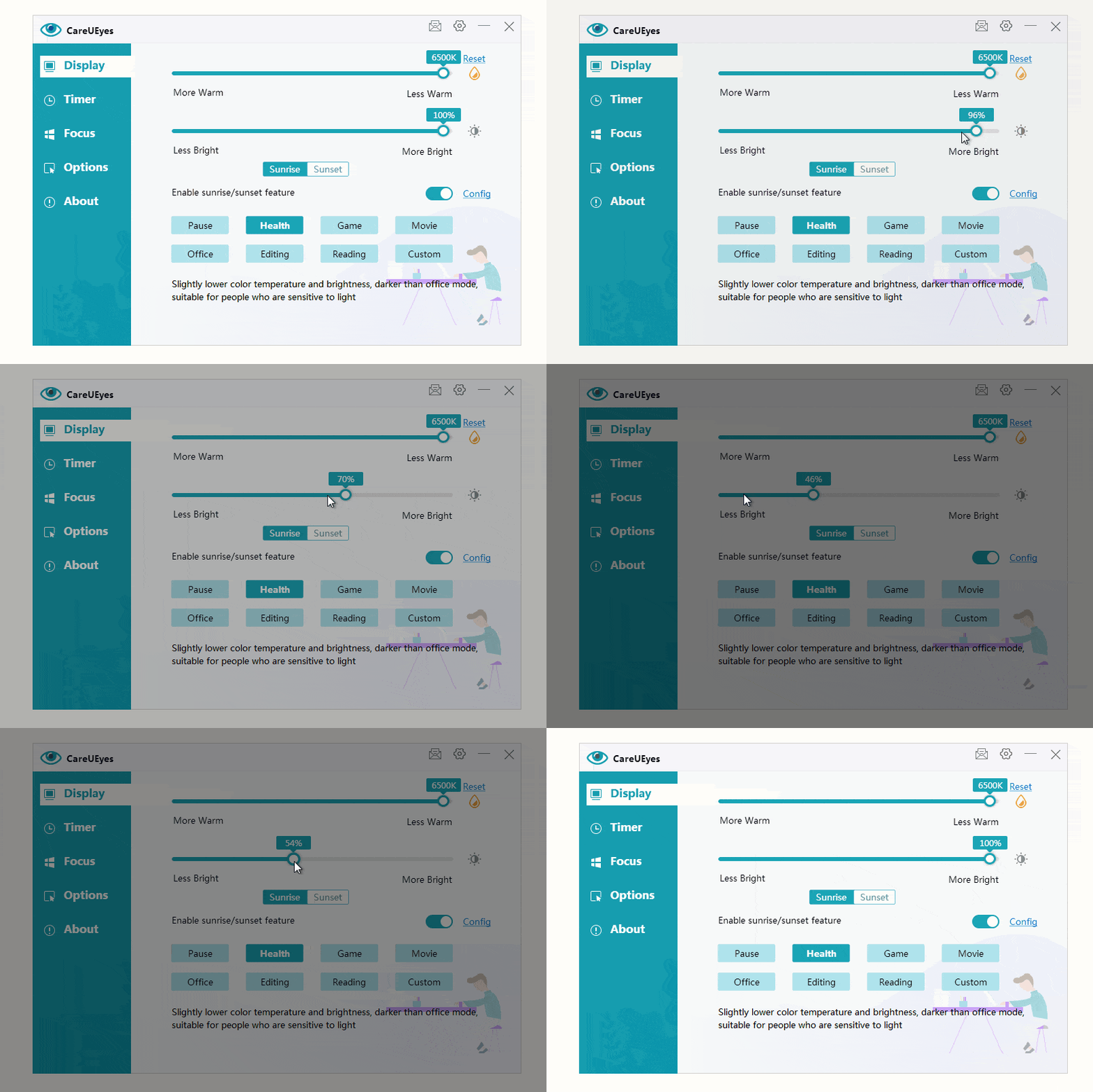
For many monitors, adjusting the screen brightness is very troublesome. Using CareUEyes can easily adjust the screen brightness. Not only can you adjust the brightness by dragging the progress bar on the main interface, but you can also use the hotkey to adjust it more conveniently.

Timed reminders for breaks are essential for eye protection

Rest-Notify
Regular rest is an effective way to prevent eye fatigue. The famous 20-20-20 rule: Every 20 minutes, look at an object 20 feet away for 20 seconds.

If you are busy with work, you may not have time to stop and rest frequently, because this may reduce your work efficiency.

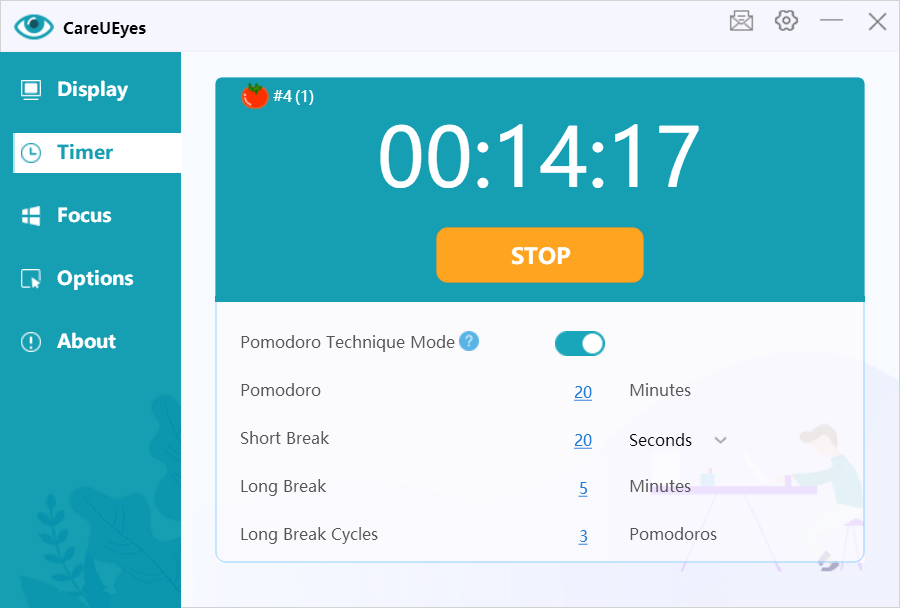
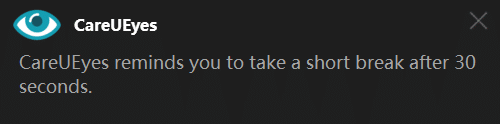
CareUEyes reminds you to rest for 5 minutes every hour by default, but the interval and duration of rest can be customized.

This is not a simple timer, it can intelligently detect your use of the computer.
For example, if you leave the computer midway, the timer will automatically pause. After a certain period of time, the timer will restart when you return to the computer.

Many people, because of their busy work or minors with low self-discipline, know that they cannot leave the computer to take a break when it is time for a break.

For the above-mentioned people, you can use CareUEyes’ forced rest mode and turn on the password protection function, so that you will not miss the rest.

CareUEyes is a product you will love after using it.

Download